Create a TikTok chatbot
Chatbots are automated assistants that can share helpful tips, capture leads, and process orders automatically. When hosted on social media platforms like TikTok, they can also help you reply to messages instantly and keep your audience involved.
In this article, we talk about how to create your first chatbot on TikTok.
TikTok chatbot features
Automated interactions. Chatbots can reply to messages 24/7 and send campaigns, event announcements, or updates. Create dedicated chatbot flows with your preferred commands to help resolve specific subscriber issues.
Personalization. Use the Filter element to branch your chatbot flow based on variables, number of subscribers, sources, and subscriptions. You can also add personal data using variables.
Flow triggers. Set a specific trigger to launch your flow, for example, when users send specific keywords.
AI-powered features. Integrate ChatGPT or other AI models so that your chatbot can answer free-form questions, not just scripted ones. The AI Agent element in your flow can guide the conversation along various branches depending on the context.
External queries and integrations. Your chatbot can make API calls to your system, retrieve data points, and generate replies based on them.
Switch to a TikTok business account
To add a TikTok chatbot, you need a public business account registered outside the EU, EEA (European Economic Area), and the United States.
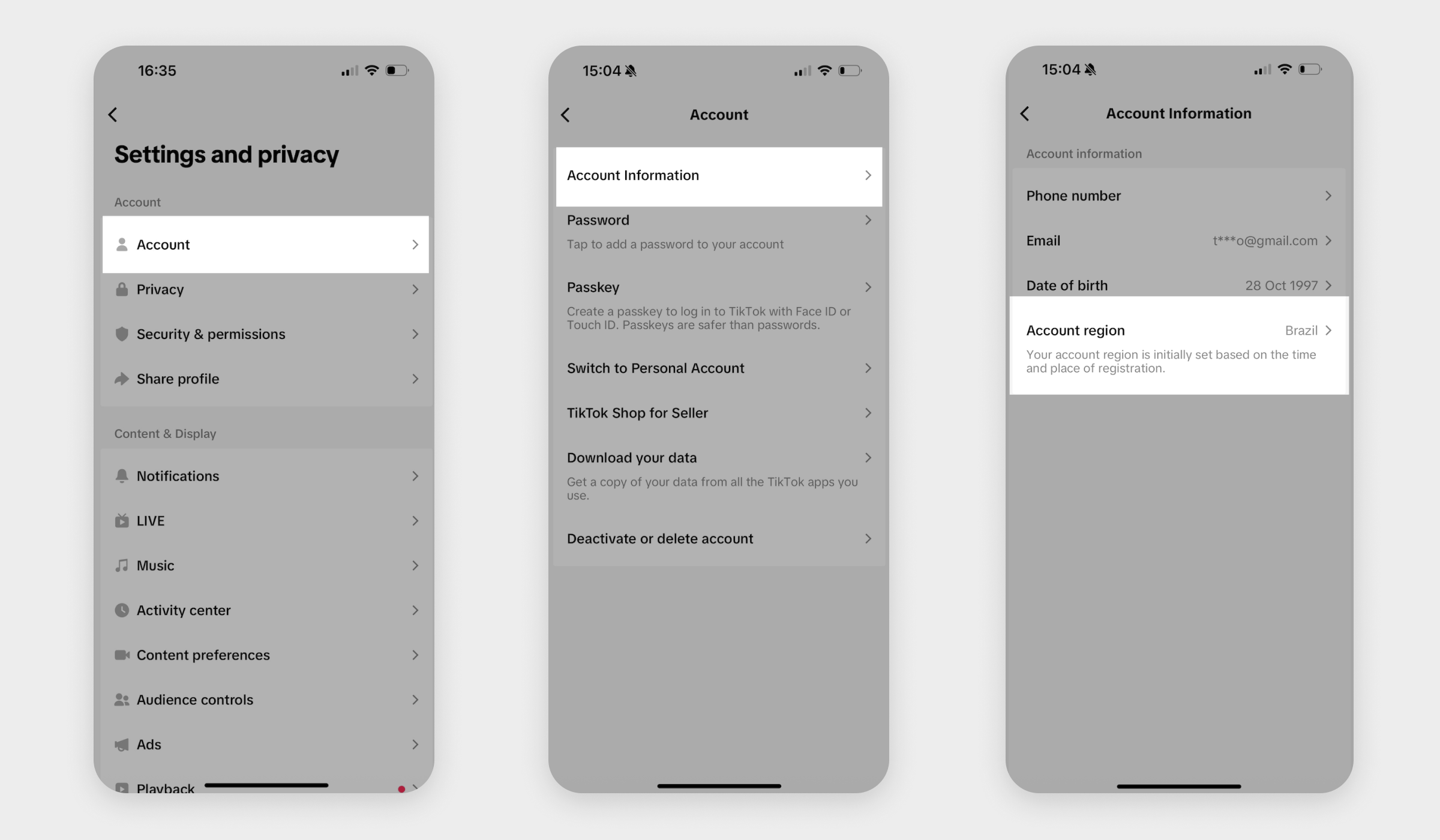
You can find your account region in Settings and privacy > Account > Account information > Account region.
If you already have a business account, skip this step and proceed to the next section.
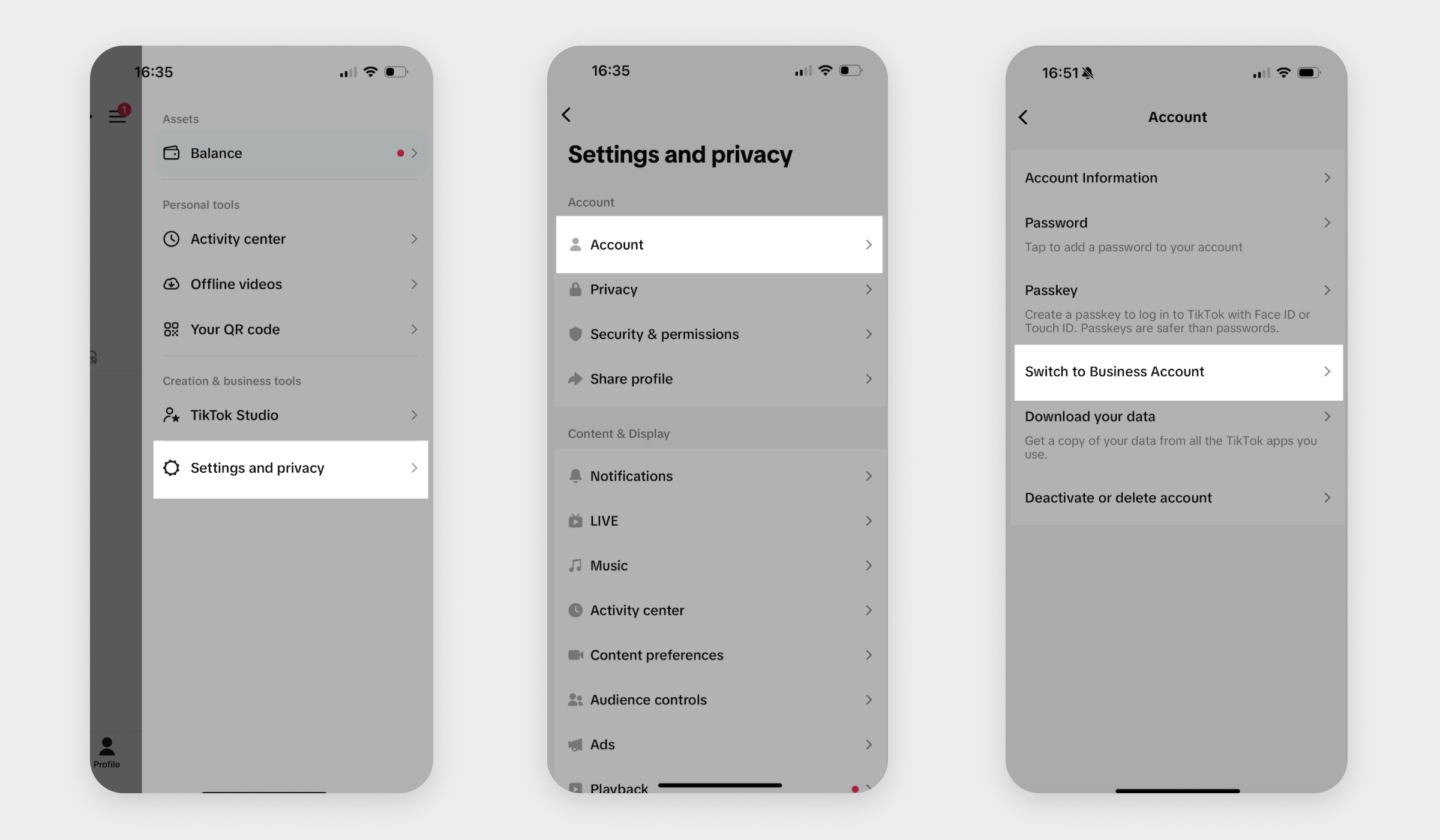
To switch to a business account, go to Settings and privacy > Account. Then, click Switch to Business Account.
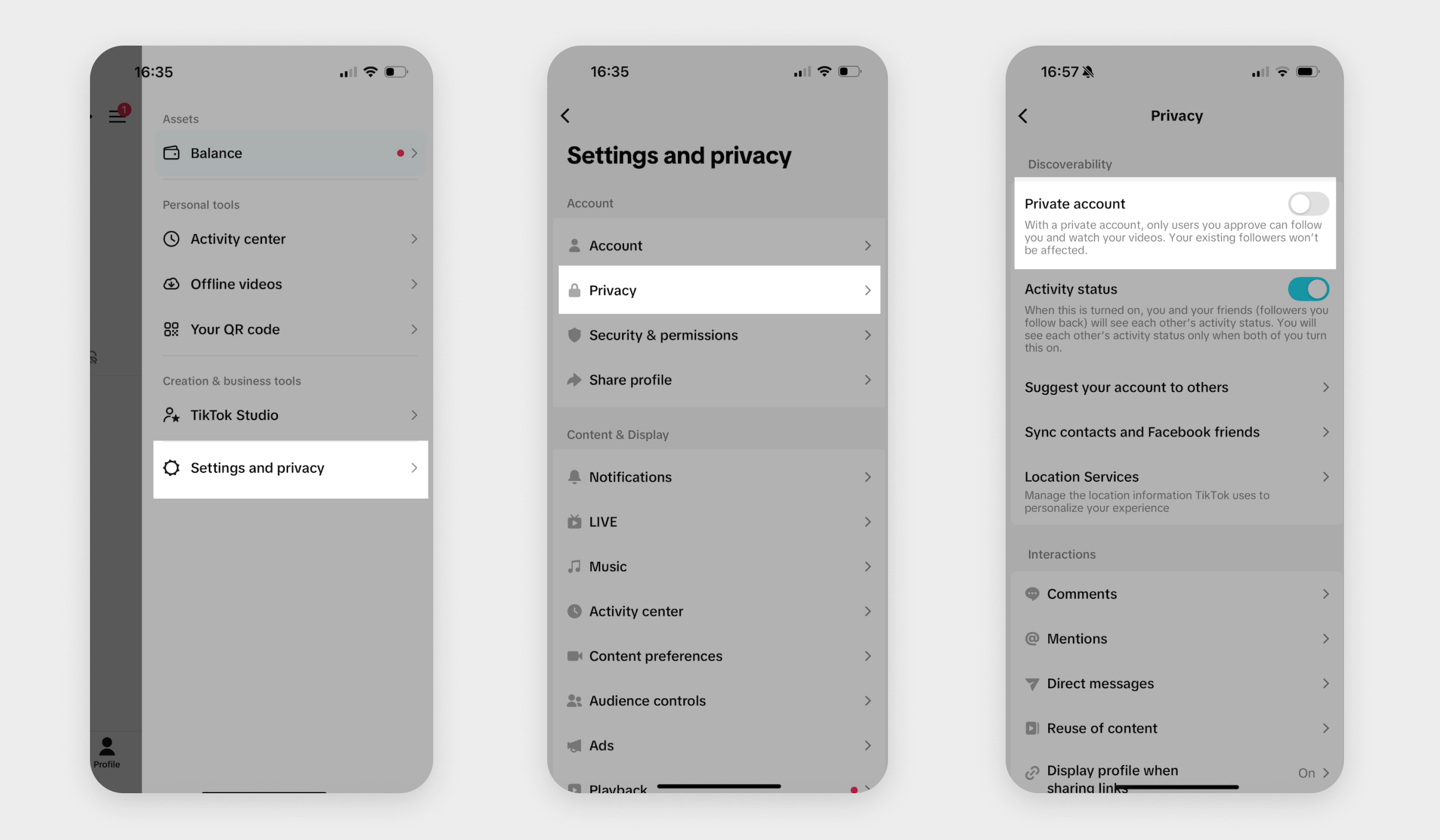
Your account must also be public. To make it public, go to Settings and privacy > Privacy and turn off the Private account toggle.
Connect a TikTok chatbot
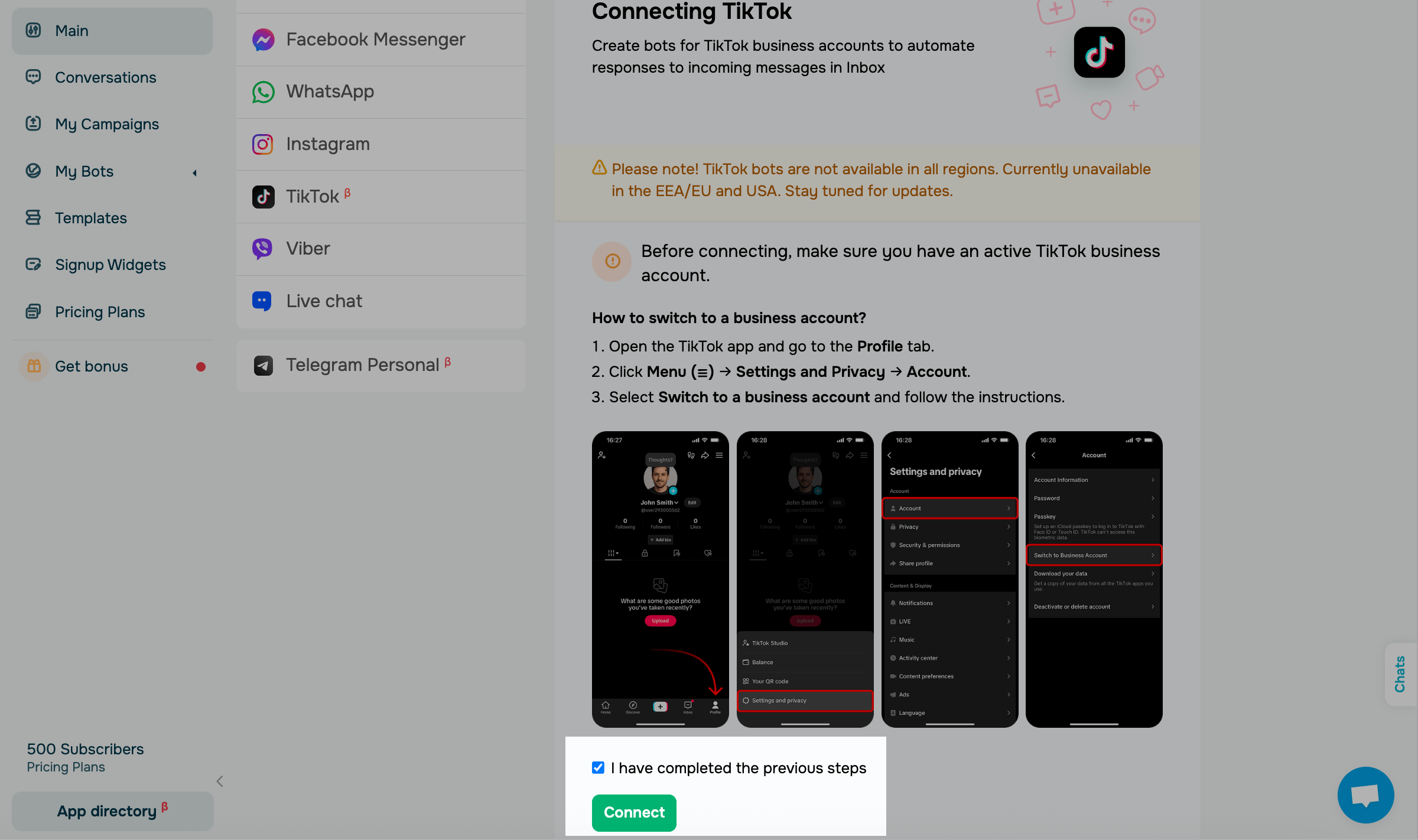
Go to Bot management > Add bot, select TikTok, and click Connect.
Select the I have completed the previous steps checkbox, then click Connect.
In the modal window, enter your TikTok account credentials and authenticate using your preferred method.
In the next window, give SendPulse permission to send messages and click Continue.
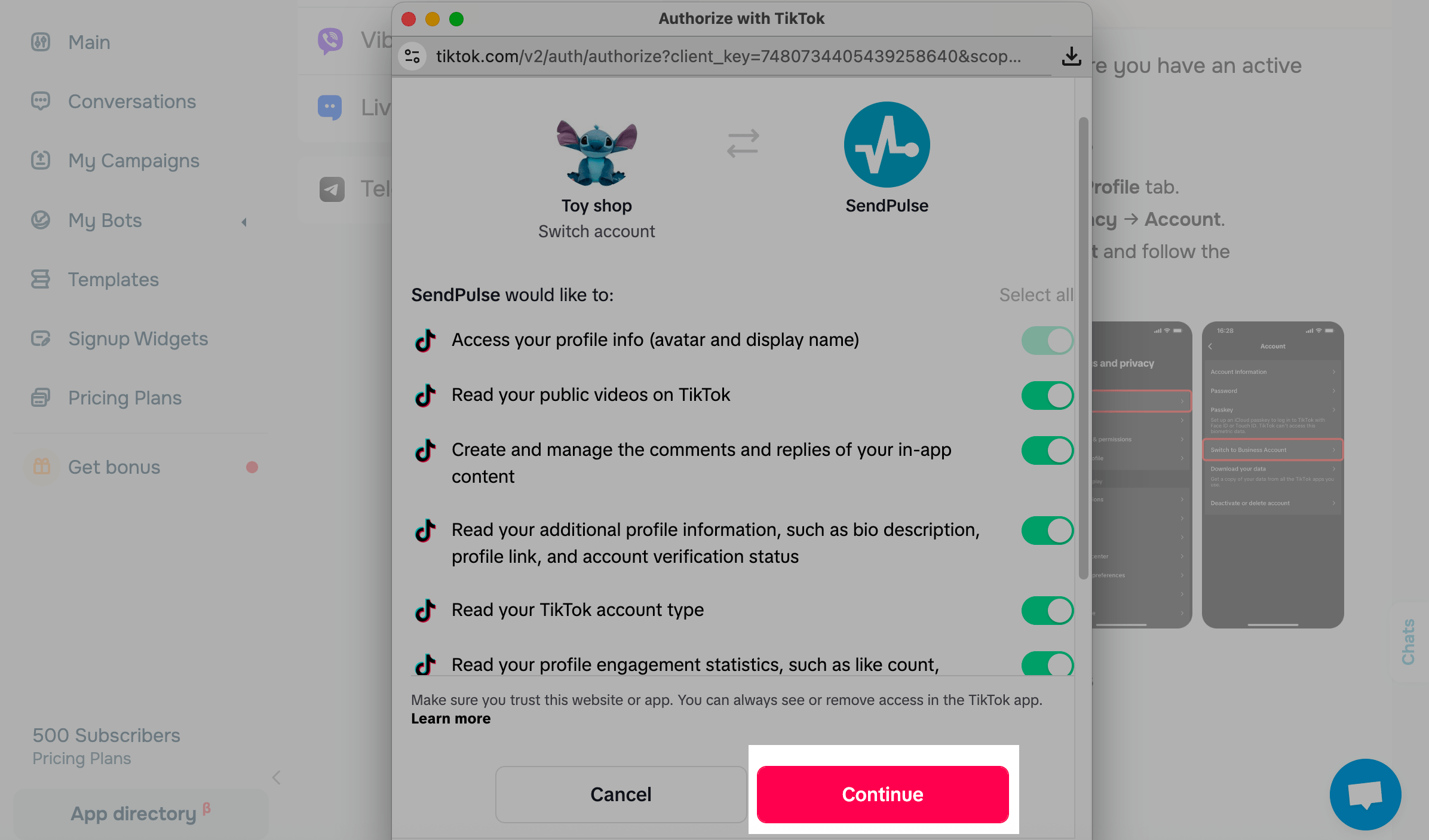
Once you complete the previous steps, your chatbot will appear on the list, and you will be redirected to its settings.
Set a chatbot owner
To test your chatbot, you will need to add another account as an owner.
First, subscribe to your chatbot from another account and send any message to appear in the audience. You can do this using the link copied from your chatbot settings.
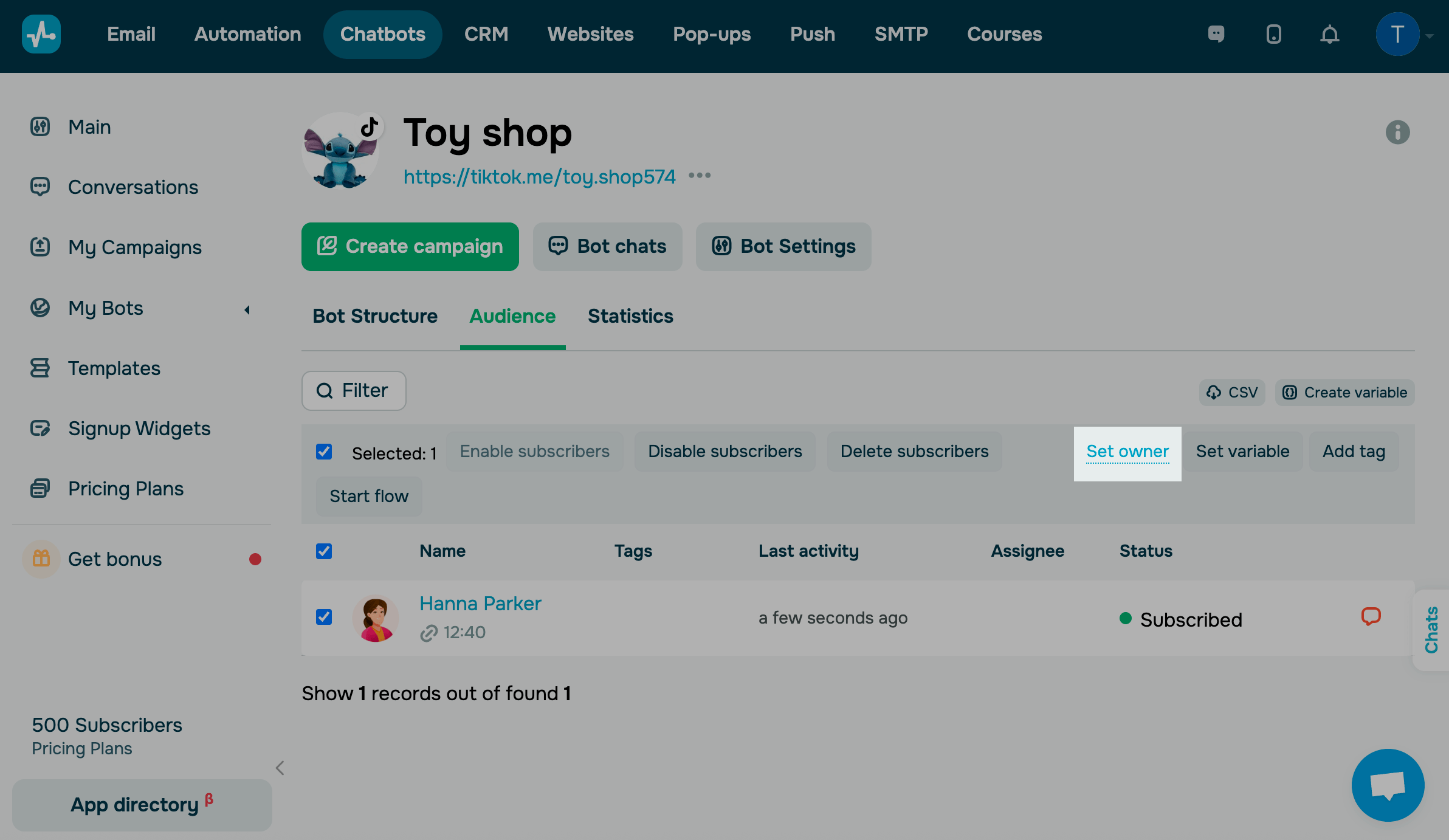
Then, go to the Audience tab. Select this account on your subscriber list and click Set owner.
Continue building your chatbot
The Welcome message, Standard reply, and Unsubscribe from bot flows are available by default. You can also create your own triggers and flows.
Read also: TikTok chatbot messaging guidelines.
Plan out key conversations your chatbot should support, then build dedicated flows using chatbot builder elements. You can also manage flow branches based on user behavior using the Button, Filter, and AI Agent elements.
Read more: Create a chatbot structure and Tips on chatbot flow design.
 Last Updated: 31.10.2025





or