Add meta tag and verify a domain on Facebook
To use landing pages for targeted ads on Facebook and Instagram for the Conversion goal, you need to confirm your domain in your Facebook business manager.
In this article, you will learn how to verify a free domain created with SendPulse (minisite.ai and pulse.is) using one of the methods offered by Facebook business manager — adding a meta tag.
How to add a domain to Facebook
Go to your business account settings, in the Brand Security section, click on Domains.
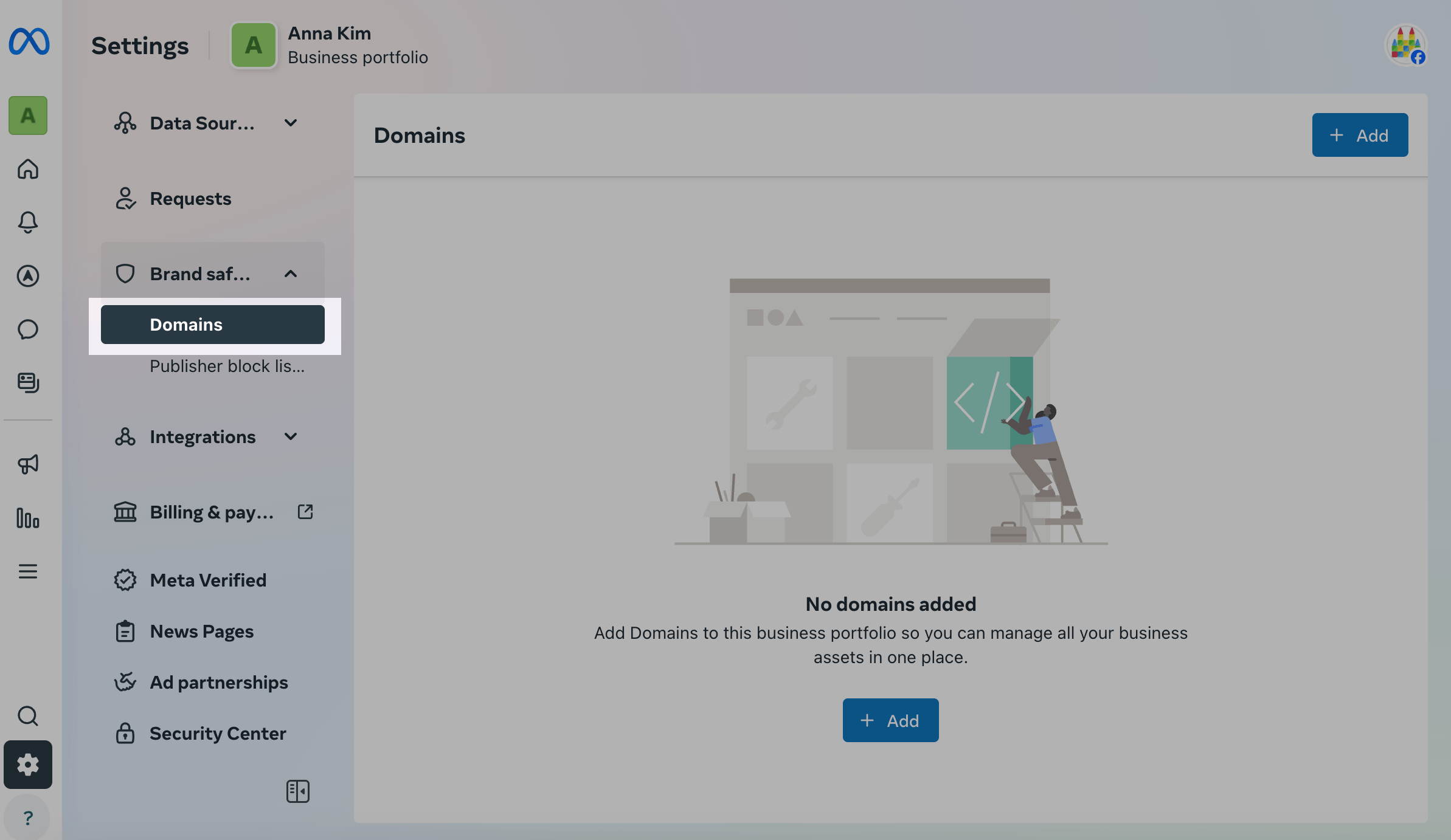
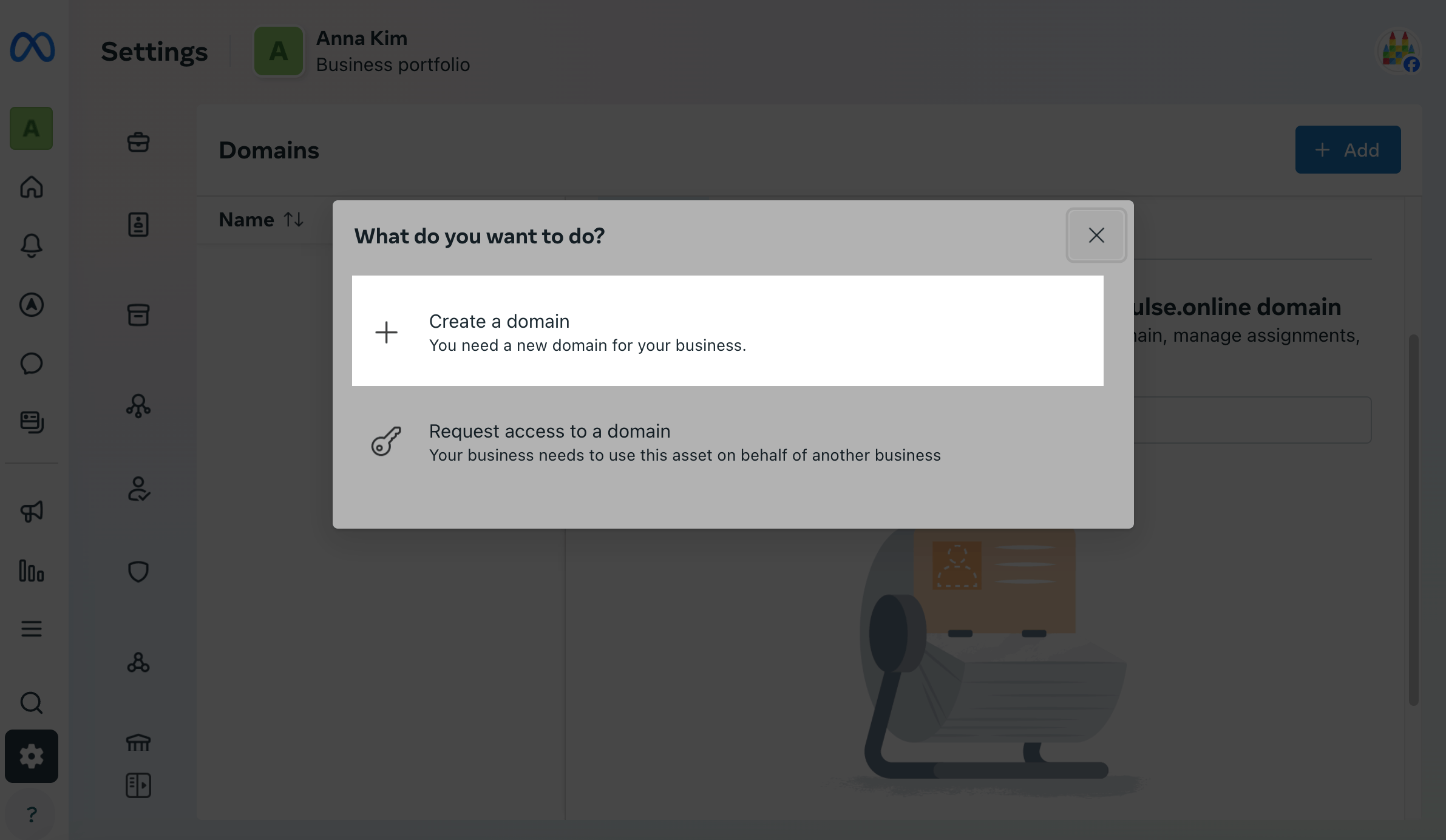
Click Add and select the Create a domain setup option.
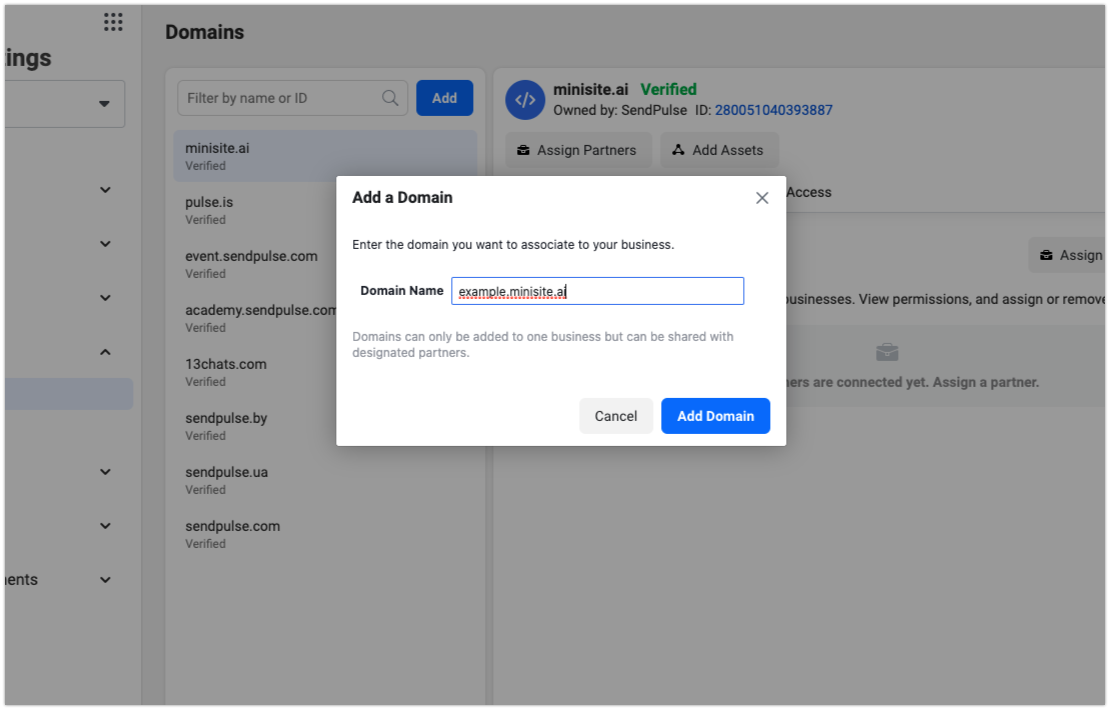
Enter your root domain without www. or https://, for example, yourdomain.com, and click Add.
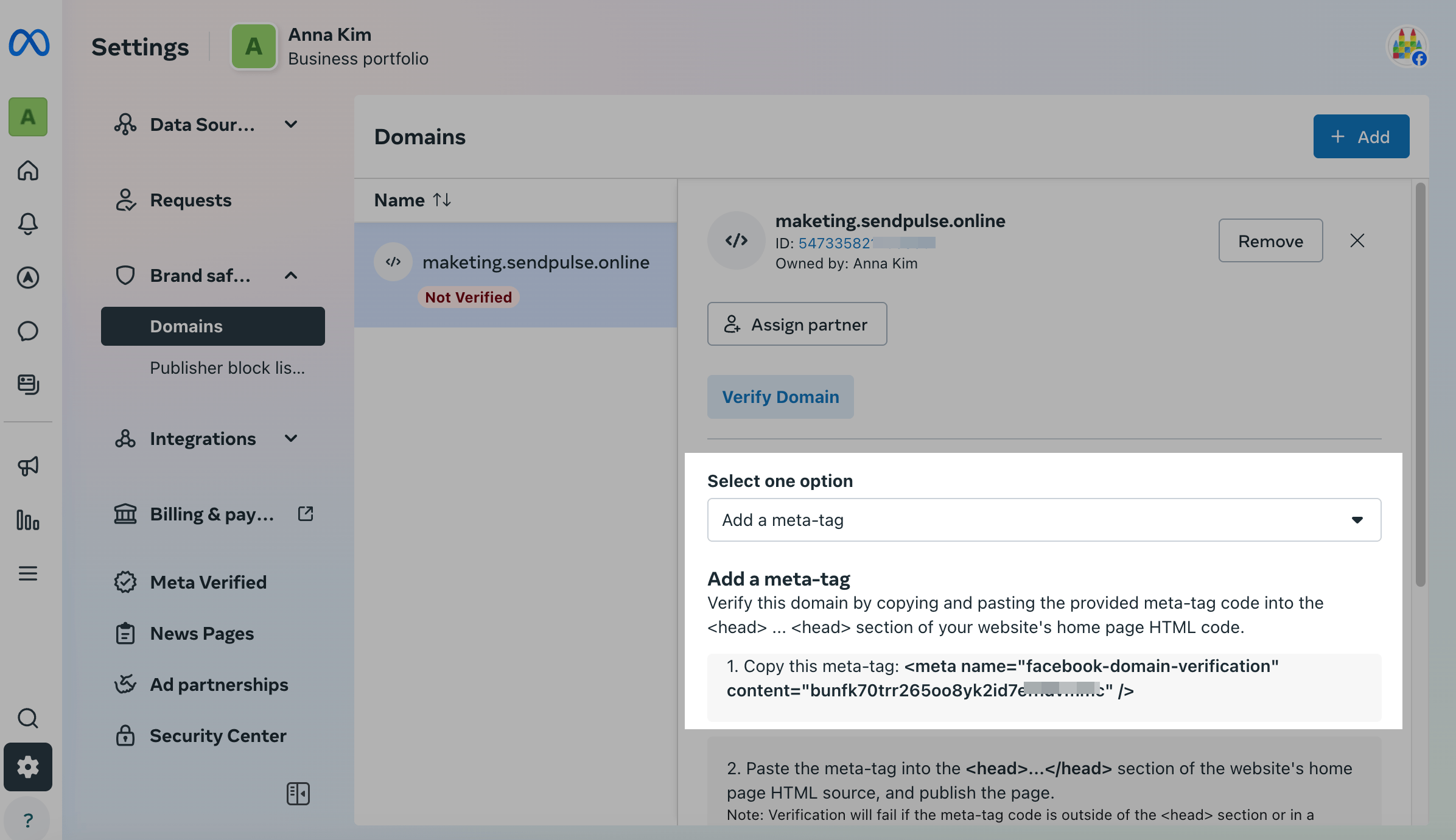
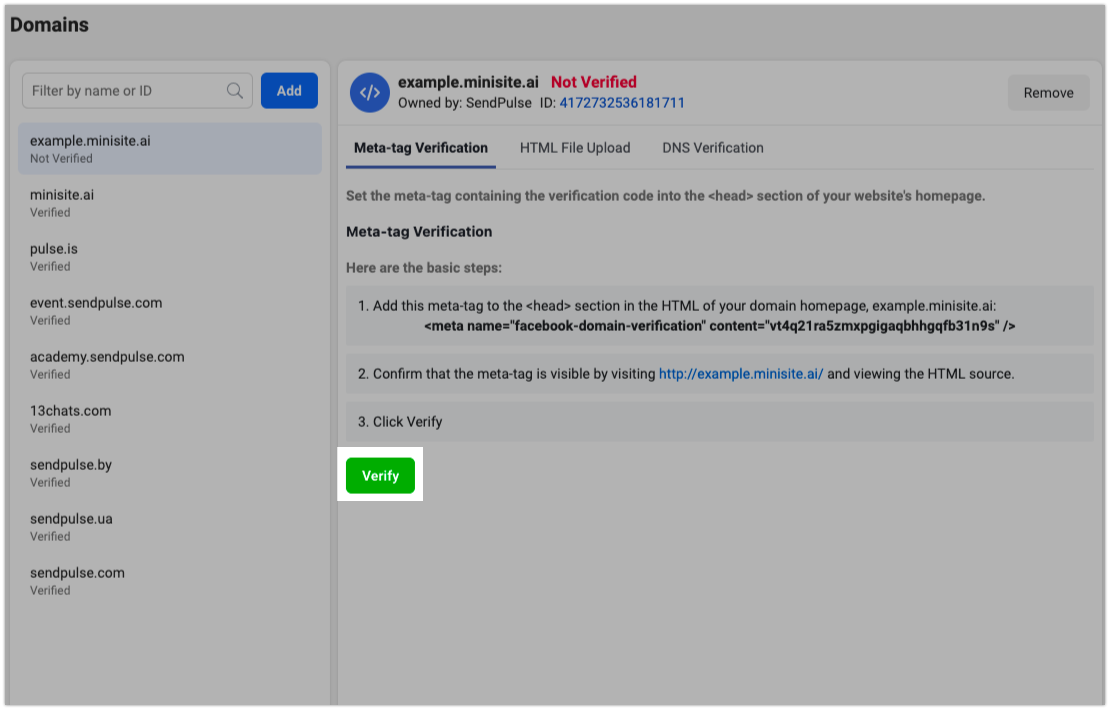
Click the added tag and select the Add a meta-tag option to verify your domain. Copy the generated HTML code. It will look like this: <meta name="facebook-domain-verification" content="your_unique_code" />.
How to add a Meta tag in SendPulse
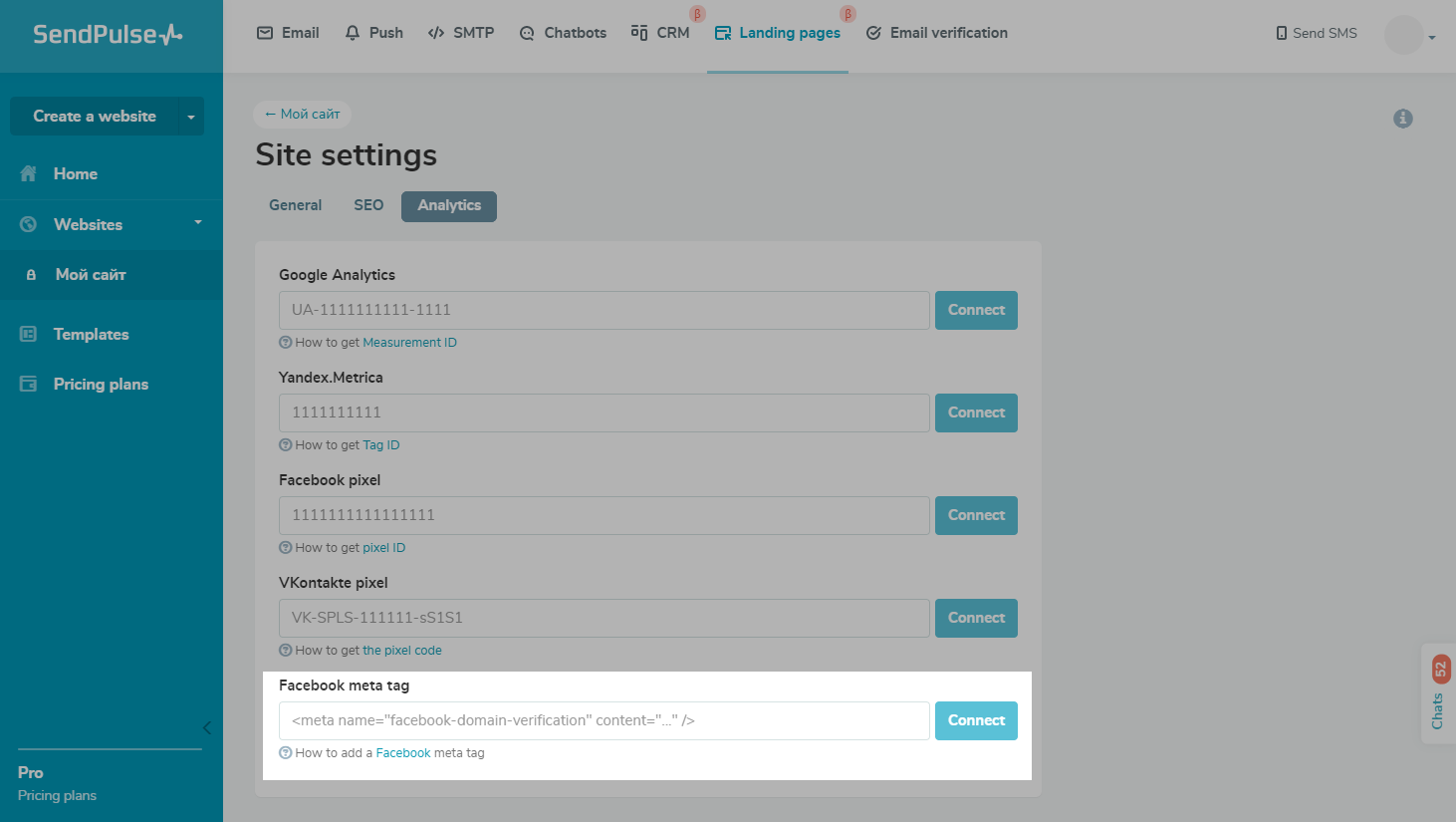
Go to the site settings in the Analytics tab. Next to the Custom Tag field, enter the copied tag and click Connect.
How to check and validate a Meta tag
To make sure the meta tag has been added, go to the site on this domain and check the source code.
Go back to Meta domain settings and click Verify domain.
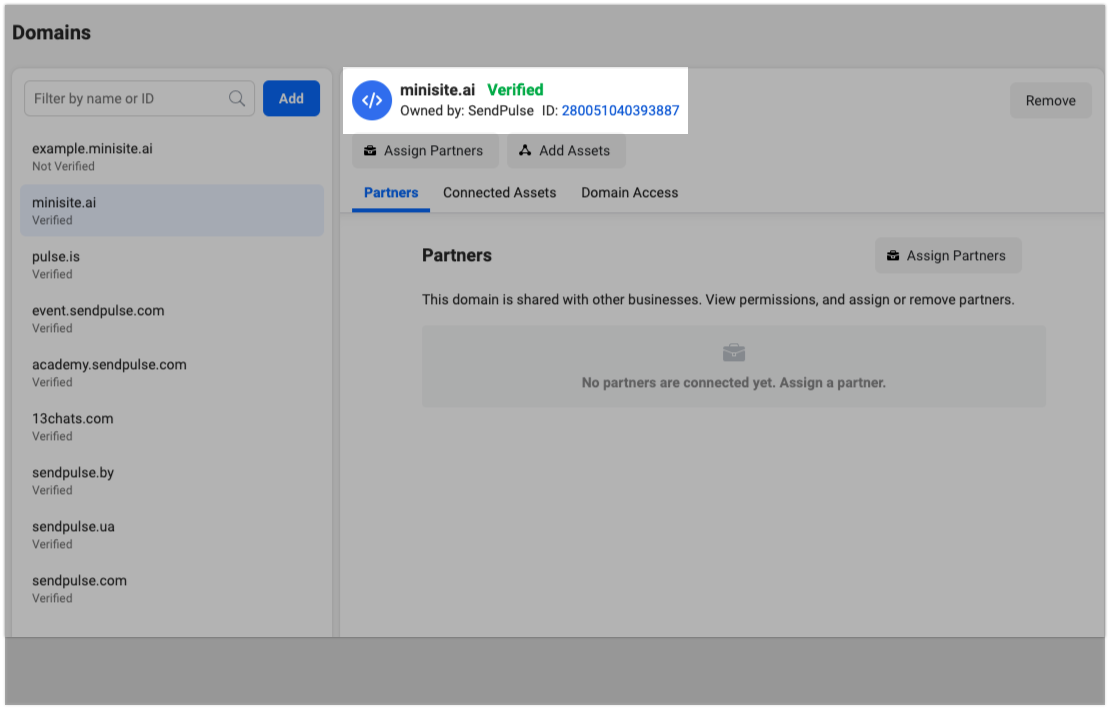
After confirmation, the Verified mark will appear next to your domain.
 Last Updated: 13.05.2024





or