Manage chatbot subscribers
When users interact with a chatbot, all information they share is saved and organized in your chatbot audience. You can view or update it at any time to keep it current.
In this article, we will talk about how to manage your chatbot audience.
To apply an action to one contact or a group of contacts, mark them, and select your action. To apply an action to all contacts in the audience, click Select all.
You can also use a filter to segment your contacts.
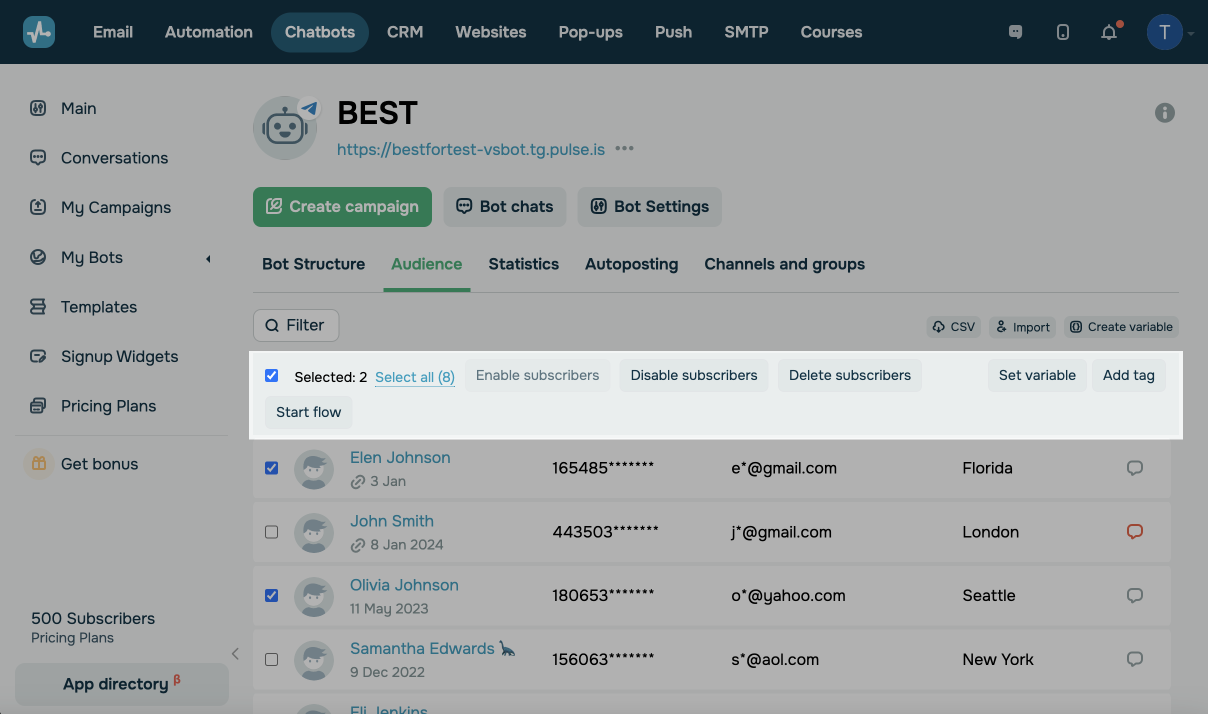
You can perform the following actions with your selected chatbot contacts:
| Enable subscribers |
Enables a contact with the You can enable only manually disabled subscribers. |
| Disable subscribers | Disables a contact. Once you disable a contact, your subscriber will not receive campaigns or automated replies from your chatbot flows. |
| Delete subscribers |
Deletes a contact with all their data from the audience and chat history. You can either enable the option to only delete your subscribers or delete and prevent them from resubscribing. To view your elemented contacts and unelement them, go to Bot Settings > Block list. |
| Start flow |
Launches your selected flow. Flow launches operate according to specific messaging platform policies. Learn more: How to Launch a Chatbot Manually. |
| Set variable |
Adds a variable with the value you enter. You need to create a variable before you set it. |
| Add tag | Adds a tag to your contact. You can create a new tag or select an existing one from the list. |
To display more contacts on the page, scroll down, and click Load more. You can add 50 more contacts to the page with each click.
 Last Updated: 04.02.2025





or