Track live chat events on your website
Use live chat events to detect and react to user actions using JavaScript on your website.
For example, you can track when a visitor opens your live chat widget, sends a message, or clicks a button. Then, you can send this information to analytics tools, CRM solutions, or external systems.
Let’s talk about how to track live chat events and send them to external systems using JavaScript.
Event list
The widget tracks browser events when a subscriber or your live chat takes an action, such as when they start a chat, send a message, or click a button.
Each event has its own name and a specific set of data. All events include the standard fields listed below. Some events add more information about subscriber or chatbot actions.
| Event | When it launches | Fields |
spLiveChatLoaded |
A subscriber started a chat in their browser. | timestamp, visitorId, phone. |
spLiveChatOpened |
A subscriber opened the widget manually. This event does not trigger if the chat opens automatically. | timestamp, visitorId, phone, chatId, subscriberId. |
spLiveChatClosed |
A subscriber closed the widget. | timestamp, visitorId, phone, chatId, subscriberId. |
spGreetingButtonClicked |
A subscriber clicked a button in the live chat greeting or menu. | The button object, which includes: text, type, id, payload. |
spChatInitiated |
A subscriber sent their first message. | The message field — the text of the first message. |
spMessageSent |
A subscriber sent a message. | Objects: { message, type: 'text' } for text messages and { fileName, fileType, type: 'file' } for attachments. |
spMessageReceived |
Your live chat sent a message within a flow, or a chat assignee replied. | message, type, quick_replies, url. |
Each event includes the following fields:
timestamp |
Event time in ISO format, such as 2025-11-10T14:32:05Z. |
visitorId, phone |
Subscriber ID. These fields may be missing if the visitor has not interacted with your live chat or has not provided their information. |
chatId |
Active project ID sent when a subscriber starts a chat. |
subscriberId |
Subscriber ID assigned after registration. These fields may be missing if the visitor has not interacted with your live chat or has not provided their information. |
Event passing
To confirm that widget events work as expected, you can test them in your browser. Add the script to any page where your live chat is already installed:
<script>
  document.addEventListener('spMessageSent', (event) => {
    console.log('[LiveChat] visitor message sent', event.detail);
  });

  document.addEventListener('spMessageReceived', (event) => {
    console.log('[LiveChat] operator message received', event.detail);
  });
</script>
You can replace the console.log block with your analytics or integration code. Afterward, all live chat events will appear in your browser console.
Event tracking in Google Analytics 4 through GTM
The widget sends live chat events to window.dataLayer. You can add Google Tag Manager custom events and send them to Google Analytics 4.
In GTM, create a custom event trigger for the live chat event you want to track, such as spMessageSent or spLiveChatOpened.
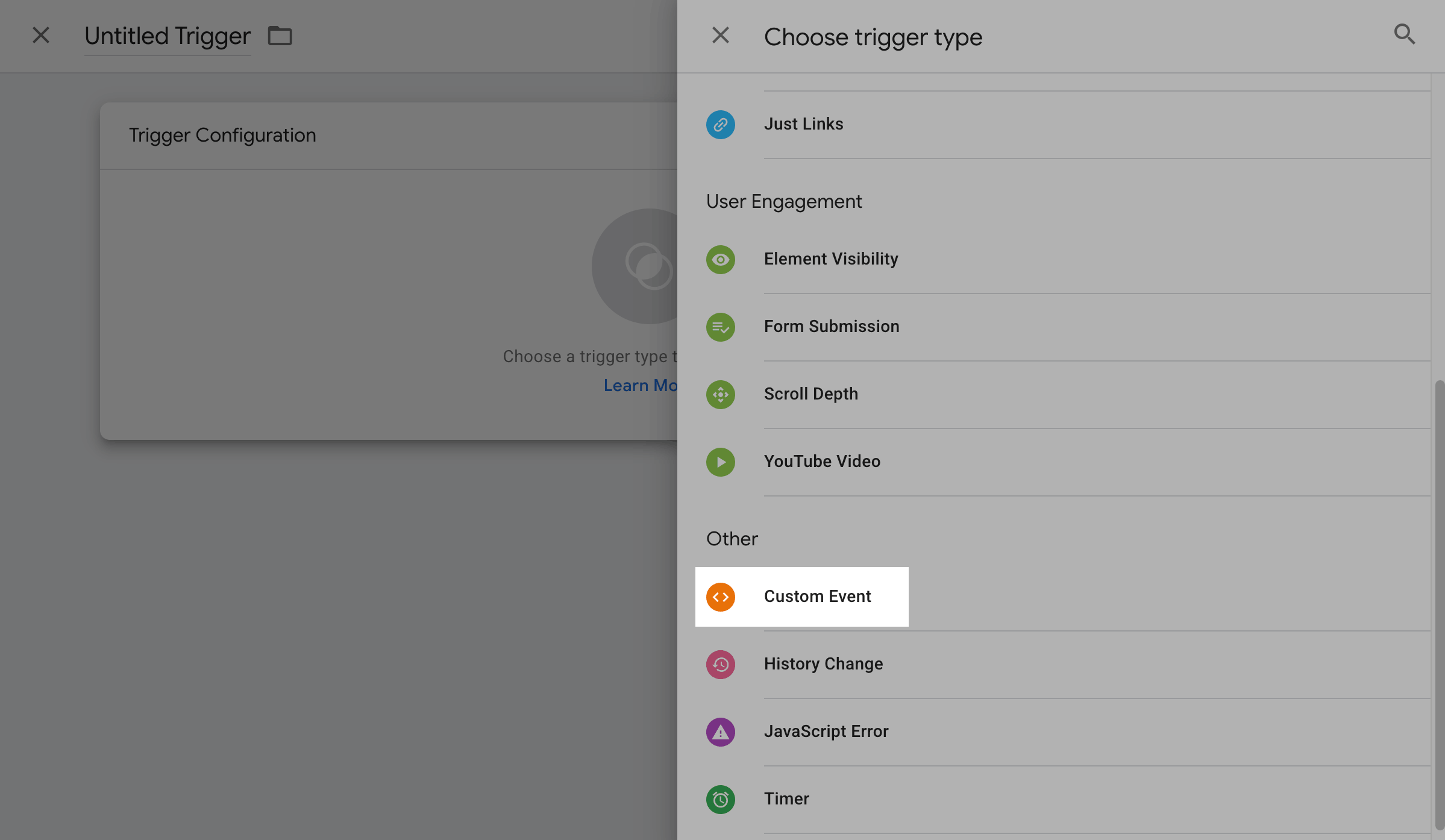
Go to Triggers and click New. Then, click Choose a trigger type to begin setup. Under Other, select Custom Event.
In Event name, enter spMessageSent and click Save. Enter the same name for your trigger and click Save again.
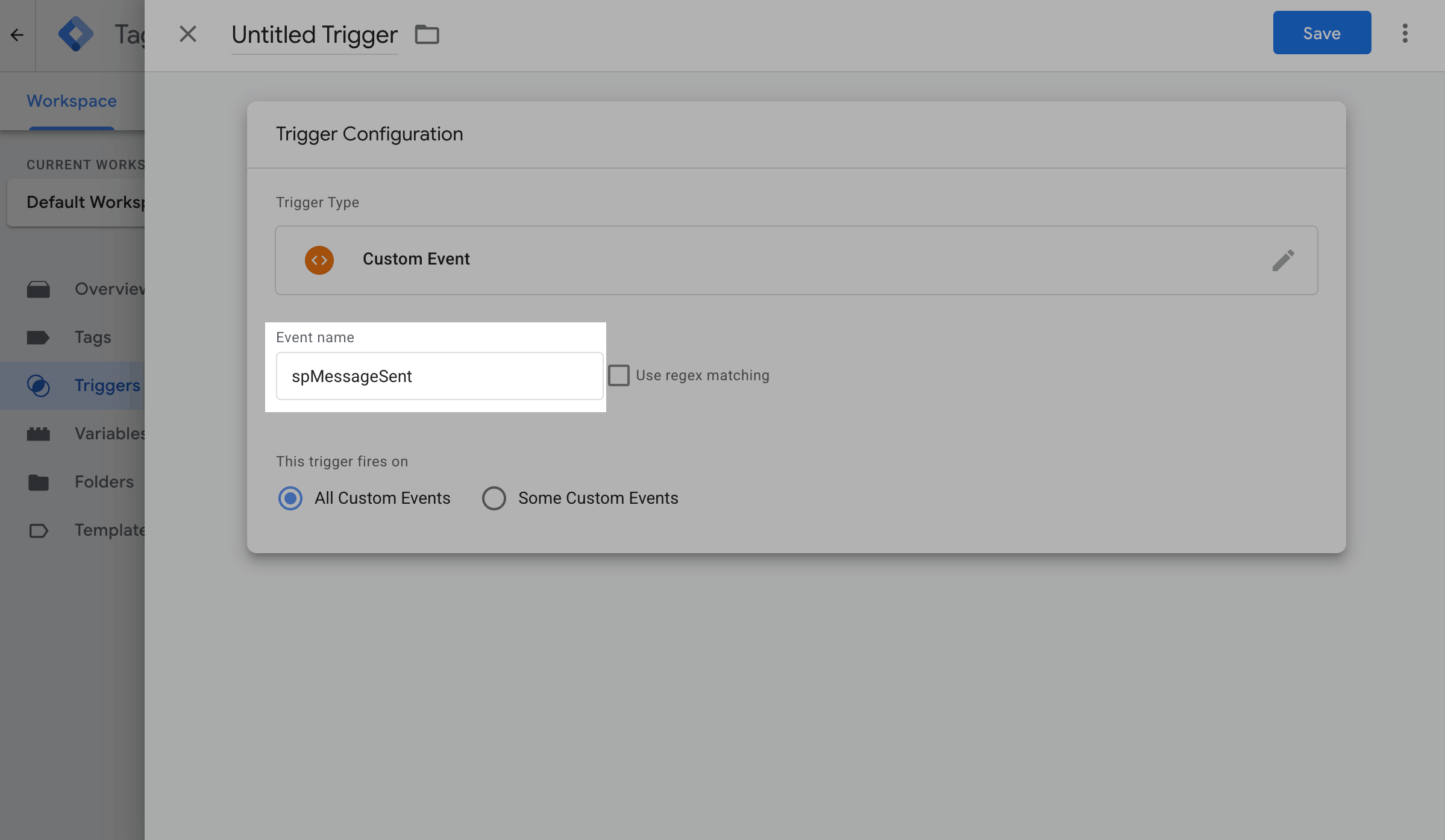
GTM custom event names are case-sensitive. Use exact event names from the event list.
Create a Google Analytics 4 event tag that fires on the trigger.
Go to Tags and click New. Click Choose a tag type to begin setup. Under Featured, select Google Analytics.
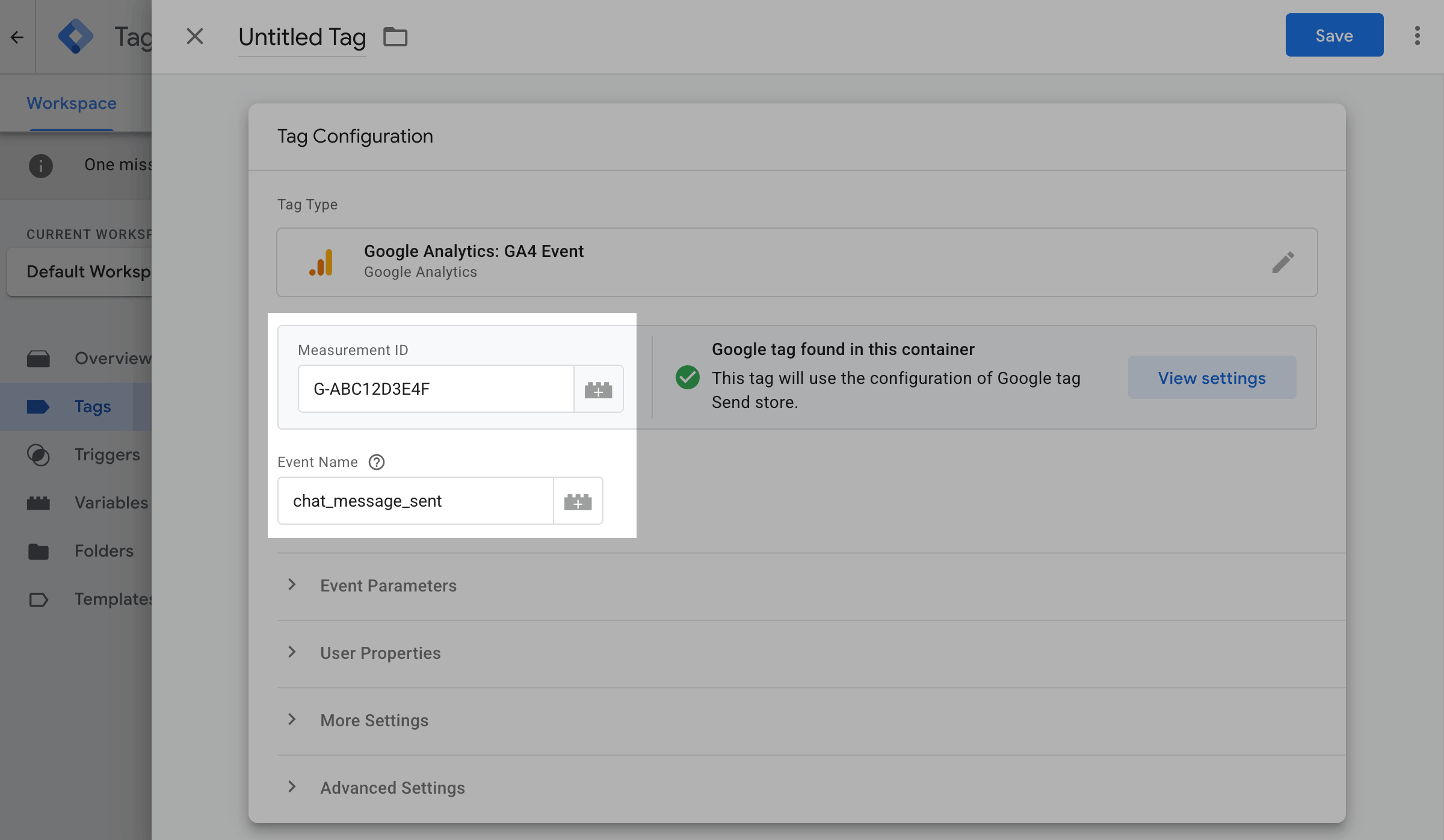
Click Google Analytics: GA4 Event. In Measurement ID, enter your Google Analytics 4 ID as G-ABC12D3E4F. In Event name, enter chat_message_sent.
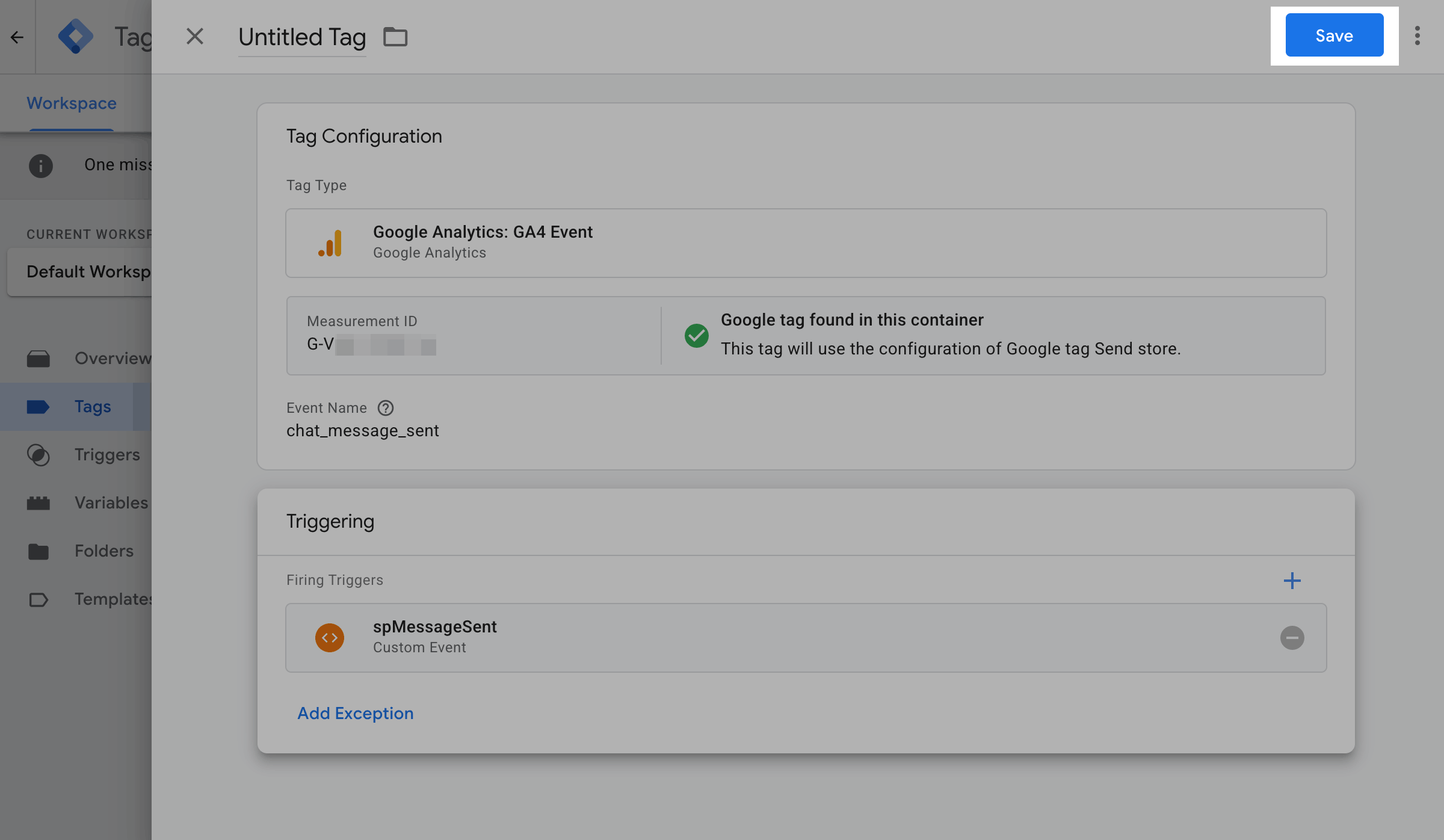
Scroll down to Triggering and click Choose a trigger to make this tag fire. Select the trigger you’ve created for spMessageSent and click Save. Enter your tag name and click Save again.
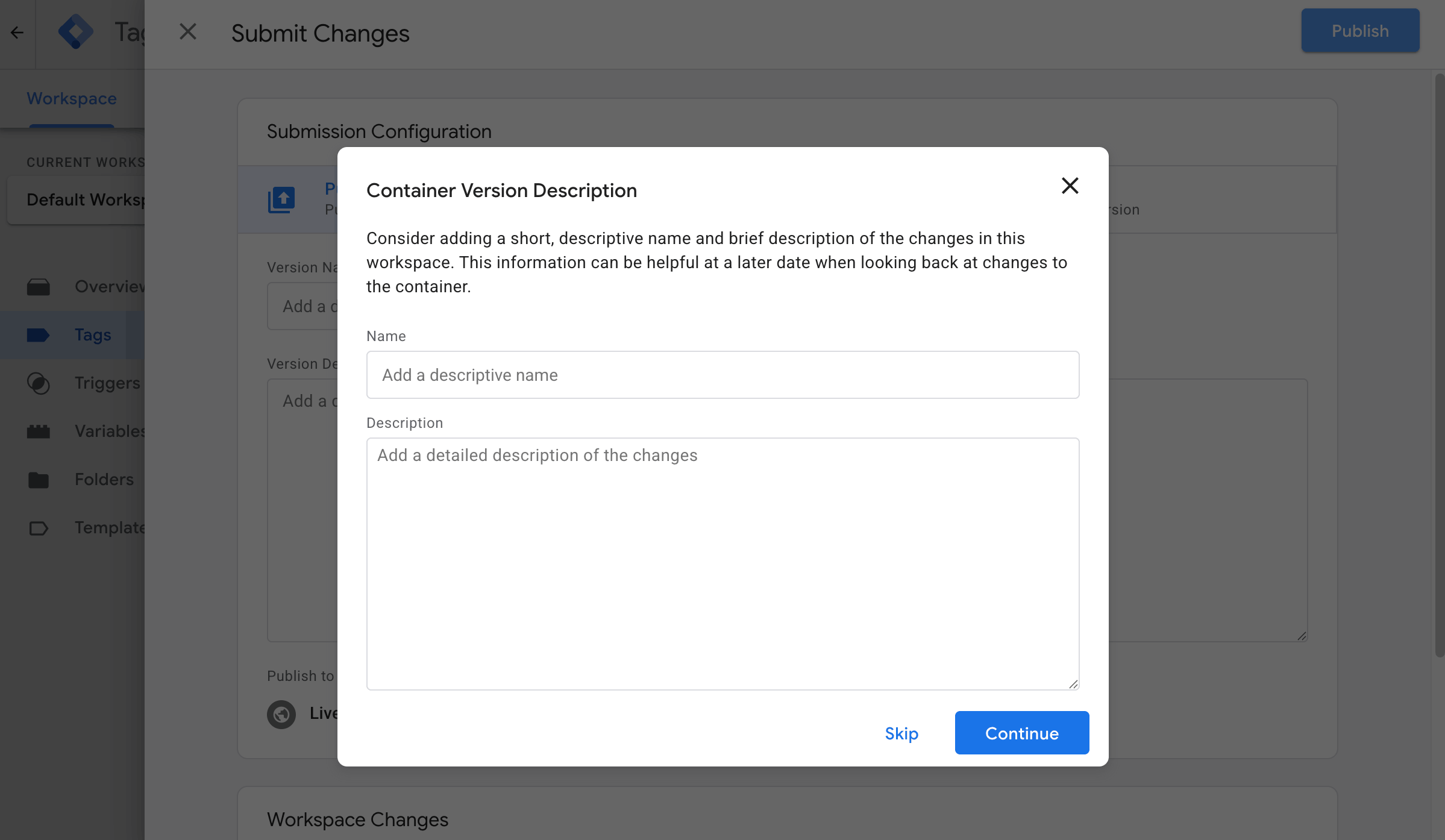
To apply the new trigger and tag, click Submit. In the pop-up window, click Publish. Enter a container name and description if needed. Click Continue.
To test your setup, open your website. Send a live chat message and run window.dataLayer in the browser console. You should see entries where event equals spMessageSent, as well as other configured live chat events.
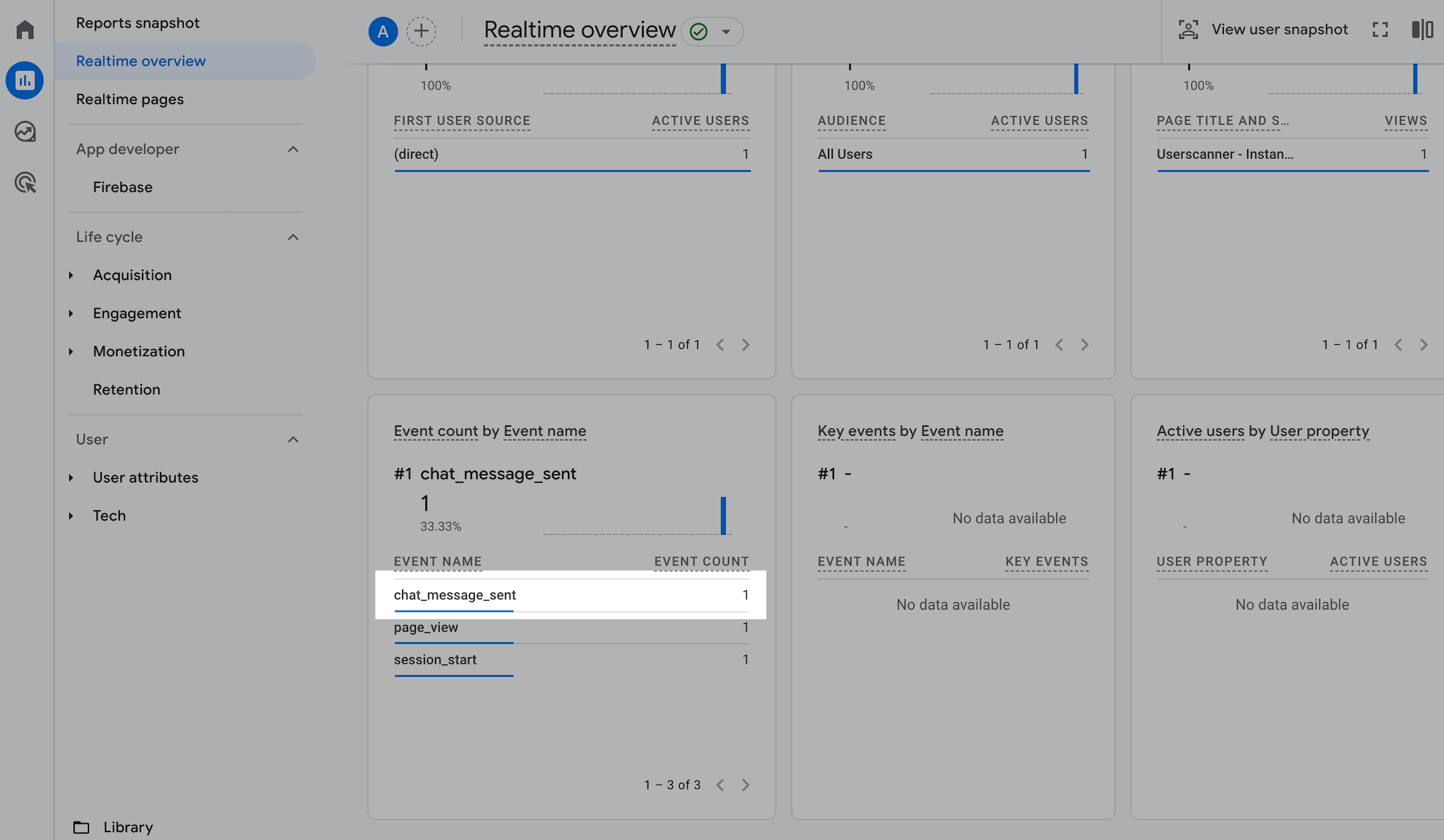
To confirm the setup, go to Google Analytics. Open Realtime reports and verify that Google Analytics 4 receives the chat_message_sent event.
 Last Updated: 18.11.2025





or