Start an n8n flow after a successful payment in SendPulse
Integrate with n8n to capture successful payment events from SendPulse, start the next step in your workflow, and pass data to other systems.
For example, when a user pays for a product in SendPulse, you can trigger an external workflow in n8n. Update data in an internal database or send a request to process their order and arrange a delivery.
Let’s talk about how to start an n8n flow using a webhook trigger and link it to a SendPulse event.
Add a webhook trigger
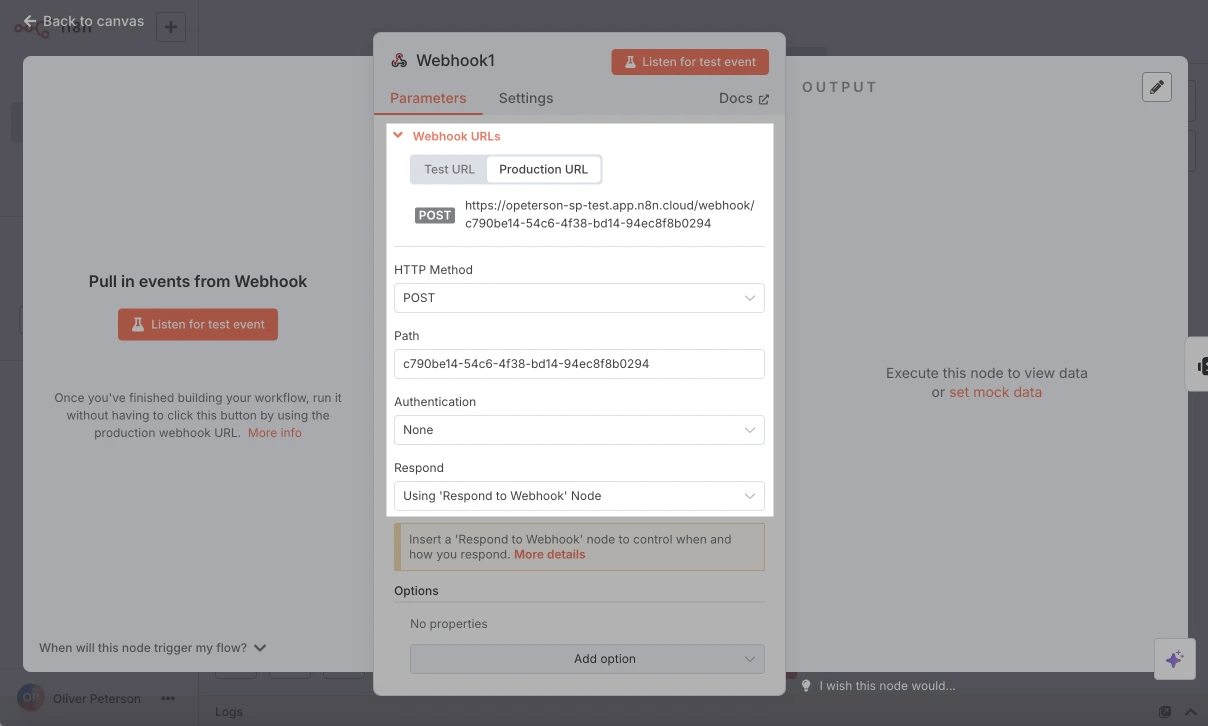
Create a new n8n flow and select On webhook call as your trigger.
In the Parameters tab, under HTTP Method, select POST. Under Respond, select Using 'Respond to Webhook' Node.
Copy the webhook URL.
Enable the webhook
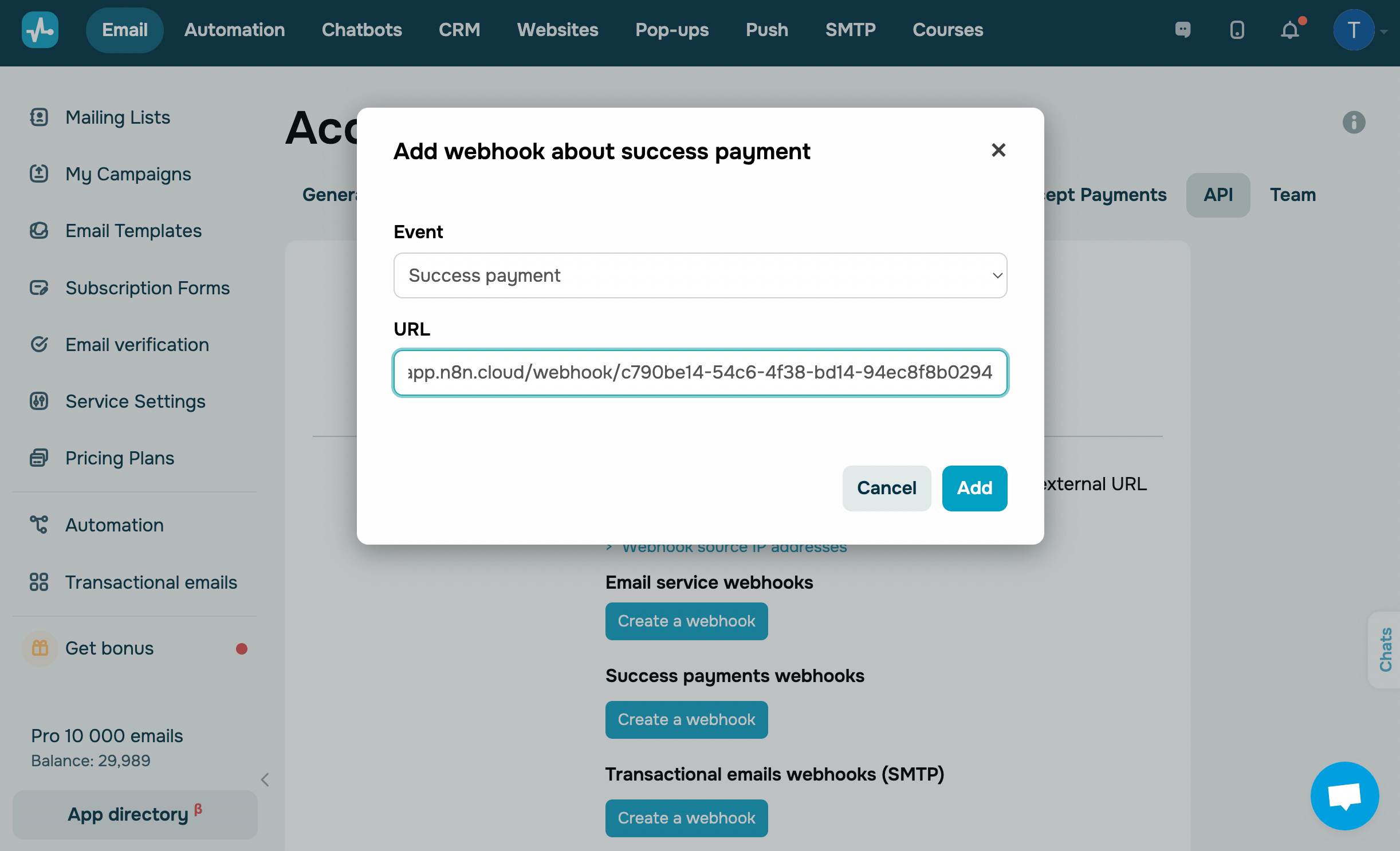
In SendPulse, go to Account settings > API. In Payment webhooks, click Add webhook for successful payment. In the URL field, paste the webhook link.
Test the request
To help n8n detect data structures in upcoming nodes, run a test to receive a webhook from SendPulse.
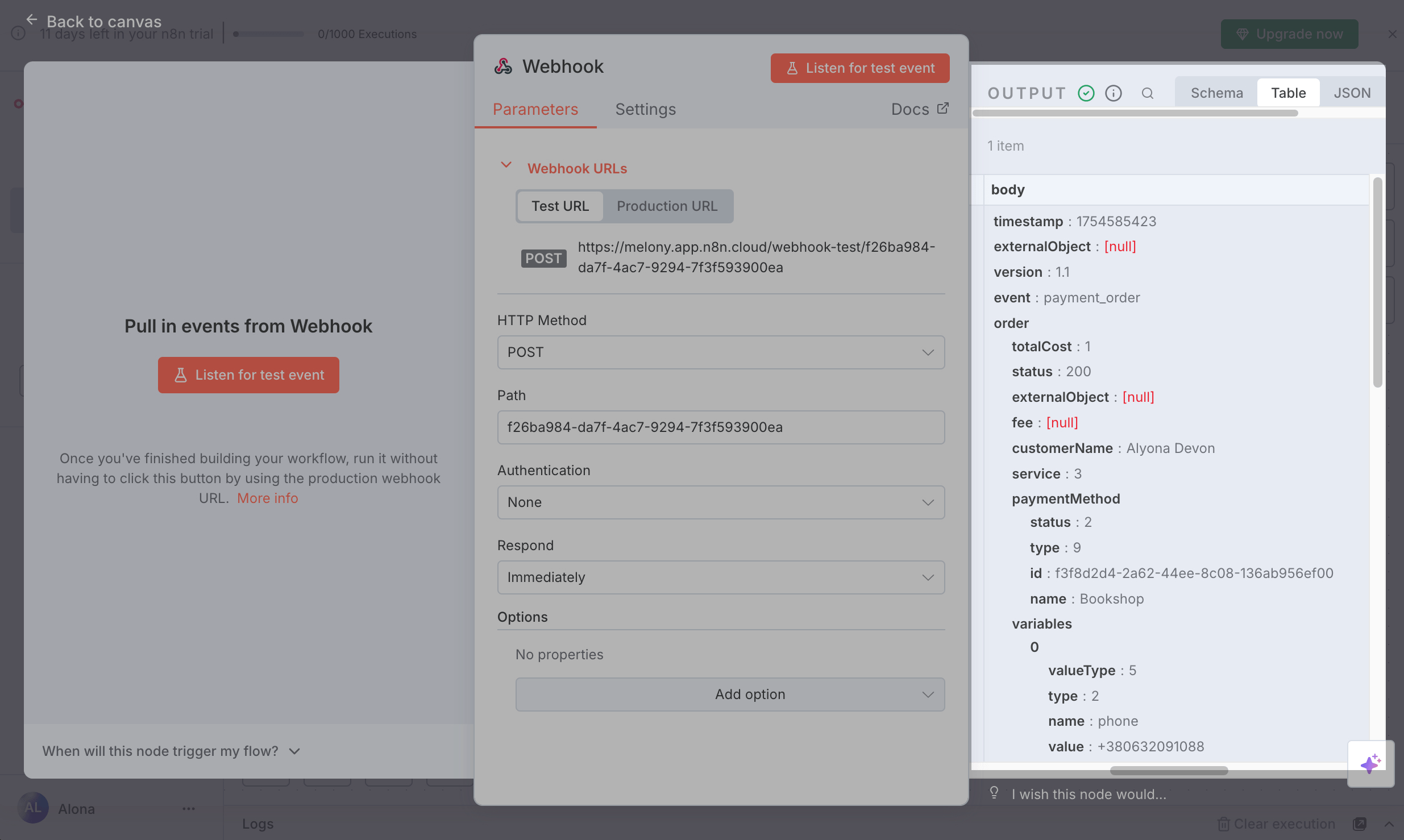
Go back to your flow, open the On webhook call node, and click Listen for test event.
Make a payment through the SendPulse tool where you've added a checkout button and a payment system.
If you're enabling payments through your chatbots, you can click the payment button to run the test payment.
Then, you’ll see the data structure sent from SendPulse in the Output tab on the right. You can use it in any n8n node.
 Last Updated: 20.08.2025




or