More and more eCommerce brands, online schools, and SaaS companies are turning to automated flows to guide customers from their first interaction all the way to repeat purchases. But how do they manage to keep things running smoothly and efficiently?
In this post, we’ll take a closer look at how an AI assistant can simplify building automation flows and how marketers are using it to design smarter, more efficient customer journeys.
What is an AI automation assistant?
Many businesses aim to automate as many routine workflows as possible, from capturing leads and engaging with customers to ongoing communication. This shift lets teams prioritize product development, strategy, and marketing growth.
However, building and managing automated flows still demands time and expertise. This is especially true for small businesses and marketers who may not have a technical background. Often, one person handles both the big-picture planning and the execution, which can feel overwhelming.
SendPulse addresses this need with its AI assistant — a ChatGPT-powered solution integrated into our automation builder. This assistant can generate complete automation flows or offer helpful advice on refining existing ones. Instead of starting from scratch, marketers can work with a ready-made framework and simply customize it by adding content, setting conditions, and applying filters.

Turn conversations into conversions
Build targeted auto-flows with emails, chatbots, SMS, and more — powered by CRM data and real user behavior.
Get started for free
The AI assistant handles the technical side of things. You don’t have to rely on external experts, and it cuts down the time needed to create complex, multi-step flows. Now, launching an automated flow just needs a solid marketing vision and a well-structured prompt.
Here’s why the AI automation assistant is so helpful:
- It focuses on specific automation elements, rather than offering vague advice.
- It speeds up the process from idea to execution.
- It reduces repetitive manual actions in the builder, saving you time.
- It lets you quickly test MVP scenarios without spending too much time on them.
- It acts like a consultant, guiding you during the setup process.
Artificial intelligence does not take control away from marketers or business owners. Instead, it builds structured flows from pre-defined elements, allowing professionals to stay fully in charge of the strategy and logic.
AI is not going to take your job. You will not lose your job to AI, you will lose your job to somebody who knows how to use AI
SourceNrupesh Soni
Founder at Facilit8 Namibia
What can our AI automation assistant do in the builder?
Once you’ve opened the builder and started a conversation with the AI automation assistant, it can contribute at several different points in your workflow. Here’s a closer look at what it can actually do — and where it hands back control to you.
Design the flow structure and connect the elements
Our AI assistant can help you create and connect elements in your flow. It can automatically build a flow using all the elements available in the builder, but there are some limitations. For instance, it doesn’t support certain actions and may occasionally misinterpret conditions. If you need a little more guidance on working with the elements, head over to our Help Center.
To give you a better idea of how it works, here’s an example of a prompt:
Create a flow for new subscribers. It should include an email with a promo code for the first order, a Condition element with the “Opens” requirement, and a two-day wait time. If the first email is not opened within two days, resend it. Generate the email content: thank subscribers for joining and offer a 15% discount on the first order over $1,000. Add the promo code and a “Use promo code” button.
In just about ten seconds, the AI creates a flow that looks something like this.
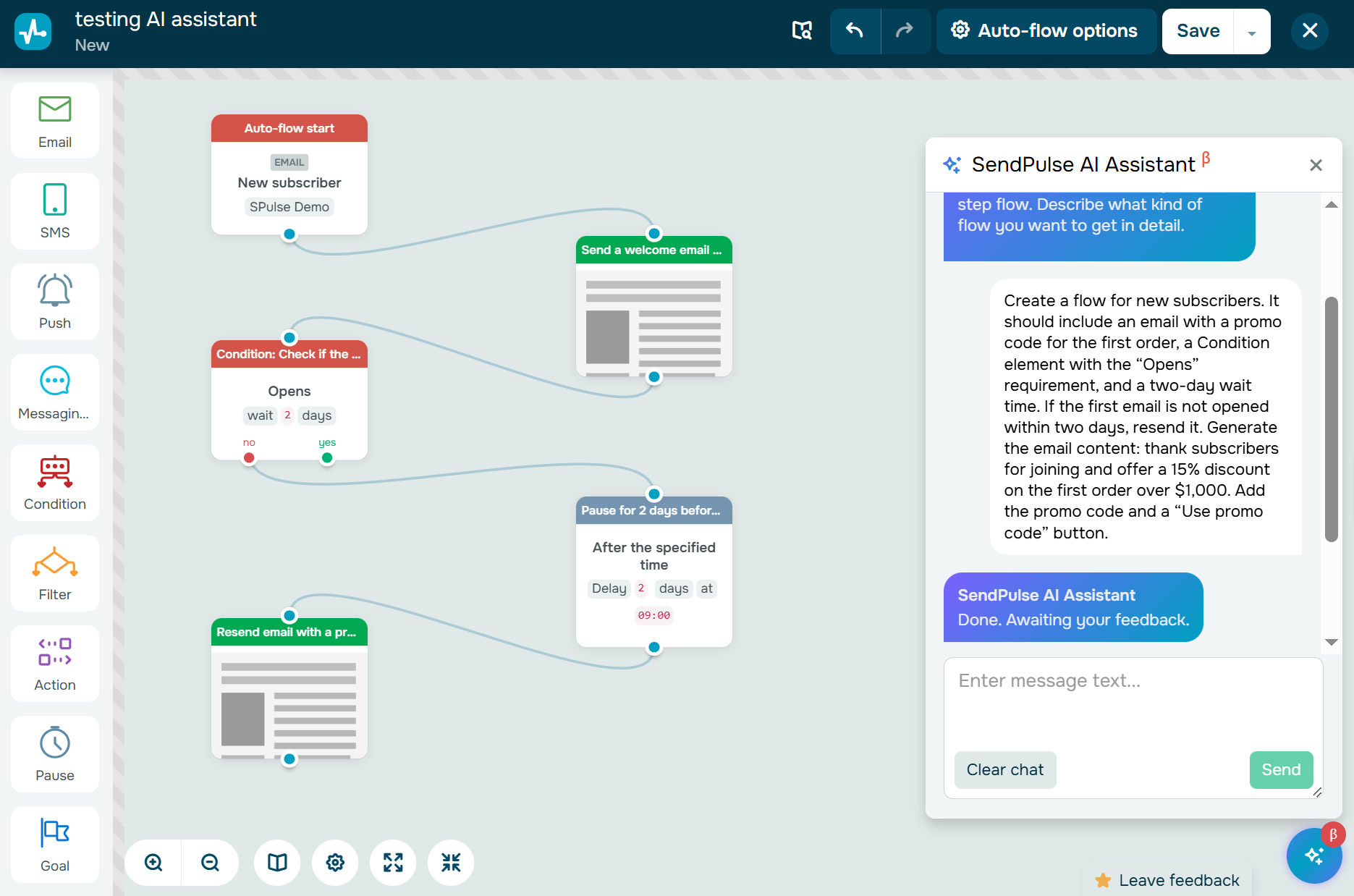 Initiating the AI automation assistant
Important: The AI assistant arranges elements vertically, placing them one after another. To make the structure easier to interpret, the screenshots in this post slightly adjust the layout of certain elements without changing the flow.
Generate names for each element
The AI automatically gives each element a natural-language label, making the flow easier to follow and understand.
Fill in subject lines, preheaders, and email templates
The AI can generate email copy for you or choose a suitable template from the library, based on what makes the most sense. It will then add this content directly into the “Email” element. If you prefer, you can also specify a template ID or category to include in the flow.
Offer guidance on element capabilities and field settings
Thanks to its connection to the knowledge base, the AI assistant understands both individual components and the flow as a whole. If you come across a field you’re unfamiliar with, simply type its name in the chat and ask how it works.
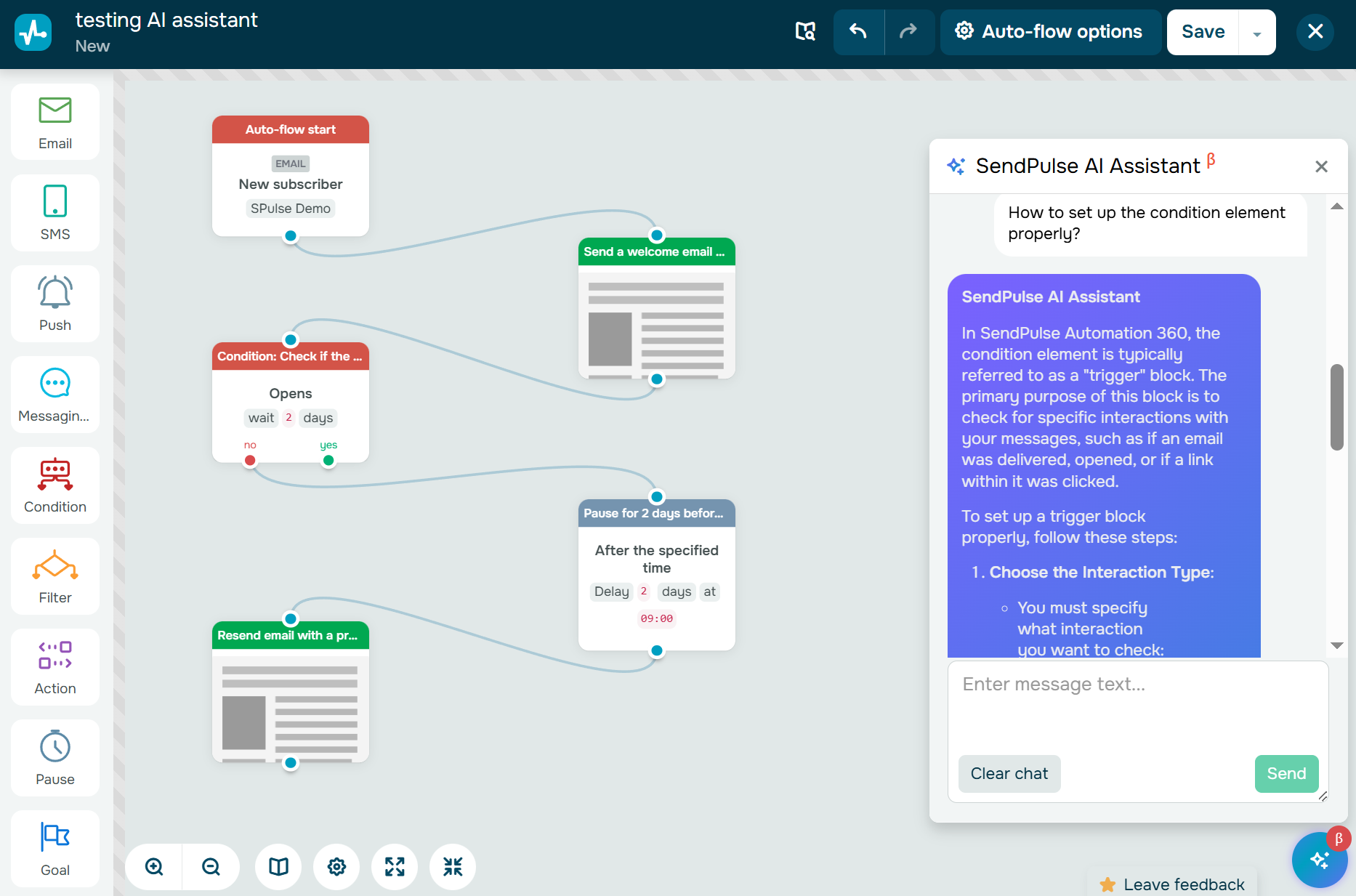 The AI automation assistant guiding a user through the element settings
The AI assistant doesn’t change existing elements in your flow. Instead, it adds new elements to the end, so you stay fully in control of the scenario. This means you can quickly review what the AI generates and adjust the flow to match your business needs. Less routine work means greater efficiency and more time to test new ideas and scale successful strategies.
The AI assistant is especially helpful when you need to:
- quickly generate an automated flow with a defined set of elements;
- understand how the flow is structured;
- learn how specific elements work.
To explore our AI automation assistant’s capabilities, you get 200 free AI requests. These requests are counted per account and apply across all SendPulse AI features, including the automation builder, email service, chatbot platform, and website builder. You can always see how many requests you’ve used — the counter appears in the chat above the input field.
Once the free limit is reached, you can continue using the AI assistant by connecting your own OpenAI API key in your account settings.
Current limitations of the AI automation assistant in the builder
Although the AI assistant can generate flows and simplify setup, it still requires human oversight and works within certain limitations. Here’s what you should keep in mind when using it:
- Technical limitations. The AI assistant can’t create flow launch triggers, so you need to configure them manually. It also doesn’t support certain actions and may occasionally misinterpret conditions.
- Prompt length limits. Prompts are limited to 1,000 characters. Also, you can’t submit prompts in multiple parts because the AI starts processing immediately and only accepts the next request after finishing the previous one.
- Editing limitations. The assistant can’t modify the structure or content of existing elements; it can only generate new ones from scratch. If you ask it to adjust a flow, the assistant may confirm the request even though it can’t change previously created elements. If the result doesn’t meet your expectations or contains errors, you’ll need to edit the flow manually or regenerate it. Keep in mind that requesting the deletion of a specific element will remove the entire flow.
- Limited visibility. The AI assistant only recognizes the elements it generated; elements added or edited manually remain invisible to it, which is important to remember when working with an existing flow.
- Manual confirmation. Even if the generated scenario looks correct, you still need to apply the changes manually to each AI-created element, add links where needed, and then save the flow.
Here’s what information the AI automation assistant has filled in the “Email” element:
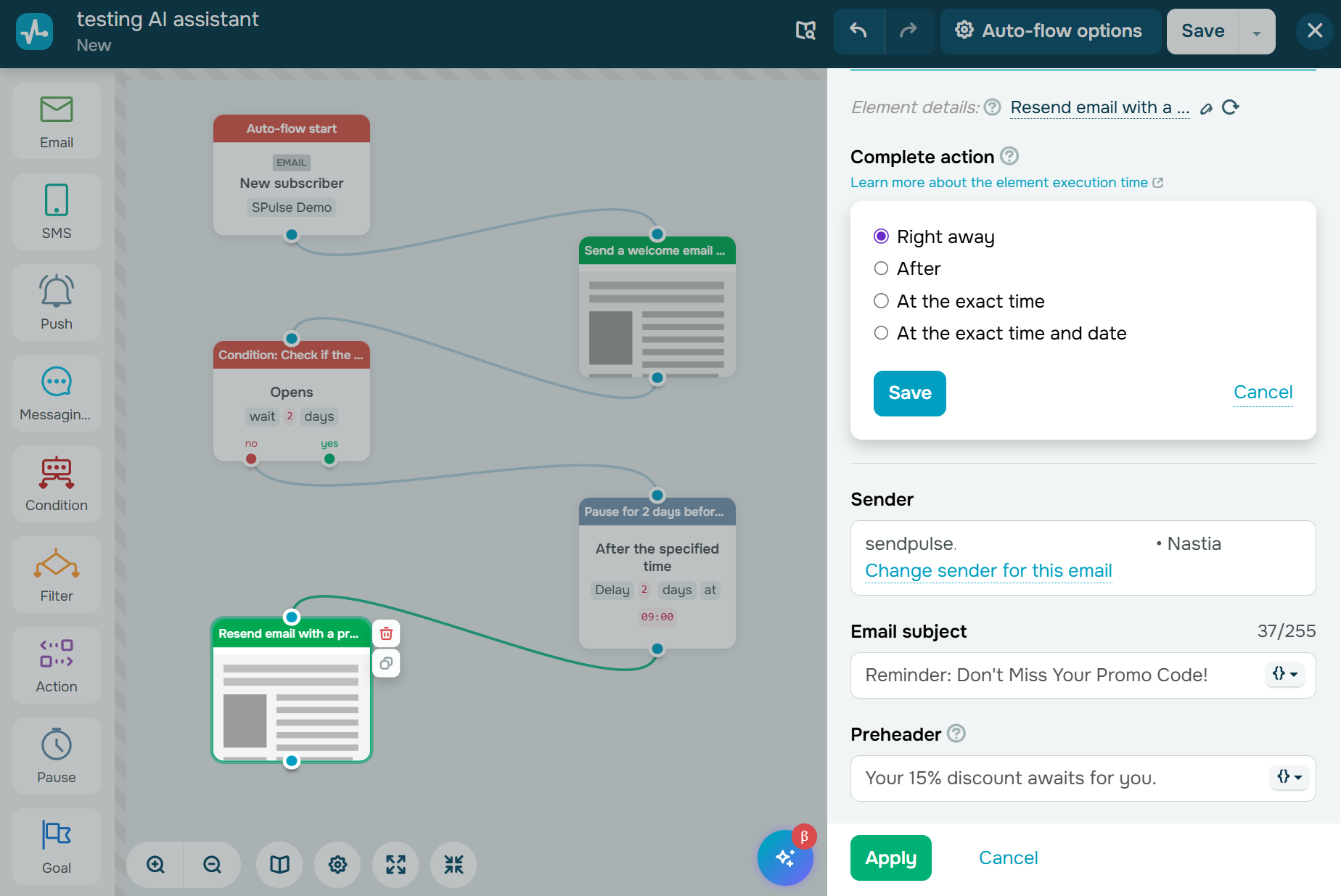 Remember to apply the changes made by the AI assistant manually for every element
Next, let’s look at several practical use cases of the SendPulse AI assistant in the automation builder.
Join 3M+ businesses growing with SendPulse
From solo creators to global brands, millions trust SendPulse to run email campaigns, chatbots, automations, and more — all in one place. Get started for free now!
Get started for free
5 AI automation assistant use cases
Here are common scenarios across different industries that highlight what our built-in AI automation assistant can do.
Registration confirmation
Registration confirmation is one of the simplest automation scenarios, yet it’s often overlooked. Many businesses lose potential subscribers because of technical setup errors or unclear confirmation messages.
This is where the built-in AI automation assistant can help. It simplifies the setup process and lets you launch a confirmation flow much faster, without spending too much time configuring every step manually.
Before giving instructions to the AI, start by setting up the trigger that launches your automation. In this example, the launch trigger is adding a new contact to the “My first mailing list” list.
Next, click the AI assistant icon in the lower-right corner of your workspace and enter your prompt in the chat.
You can use a prompt like this:
Create a flow that starts when a new subscriber is added to a mailing list. The subscriber must confirm their subscription: first send an email, and if there is no link click within 30 minutes, follow up with an SMS. Consider the subscription confirmed when the variable “Successfully registered” changes from “No” to “Yes” in the “My first mailing list” list through the “Action” block. After the subscriber confirms their subscription, send a thank-you email.
In less than 30 seconds, the assistant generates a flow that includes:
- a subscription confirmation email with a subject line and preheader;
- a “Condition” element that waits for a click for 30 minutes;
- an SMS confirmation if the condition is not met;
- an “Action” element;
- a thank-you email for completing the registration.
Here’s what this flow looks like:
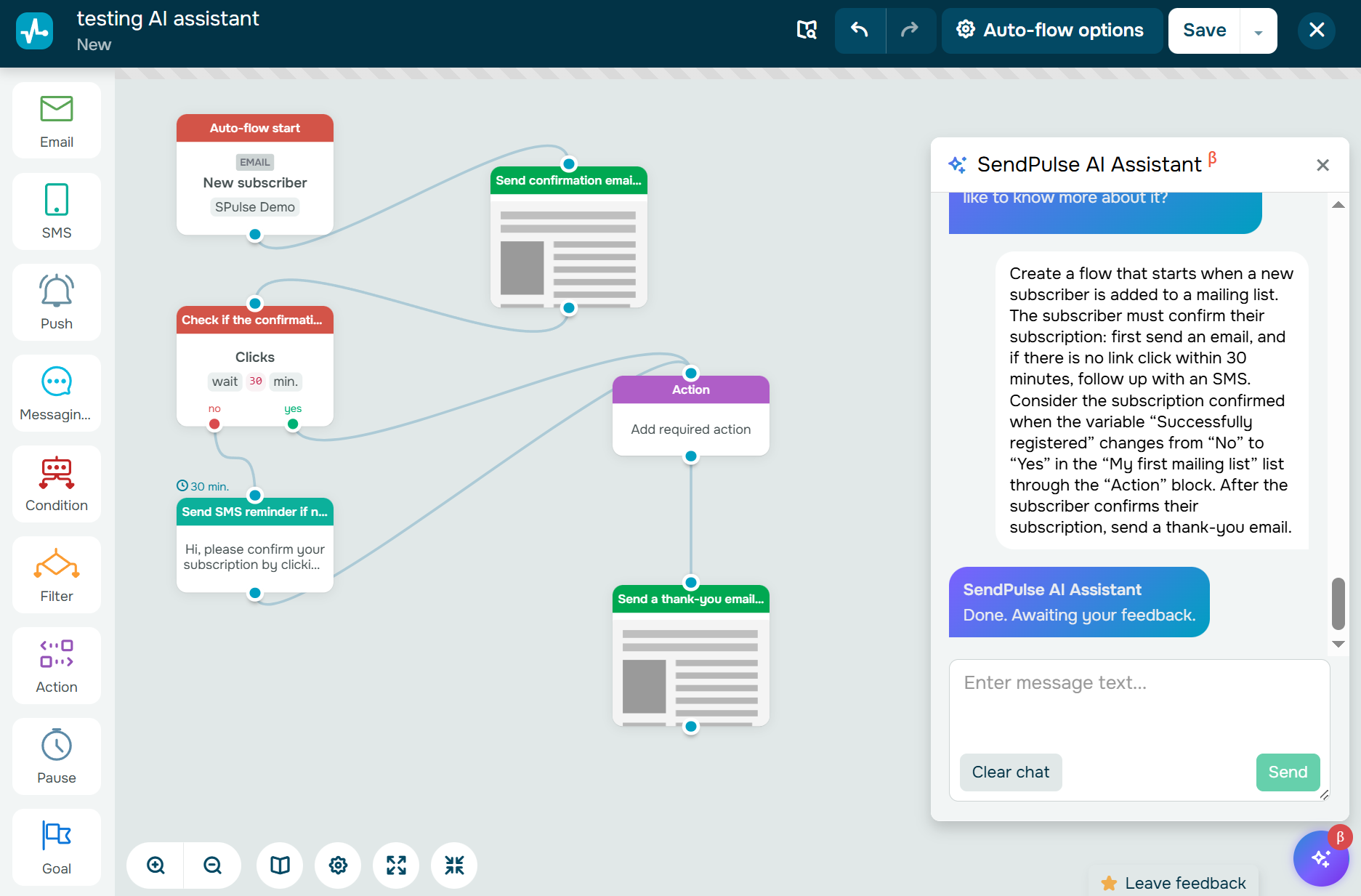 AI-generated registration confirmation flow
The “Action” element remains empty because the AI assistant currently supports only three values: delete, move, and copy. Since none of these match this scenario, the element is left unconfigured.
In this case, the element should check whether the “Successfully registered” variable changes from “No” to “Yes” in the “My first mailing list” list. You’ll need to configure this step manually.
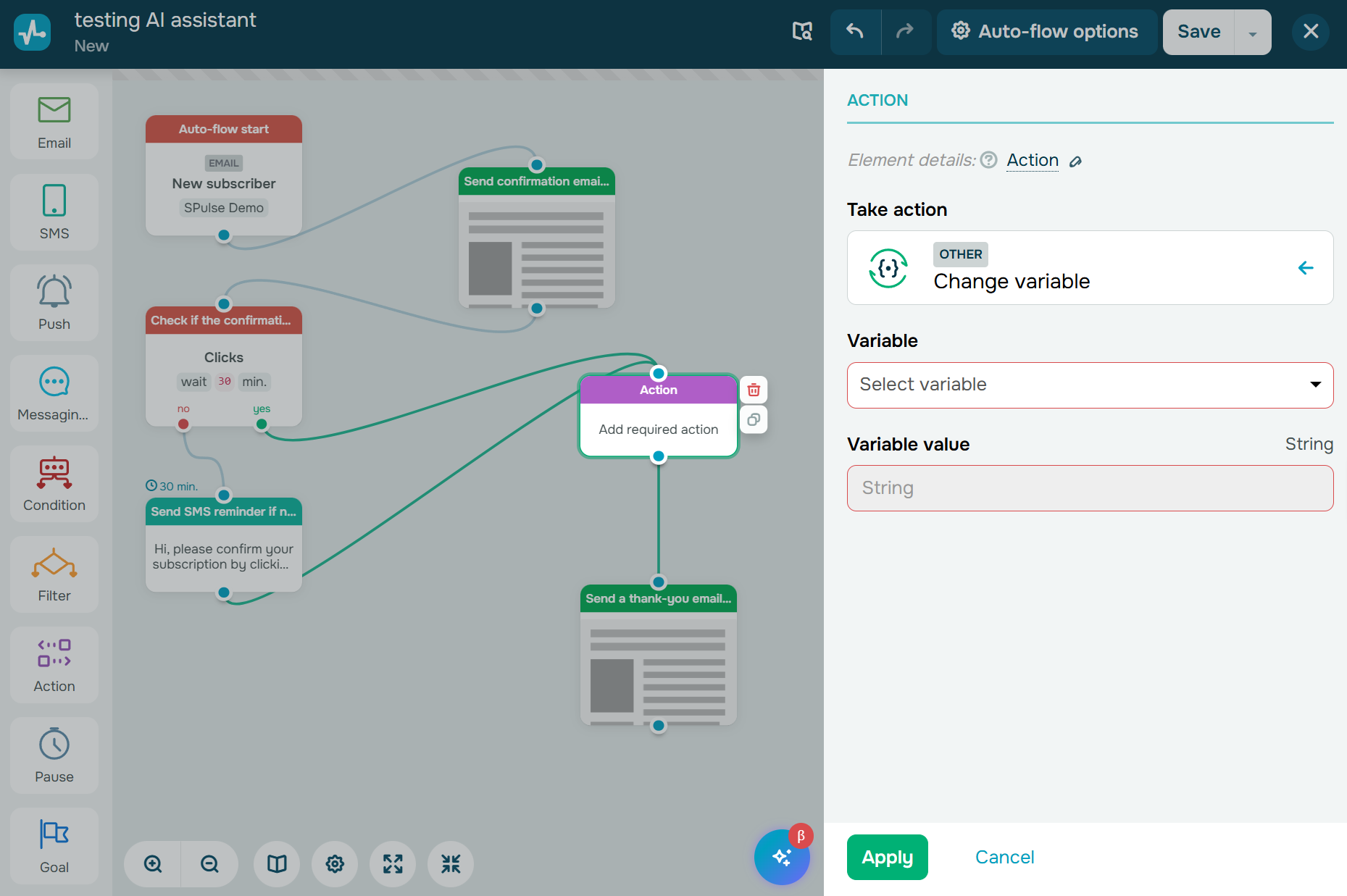 Variables you should set up in the “Action” element
Once this step is complete, the basic flow structure is ready. The next step is configuring the individual elements.
In the “Email” element, set the execution time, adjust the subject line and preheader if needed, and add an email template.
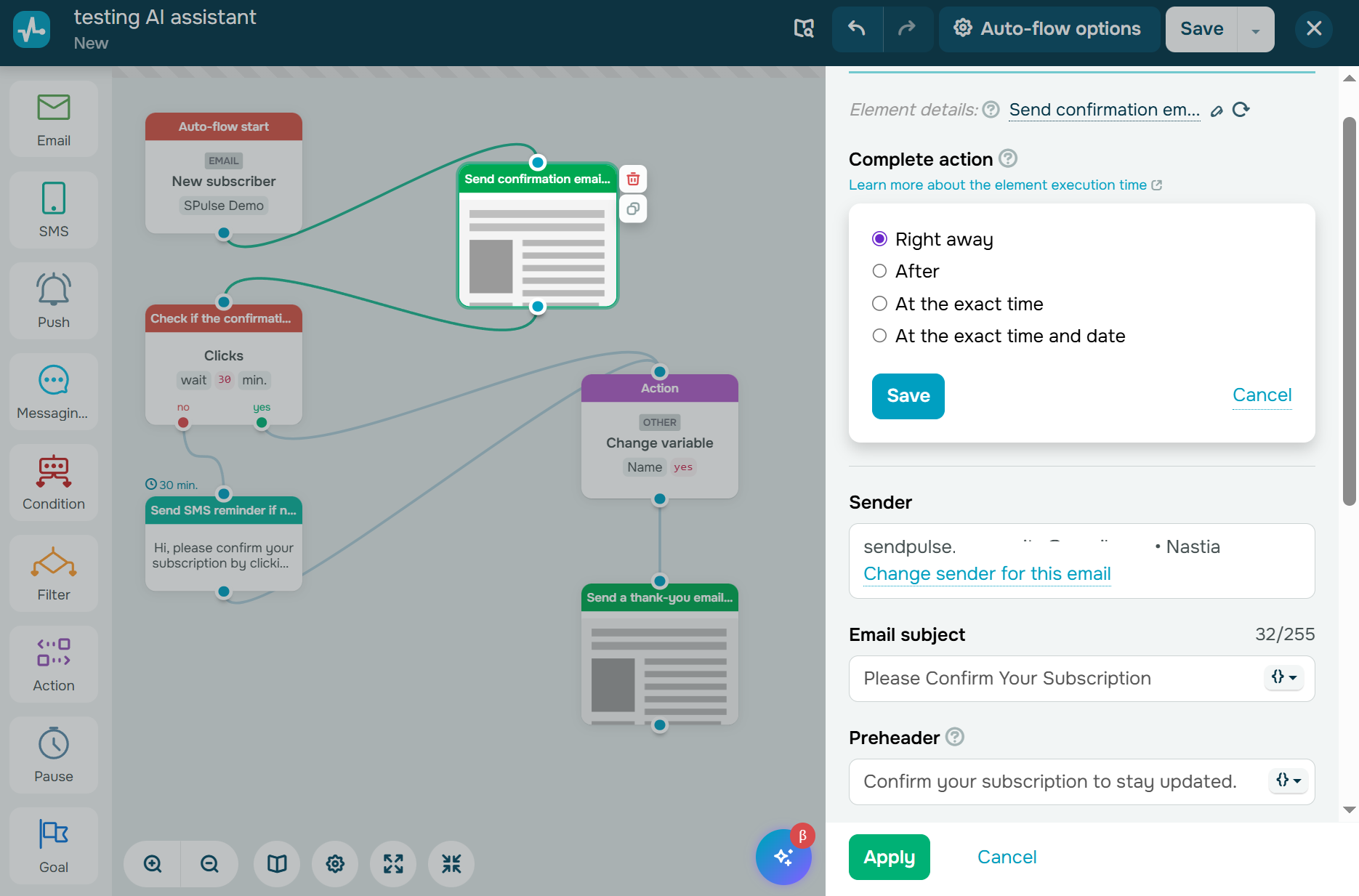 Setting up the “Email” element
In the “SMS” element, specify the execution time, sender name, and unsubscribe link. You can edit the message text or keep the AI-generated version. Be sure to add the confirmation URL, as the AI can’t insert links.
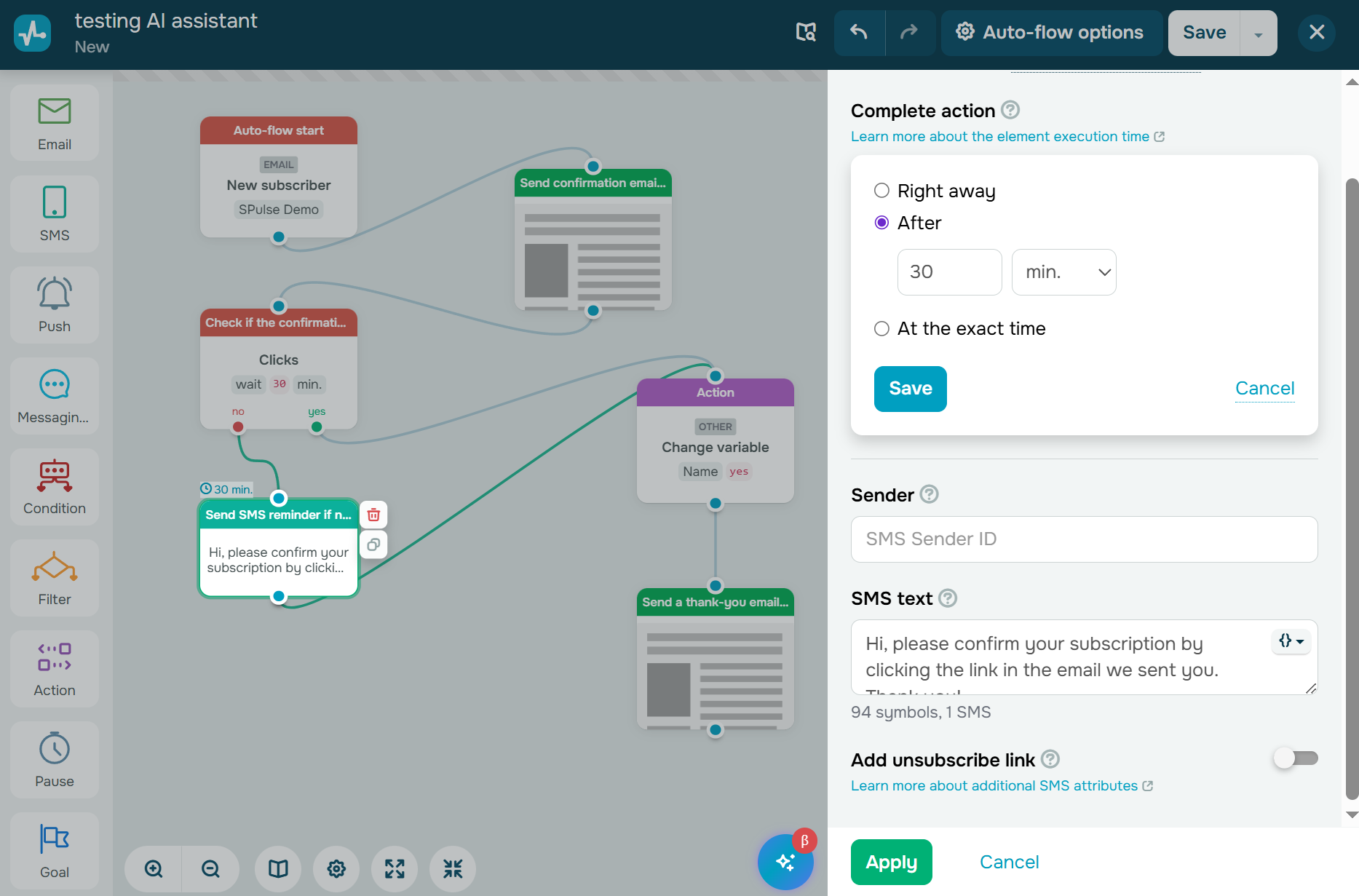 Setting up the “SMS” element
After completing the setup, review your changes and save your flow. You can always update it later and launch your automation when needed.
Subscriber re-engagement and mailing list clean-up
Over time, any mailing list naturally accumulates inactive contacts. Some subscribers stop opening emails, ignore messages, or simply lose interest in your communications. This is a normal lifecycle, but without a systematic approach, it can reduce campaign performance, harm deliverability, and increase the cost of maintaining your subscriber base.
To re-engage dormant contacts and keep your list healthy, map out your flow scenario and prepare a clear prompt for the AI automation assistant. Consider sending a series of emails with varied incentives, such as discounts, promo codes, or event invitations, to win back as many inactive subscribers as possible.
Use a prompt like this:
Create a flow to remove inactive contacts from the “My first mailing list” list. Remind subscribers about our bedding brand and check whether they are interested in continuing to engage with us.
First, send an email asking if the recipient is looking for Christmas gifts and invite them to browse our collection with free shipping. In the next email, offer a 15% discount on purchases over $300. In the third email, offer a complimentary blanket with every order.
After each email, check whether the recipient opened it within one day. If yes, stop the series for them. If no, send the next email. Finally, remove any subscribers who fail to open at least one email in the series. The ultimate goal is to build a list of active subscribers.
Almost instantly, the AI assistant generates a ready-to-use flow aligned with your request.
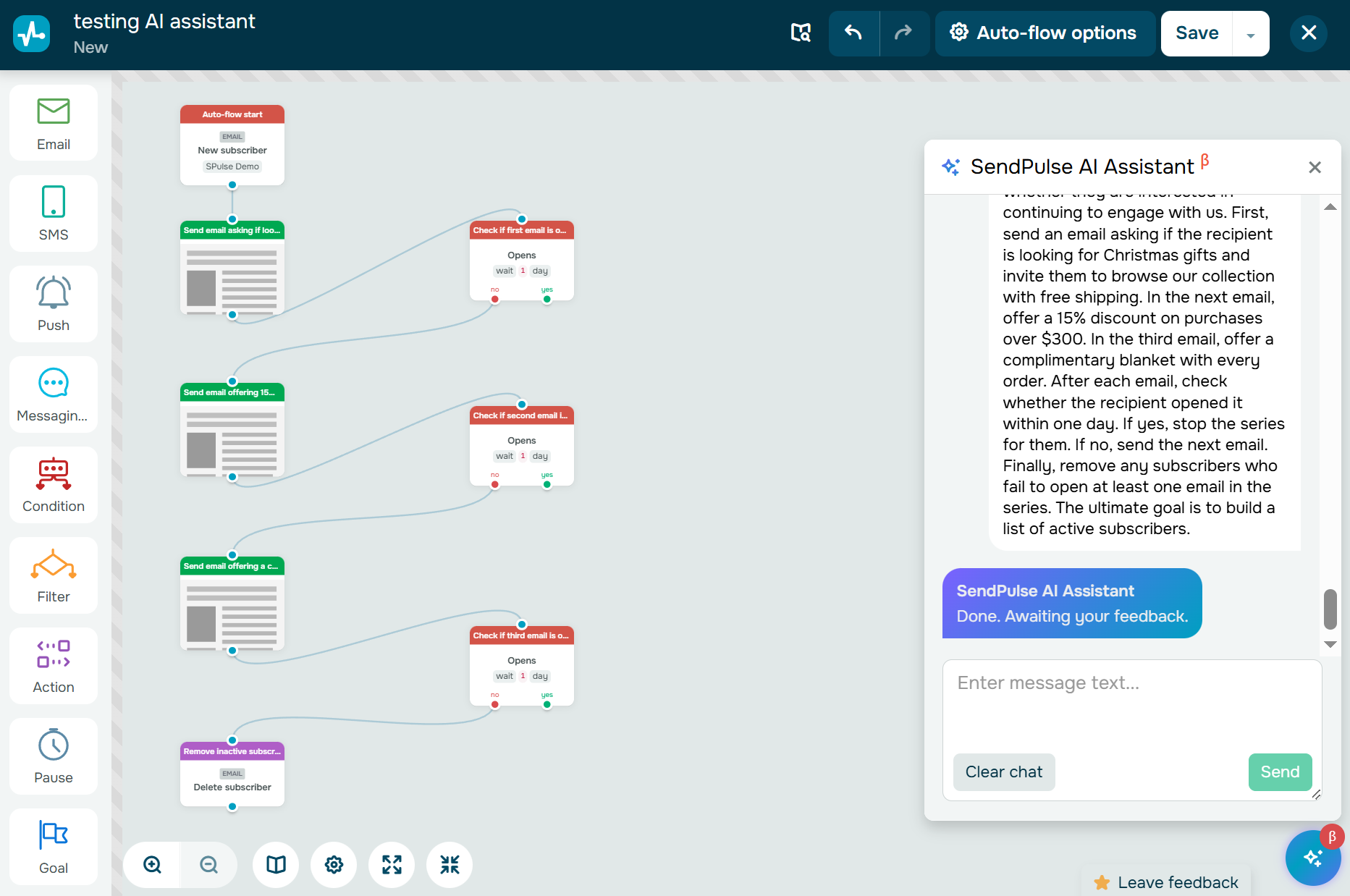 AI-generated reactivation flow
As in the previous example, open each element and complete the setup manually before you can save the flow. Some elements, such as the “Action” one, may already be configured, but you still need to apply the changes.
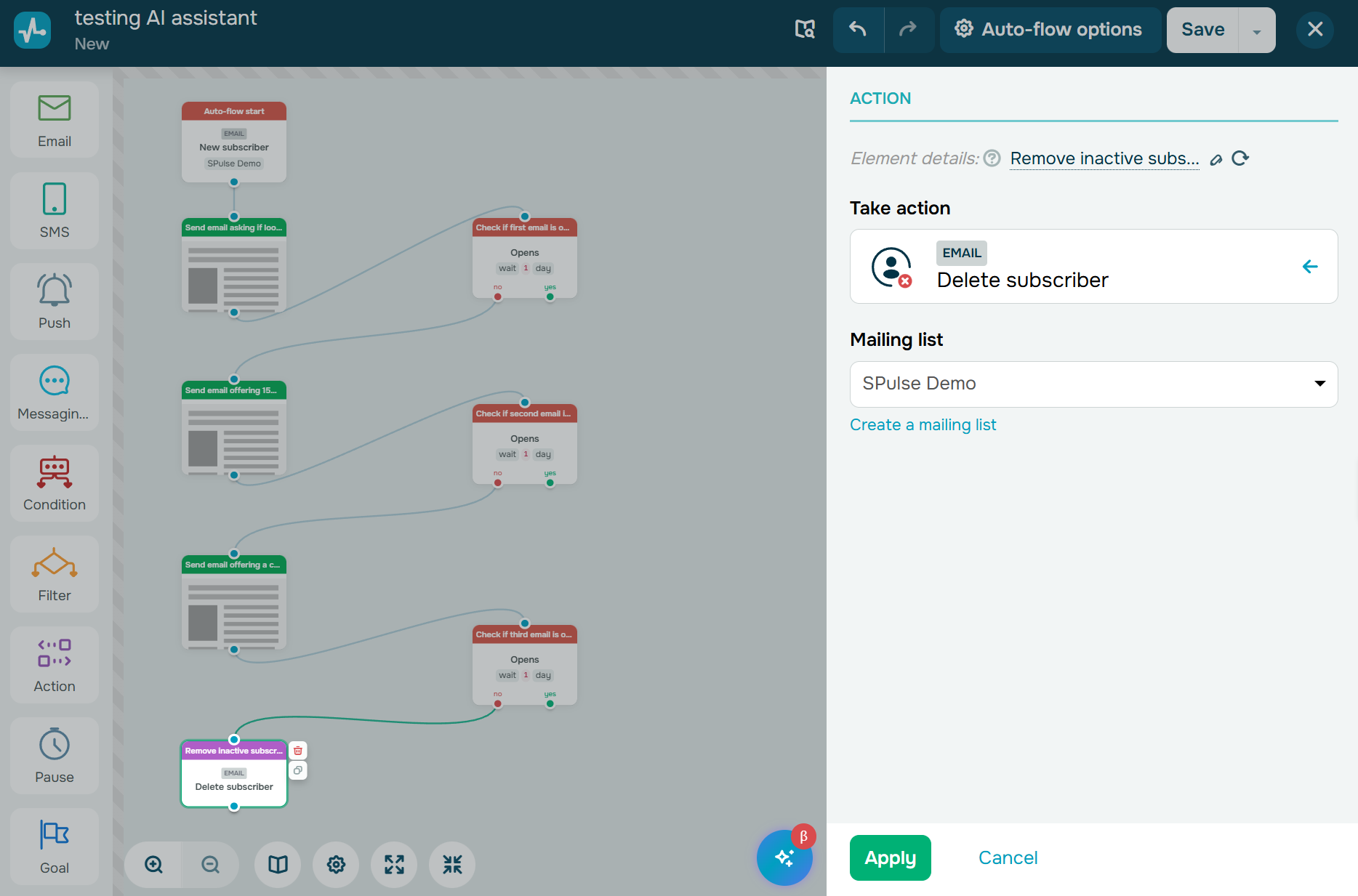 AI-powered removal of inactive subscribers
Pay close attention to the email content generated by the AI. It typically includes one or two short sentences and a button created in the email editor. You can refine the copy, select a ready-made template from the library, or upload your own design.
To use a pre-built template, go to our email template library and choose an email category and language.
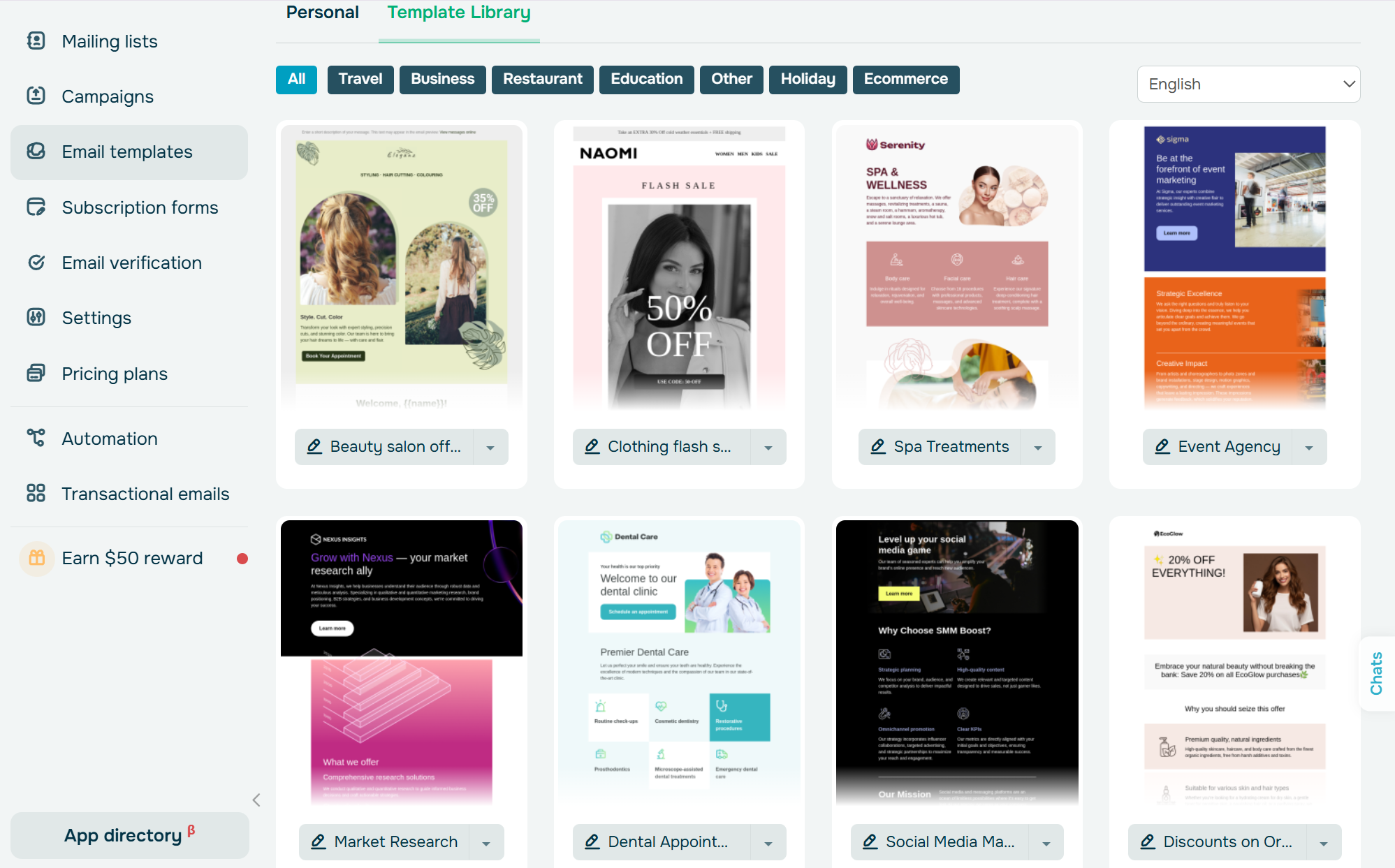 Free email templates
Next, select a template from the list and click “Edit” to tailor the content to your needs. You can customize every part of the email from the layout and colors to the links, copy, and contact details.
Use AI to speed up your email copywriting, as it can instantly generate high-quality text or improve existing content.
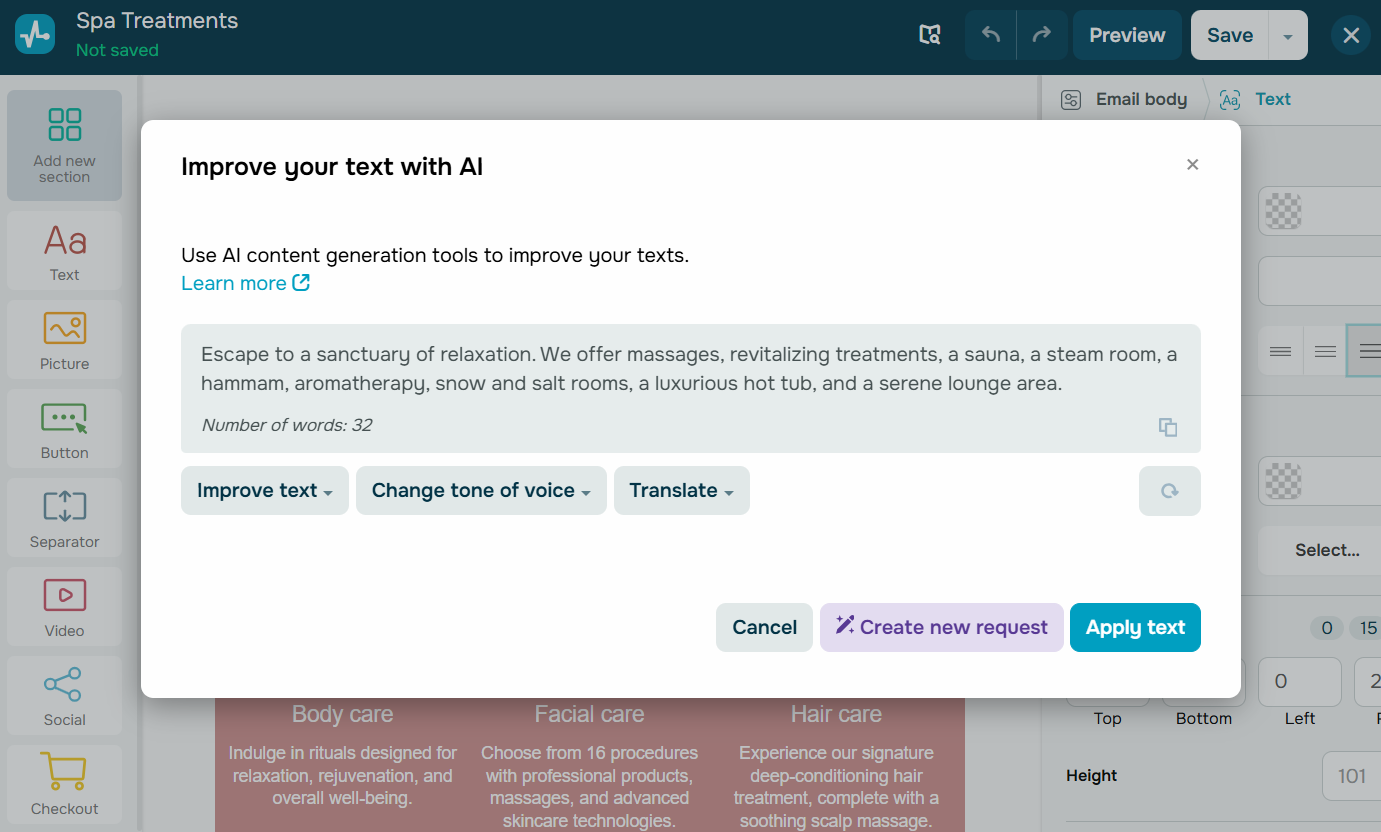 Improving copy with AI
Remember to add an unsubscribe link to ensure your emails comply with the CAN-SPAM Act, GDPR requirements, and SendPulse’s terms of service.
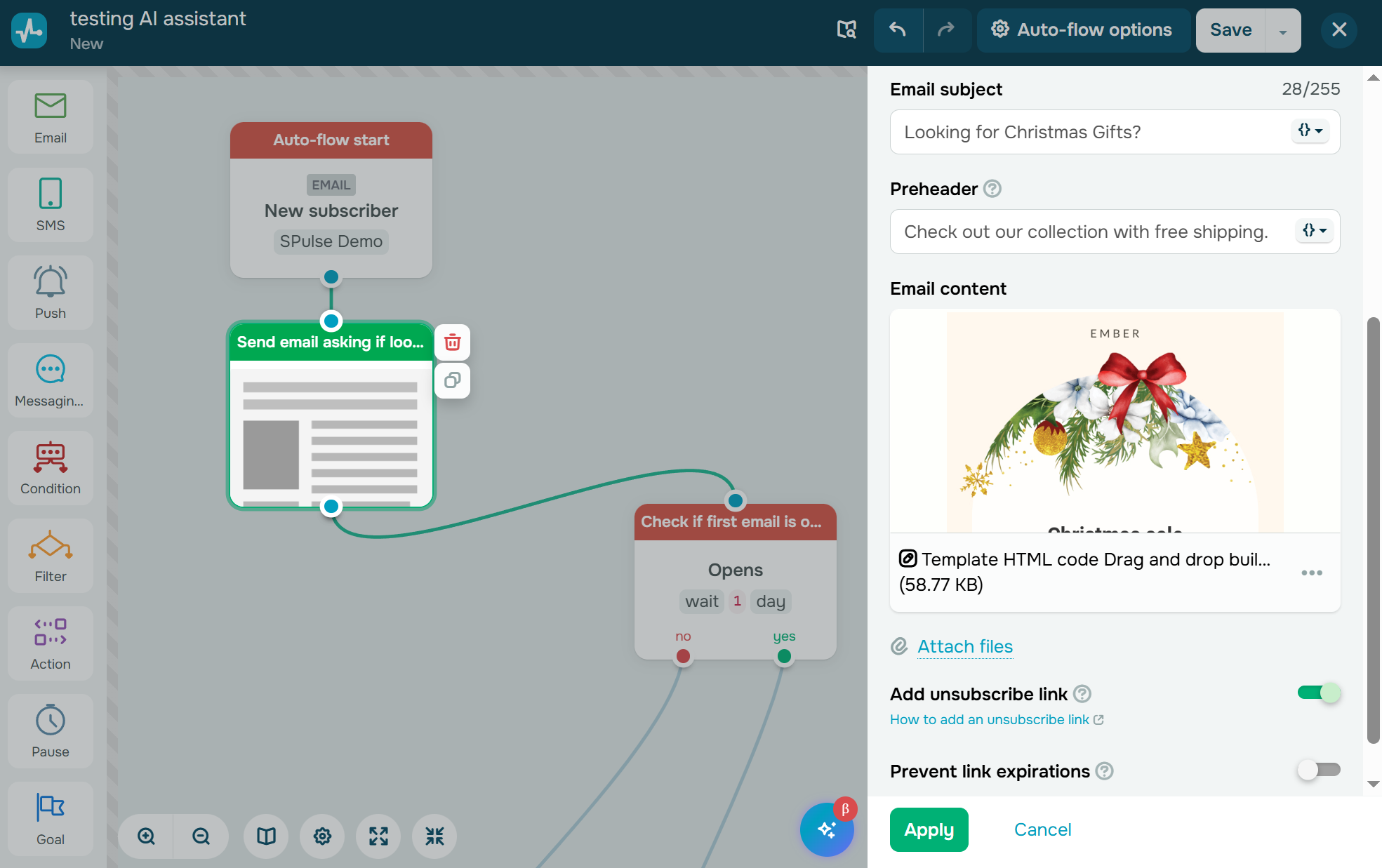 Add an unsubscribe link to your email
The assistant can also add and automatically fill in the “Goal” element with a text value used for conversion tracking. You can keep the generated description or edit it to better match your needs.
The AI automation assistant makes it much faster to create a re-engagement flow. It builds the basic structure and places the key elements in the right order for you. This way, you can focus on writing better messages and setting smarter rules for handling inactive contacts.
Webinar onboarding flow
Online events typically attract far more registrations than actual attendees. To ensure people show up, you need to build anticipation: share valuable content, introduce the speakers, and send timely reminders. A well-designed automation flow can significantly reduce no-shows and increase the perceived value of your event.
At the same time, avoid overwhelming subscribers who may have registered by accident or without strong intent. If someone ignores several emails in a row, it’s better to pause the flow and attempt re-engagement later rather than risk damaging your sender reputation.
In this example, we’ll test a more advanced setup that splits the flow into two branches: one for engaged subscribers and another for inactive ones.
Use a prompt like this:
Create an onboarding flow for webinar registration focused on 2026 marketing trends. Guide subscribers through a gradual, low-pressure onboarding experience while accounting for their level of interest in the event.
The flow should include the following elements:
- Start when a contact is added to the mailing list.
- Send a thank-you email after registration.
- Add a condition that waits for an open for one day.
Then split the flow into two branches based on whether the condition is met.
If the condition is met:
- Send an email introducing the speaker.
- Wait one day for an open.
- If opened, send an event reminder email.
- One day later, send a payment email.
- Wait up to two days for a click.
- If clicked, send a thank-you email for the payment.
- Pause the flow until March 26, 2026, at 11:50 AM.
- Send a final reminder that the event starts at 12:00 PM.
If the condition is not met:
- Resend the speaker’s introduction email.
- Wait one day for an opening.
- If not opened, set the goal as “inactive audience.”
- If opened, send an event reminder email.
- One day later, send a payment email.
- Wait up to two days for a click.
- If clicked, send a thank-you email for the payment.
- Pause the flow until March 26, 2026, at 11:50 AM.
- Send a final reminder that the event starts at 12:00 PM.
The AI assistant then analyzes your request and generates a structured flow based on your requirements.
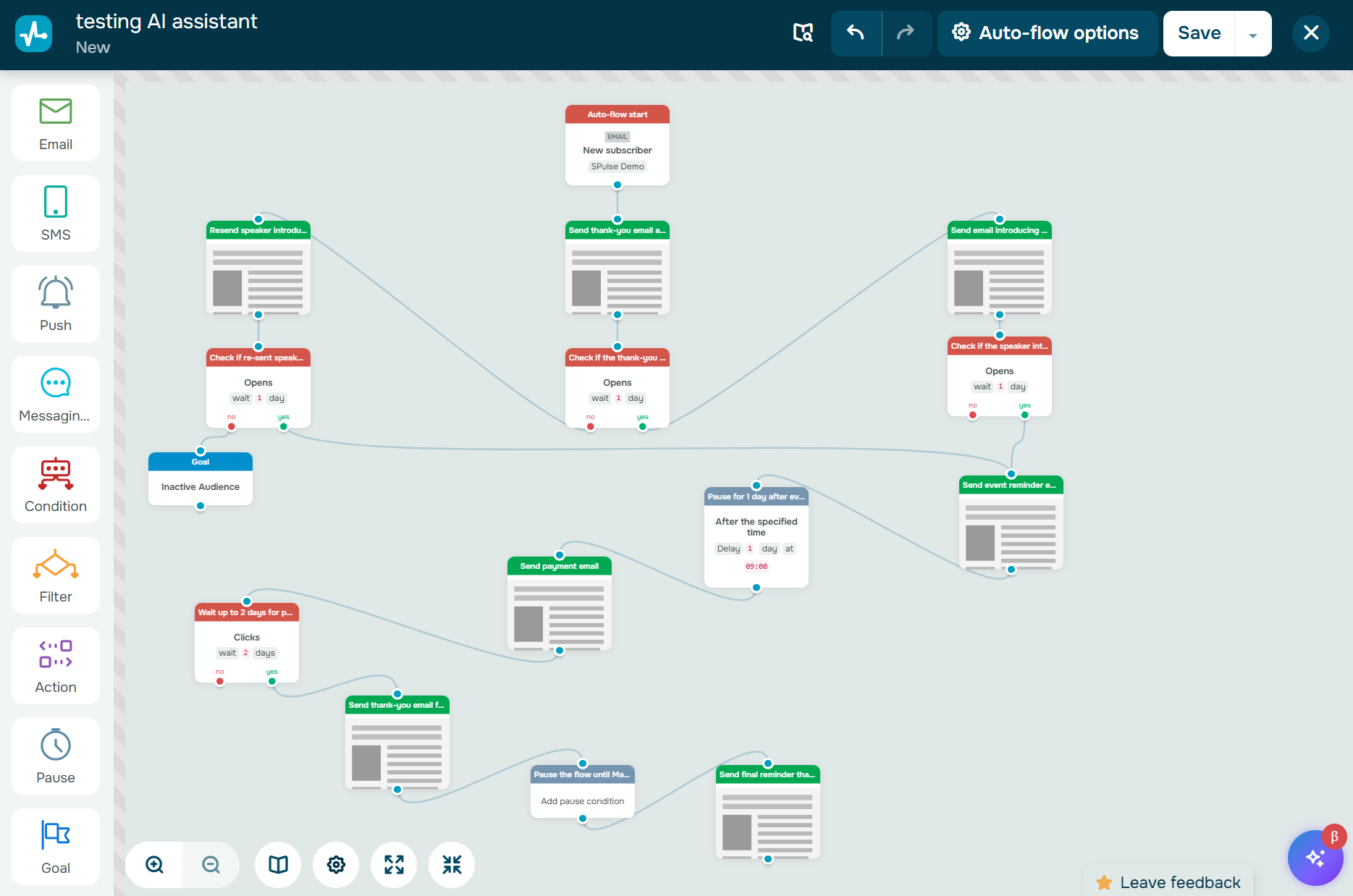 AI-generated webinar onboarding flow
While the flow is not flawless and still leaves room for refinement, it clearly demonstrates the assistant’s ability to build complex branching flows.
In the previous examples, we explored how the AI works with “Email,” “SMS,” “Action,” and “Goal” elements. Now let’s look at how it handles the “Pause” element.
This flow uses two types of delays: a fixed wait time and a pause until a specific date and time. The assistant automatically configured the one-day delay. You only need to apply the changes manually.
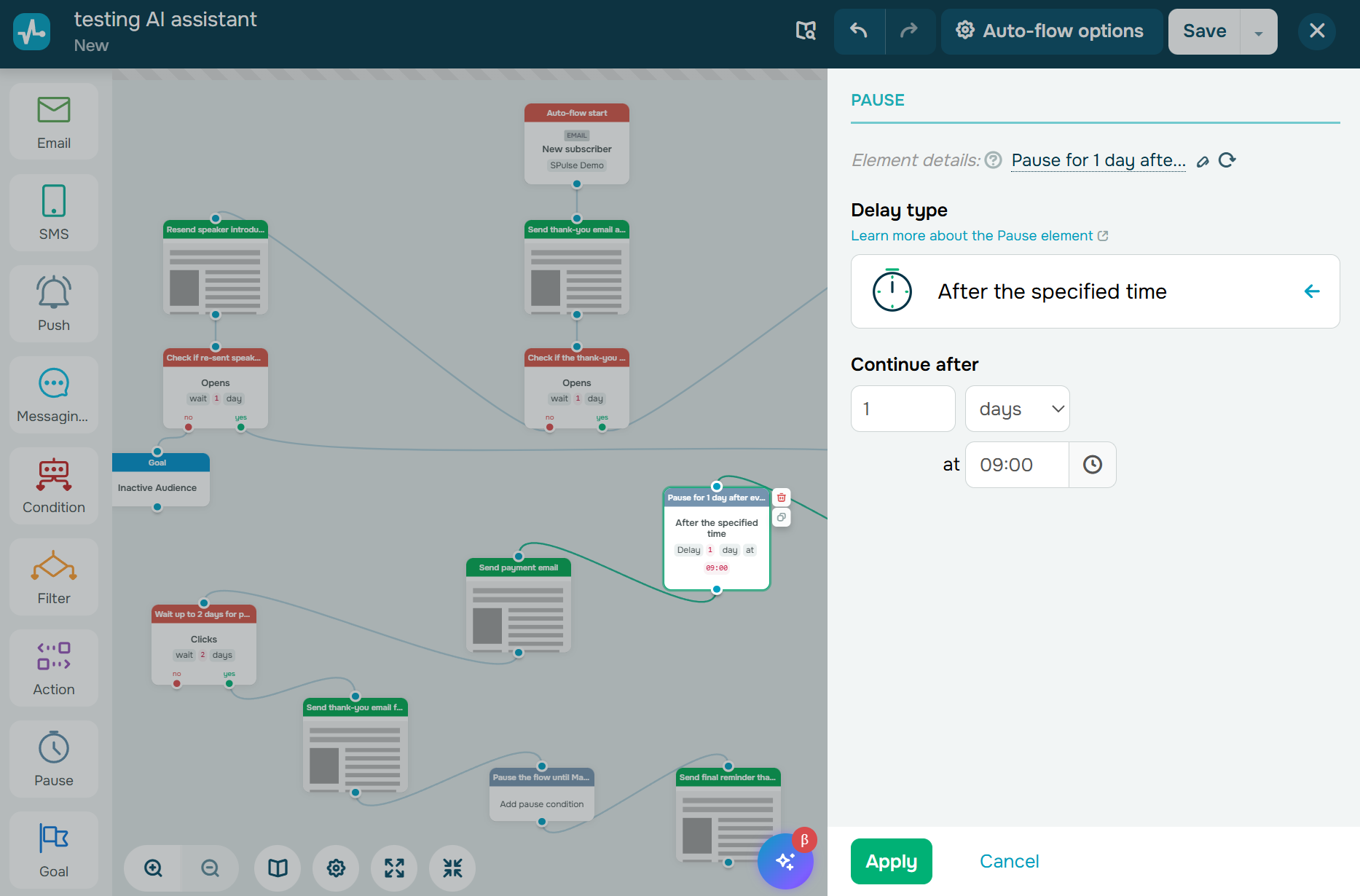 AI-configured one-day pause
The second pause is added to the structure but requires additional setup. To activate the element, select your preferred delay type.
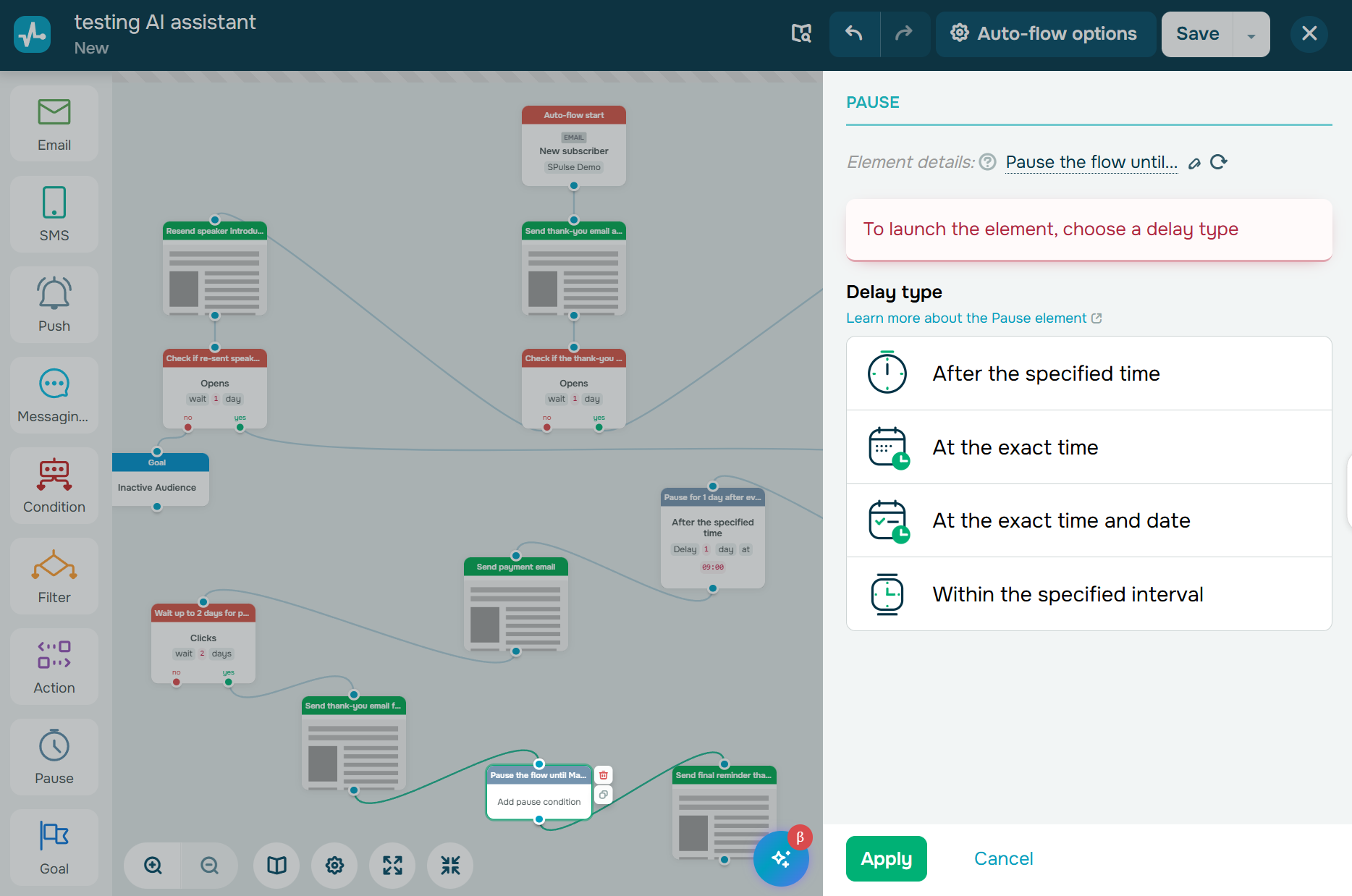 Setting up the “Pause” element
Based on the flow scenario, select “At a specific date and time” to keep contacts in the flow until the scheduled moment. This ensures they receive the final event reminder exactly 10 minutes before the webinar starts.
Also, enable the “Stop the flow after the specified time” toggle. This prevents contacts who enter the flow after the webinar has already started from receiving an outdated reminder.
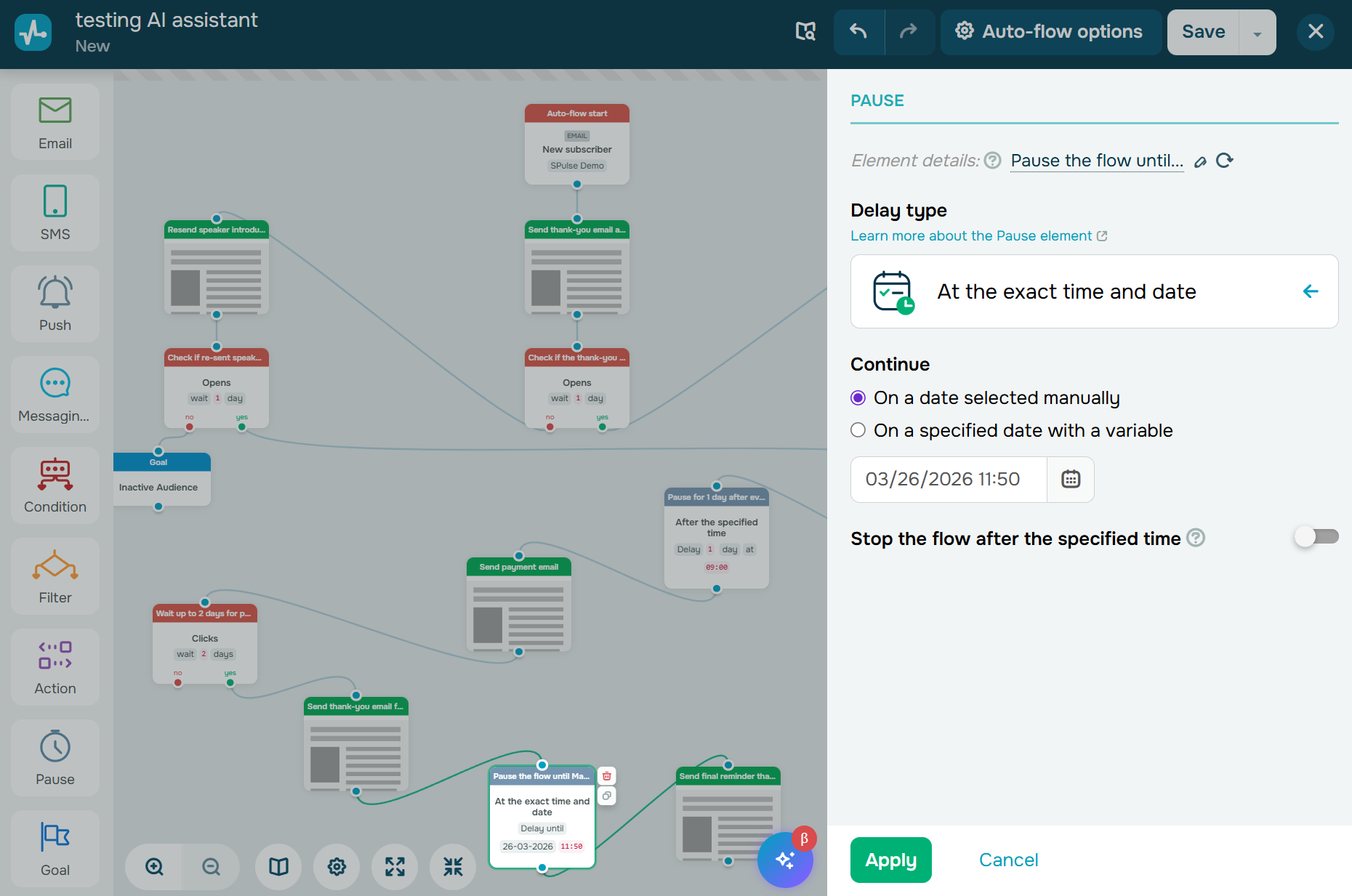 Setting a pause until a specific date
Abandoned cart reminders and upsells
This is one of the most effective eCommerce flows for recovering lost revenue. Customers abandon carts for many reasons. They may get distracted, compare options, or decide to finish the purchase later. Well-timed abandoned cart reminders with the right message can bring them back and move them toward checkout.
A reminder alone isn’t always enough. You can strengthen your flow by offering free shipping or a discount, addressing common concerns with helpful product details, or creating urgency by highlighting limited stock. While you focus on the strategy, the AI assistant takes care of building the flow structure and drafting your core messages.
You can guide the AI with a prompt like this:
Create a flow for customers who abandoned their cart. Send a reminder about the unfinished purchase. If the customer completes the order after the reminder, offer complementary products with the option to purchase them in a single checkout, and provide a 10% discount on the entire order if paid within one hour. Reinforce FOMO in the emails.
The flow should include:
- Start trigger.
- Abandoned cart reminder email.
- Condition: wait for a click for 2 hours.
- If the condition is met, send a discount email with a strong FOMO angle.
- Condition: wait for a click for 1 hour.
- If the condition is met, set the goal as “Upsell successful.”
Within seconds, the builder displays the generated cart recovery flow:
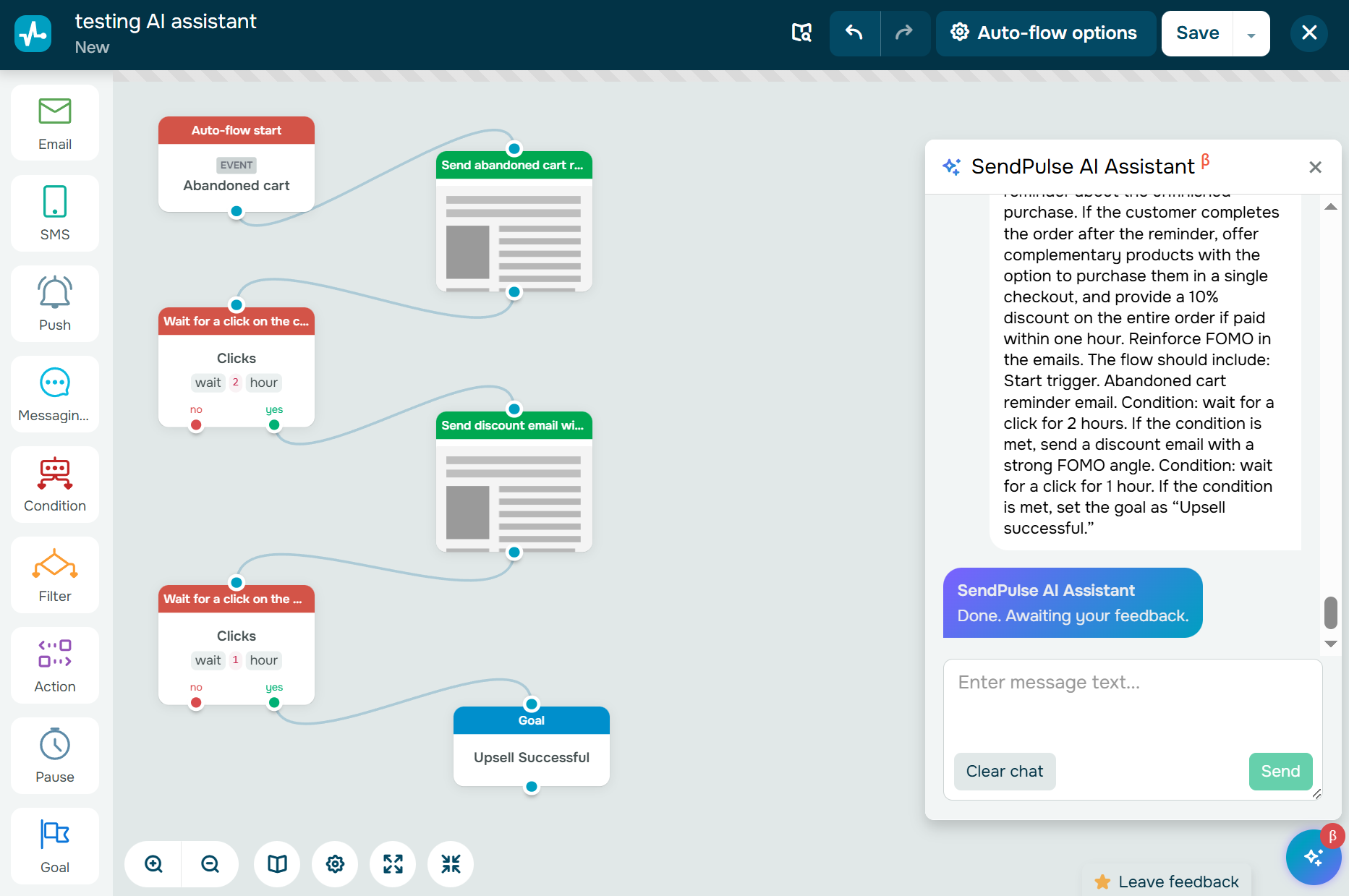 AI-generated abandoned cart flow
From here, you can continue refining your abandoned cart flow. For example, add another channel if the email isn’t opened, test different incentives, or send supportive messages in case the customer experienced issues during checkout.
Agent reminder for unpaid deals
Triggered automations aren’t just for customer messages. You can also use them internally to keep deals moving and make sales follow-ups easier.
Say, a client received a payment link but didn’t complete the payment within a specified timeframe. Your flow can send a reminder first, then create a task for a sales rep if there’s still no payment. This helps your team keep up with warm leads and follow up on unpaid deals before they go cold.
In this case, the flow starts when an unpaid deal is added to the “Online store” pipeline from your website.
Use a prompt like this:
Create a payment control flow. Send the client an email with a payment link and check for a click after 2 days. If the condition is met, change the deal stage from “Awaiting payment” to “Paid.” If not, send a payment reminder email. Check for a click again after 1 day. If the condition is met, change the deal stage from “Awaiting payment” to “Paid.” If not, create a task called “Follow up on payment” with a 2-day deadline.
Here is the generated flow structure:
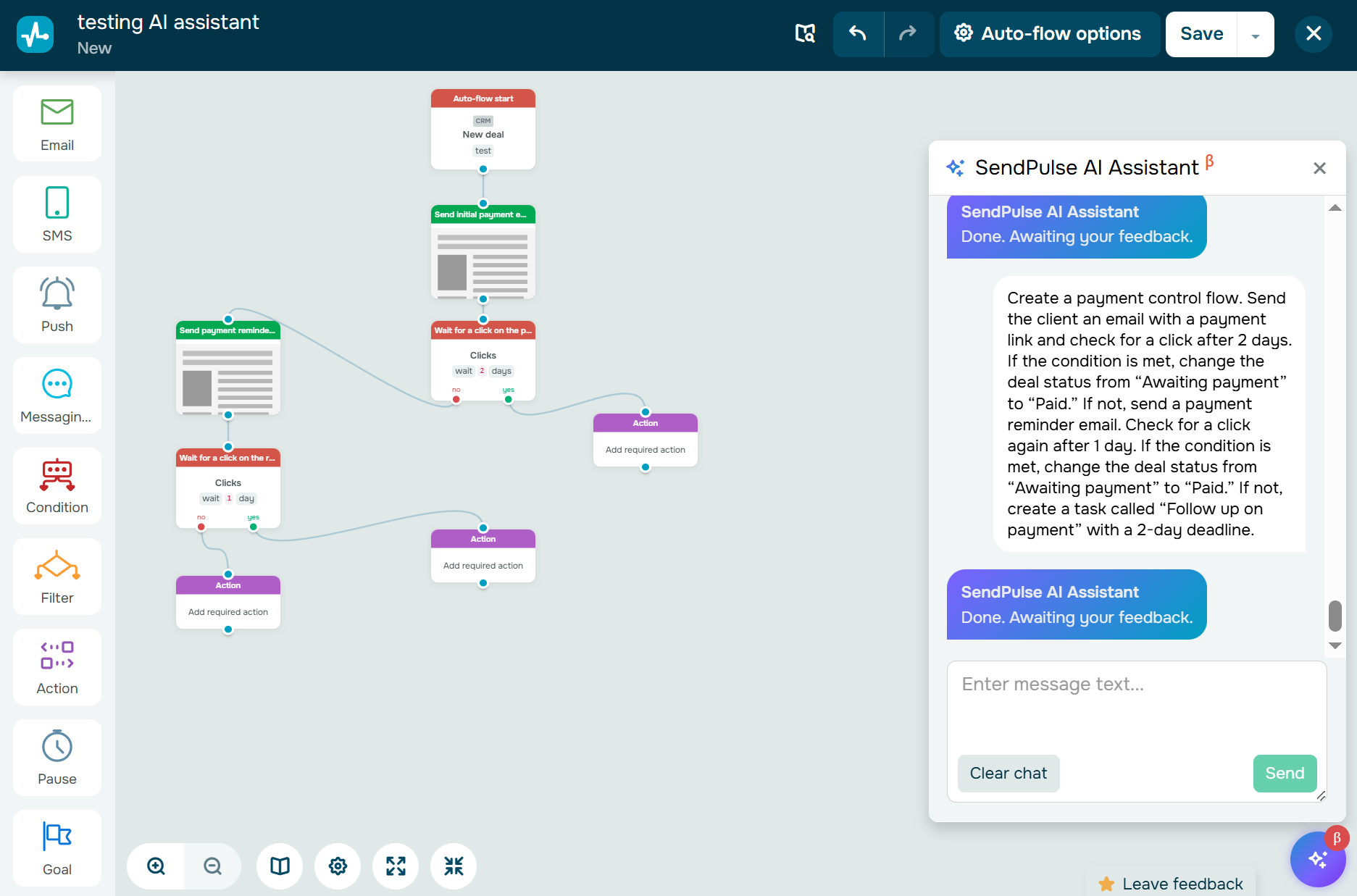 AI-generated flow for managing unpaid deals
If AI hasn’t set the “Action” element, edit it manually: select “Update deal stage,” set it from “Awaiting payment” to “Paid,” and apply the changes.
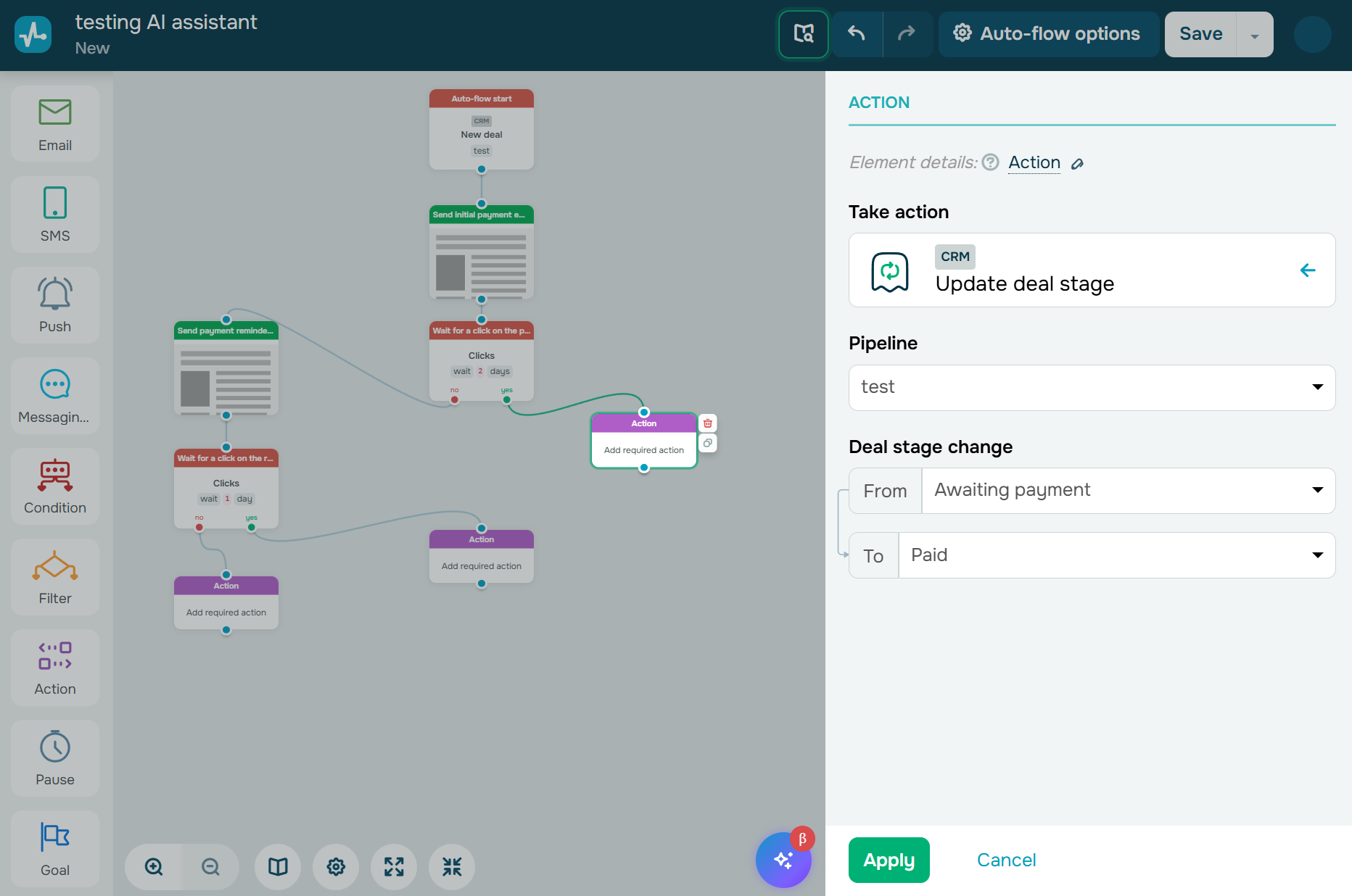 Manual editing of the “Action” element
Next, configure the steps after the second payment check. If the client completes the payment, update the deal stage the same way as before. If there’s still no payment, create a “Follow up on payment” CRM task and set a 2-day deadline.
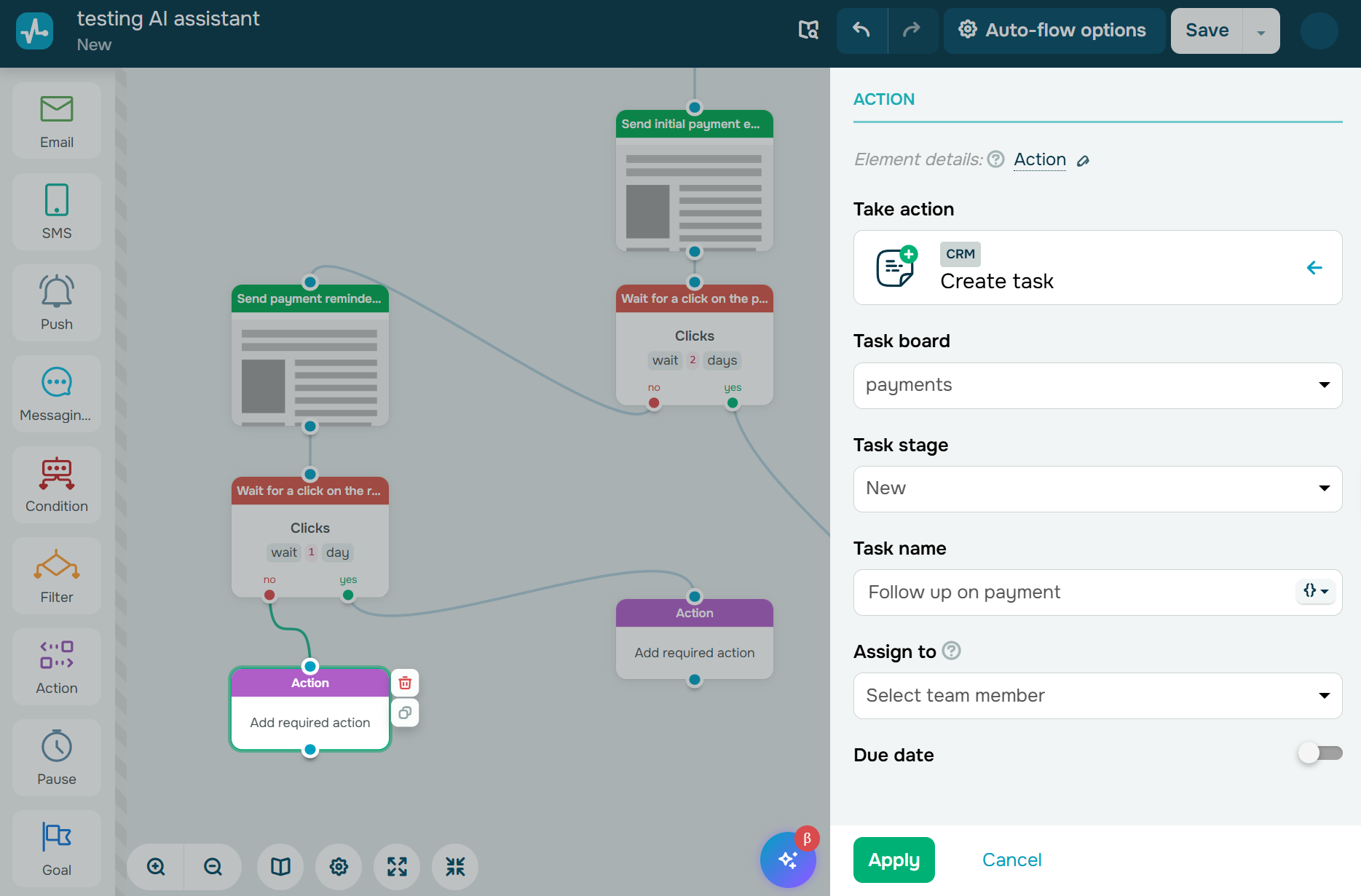 Manual setup of the CRM task creation
Once these adjustments are in place, the flow works as intended and is ready to launch.
Each of these flows has one thing in common: they automate something that directly affects revenue, retention, or team capacity.
Don't automate for the sake of it. Automate what moves the needle. Focus on workflows that bring in revenue, save time you can reinvest, and help your team scale without burnout.
SourceOlivia Milton
Fractional CMO & AI-powered growth strategist
Takeaways
To get the most out of SendPulse’s AI assistant, let it handle the routine work, such as building your flows’ basic structure and helping you navigate element settings. It will not replace a marketer, but it can take over a large part of the technical setup inside the automation builder.
The more precise your prompts, the more predictable the outcome. You can describe your flow in general terms by outlining its goal, channels, and main steps. Or you can give detailed instructions that include specific elements, delays, and conditions. Avoid vague or overly general prompts, as they don’t give the AI enough context to generate useful results.
To unlock even more possibilities, connect the MCP server to use even more AI tools in your SendPulse account.