Sending mass emails in Gmail sounds simple until you run into sending limits or compliance risks. That’s why many marketers and business owners begin with Gmail for outreach or small campaigns, and then realize they need a more structured setup as their email volume grows.
In this guide, we’ll walk through the key ways to send bulk emails in Gmail, from using CC/BCC to built-in Mail Merge, and popular extensions. You’ll see how each option works, what limits and restrictions to expect under Google’s official rules, and when these methods still make sense. We’ll also show a safer, more scalable alternative solution designed specifically for marketing email campaigns.
TL;DR Can you send bulk emails in Gmail?
Yes, you can send bulk emails in Gmail, but your options are limited. The method you choose determines how far you can scale and how reliable your results will be. Gmail was built for personal and business communication, not for running marketing campaigns, which is why every mass-sending approach comes with clear limits and trade-offs.
For instance, adding recipients via CC or BCC is the simplest option and can work for small internal updates or one-time announcements. Gmail Mail Merge allows basic personalization, which makes it suitable for small outreach campaigns. Extensions like YAMM help structure semi-scaled sends through Google Sheets, but they still rely on Gmail’s infrastructure and sending limits.
If you plan to run ongoing email marketing campaigns, segment audiences, or send large volumes safely, a dedicated email platform like SendPulse is a more scalable and compliant option.
Here’s a quick overview to help you compare the main methods at a glance:
| Method |
How it works |
Gmail limits |
Best for |
Main risks |
| CC / BCC |
Manual group sending |
Daily send caps |
Small internal updates |
Deliverability issues |
Gmail Mail Merge
(Workspace) |
Personalized bulk sending inside Gmail |
Workspace limits |
Small outreach campaigns |
Limited automation |
Extensions
(e.g., YAMM) |
Google Sheets-based sending |
Add-on + Gmail sending caps |
Semi-scaled outreach |
Compliance and scaling limits |
Email platform
(e.g., SendPulse*) |
Dedicated bulk email infrastructure |
Built for high-volume sending |
Marketing campaigns |
None if used properly |
* This article is published by SendPulse, and the platform recommendation is the company’s own.
Create and send high-performing emails
Use an AI assistant, pre-made templates, advanced segmentation, and feature-rich automation to run campaigns without coding. Start for free with up to 15,000 monthly emails.
Get started for free
3 ways to send bulk emails in Gmail
Below, we’ll break down three practical methods step by step: how each one works, when it makes sense to use it, and what limitations you should expect before launching a bulk email campaign from Gmail.
CC or BCC in Gmail
Using CC or BCC is the simplest way to send mass emails in Gmail. It requires no additional tools and works directly from the standard Compose window. This method works best for small-scale communication.
To send a BCC mass email without exposing recipient addresses, open Gmail and click “Compose.”
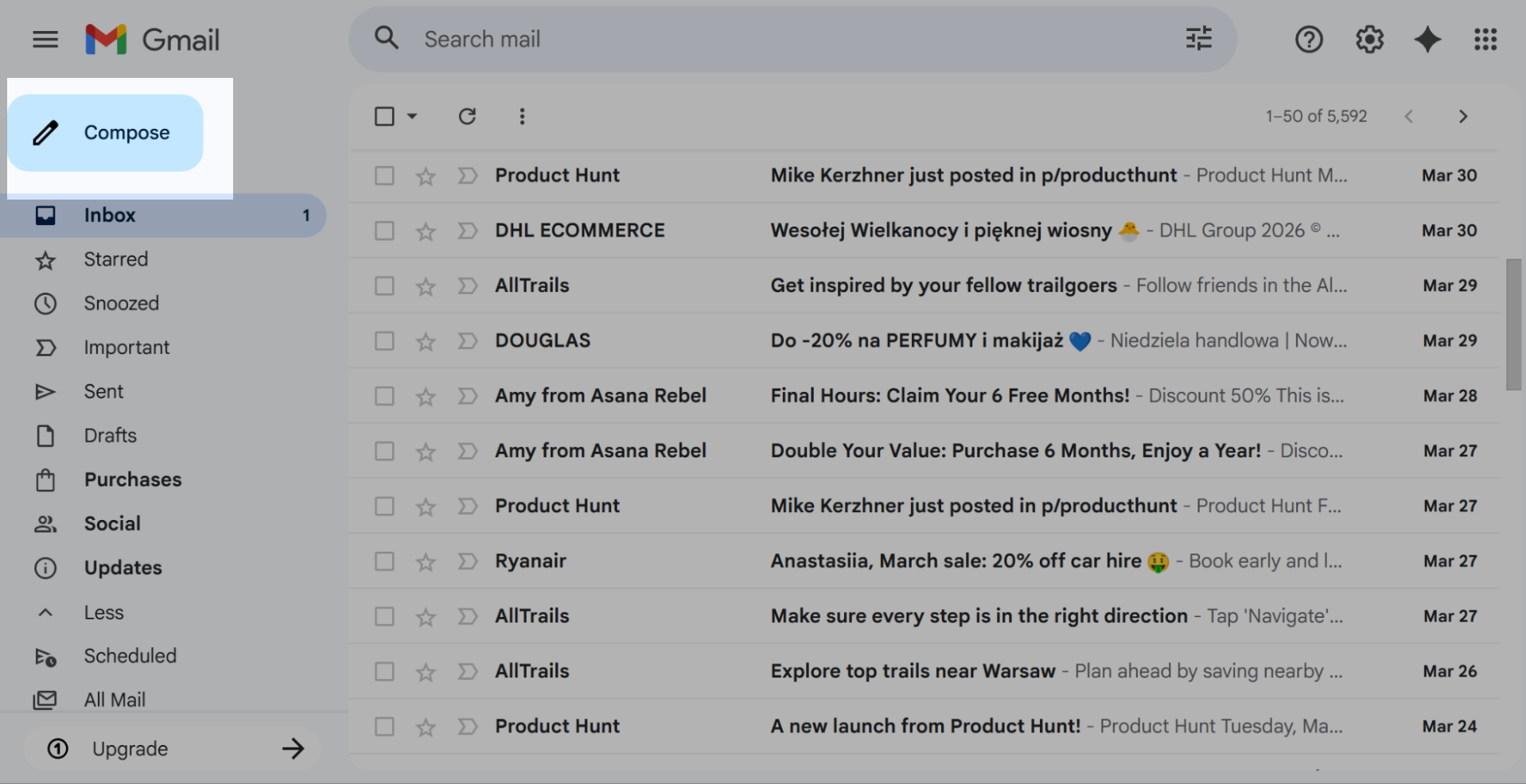 The Gmail inbox window
In the To field, enter your own email address or type “Undisclosed recipients.” Then click “Bcc” and add your contacts. Write your message and click “Send.”
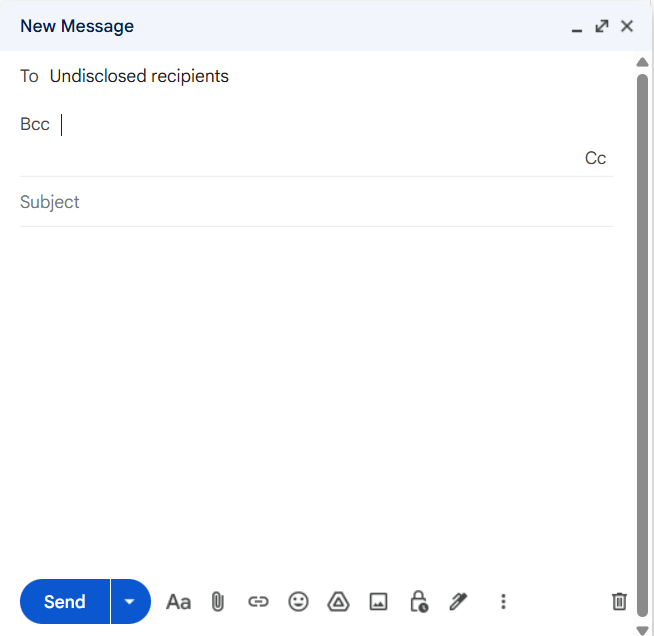 Gmail’s compose window with the BCC field
If you plan to repeat this process, you can speed up recipient selection by using Google Contacts labels.
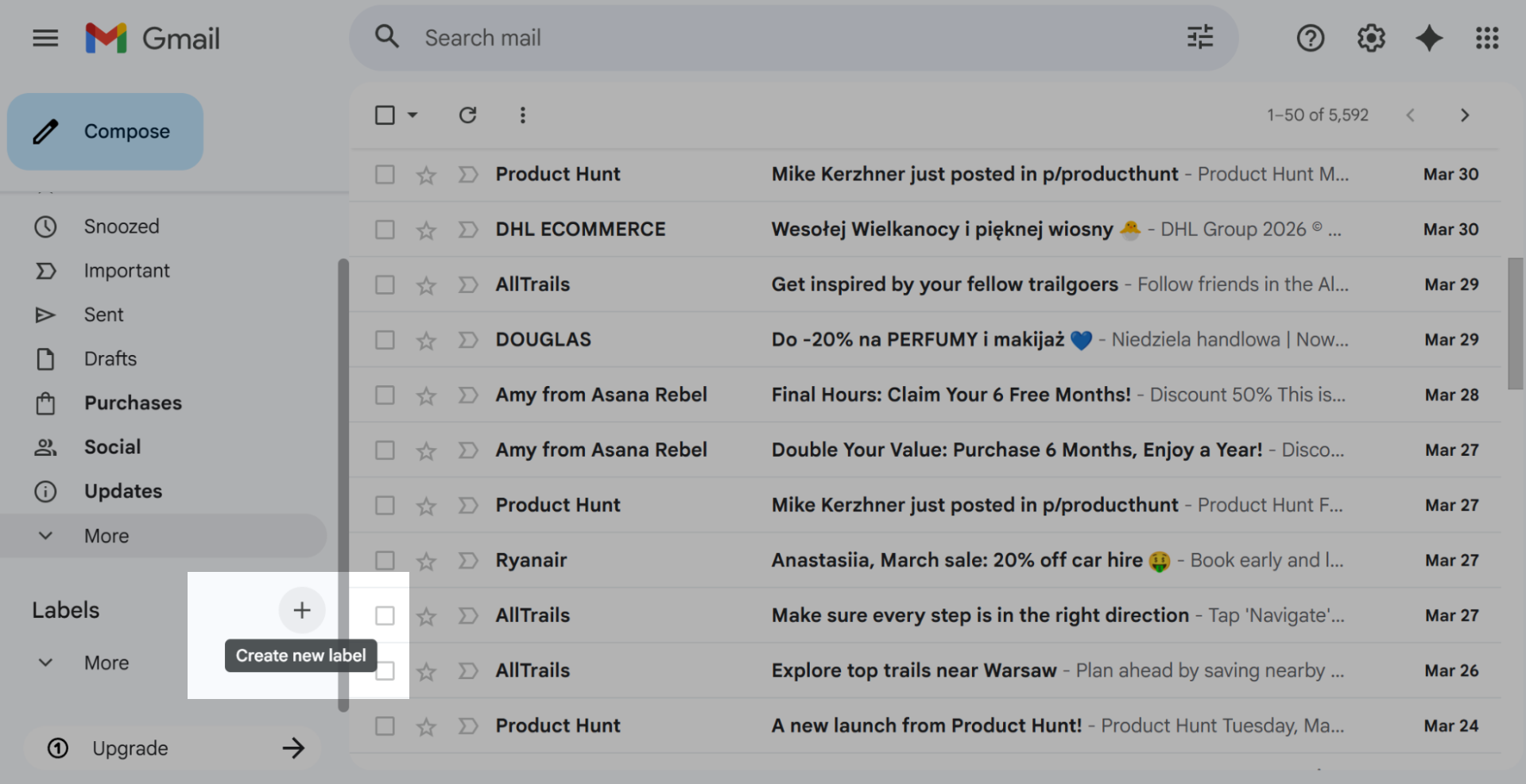 Managing Google Contacts labels
For example, create a label like “Event attendees” or “Internal updates,” add contacts to it, and simply type the label name in the BCC field when composing your next email.
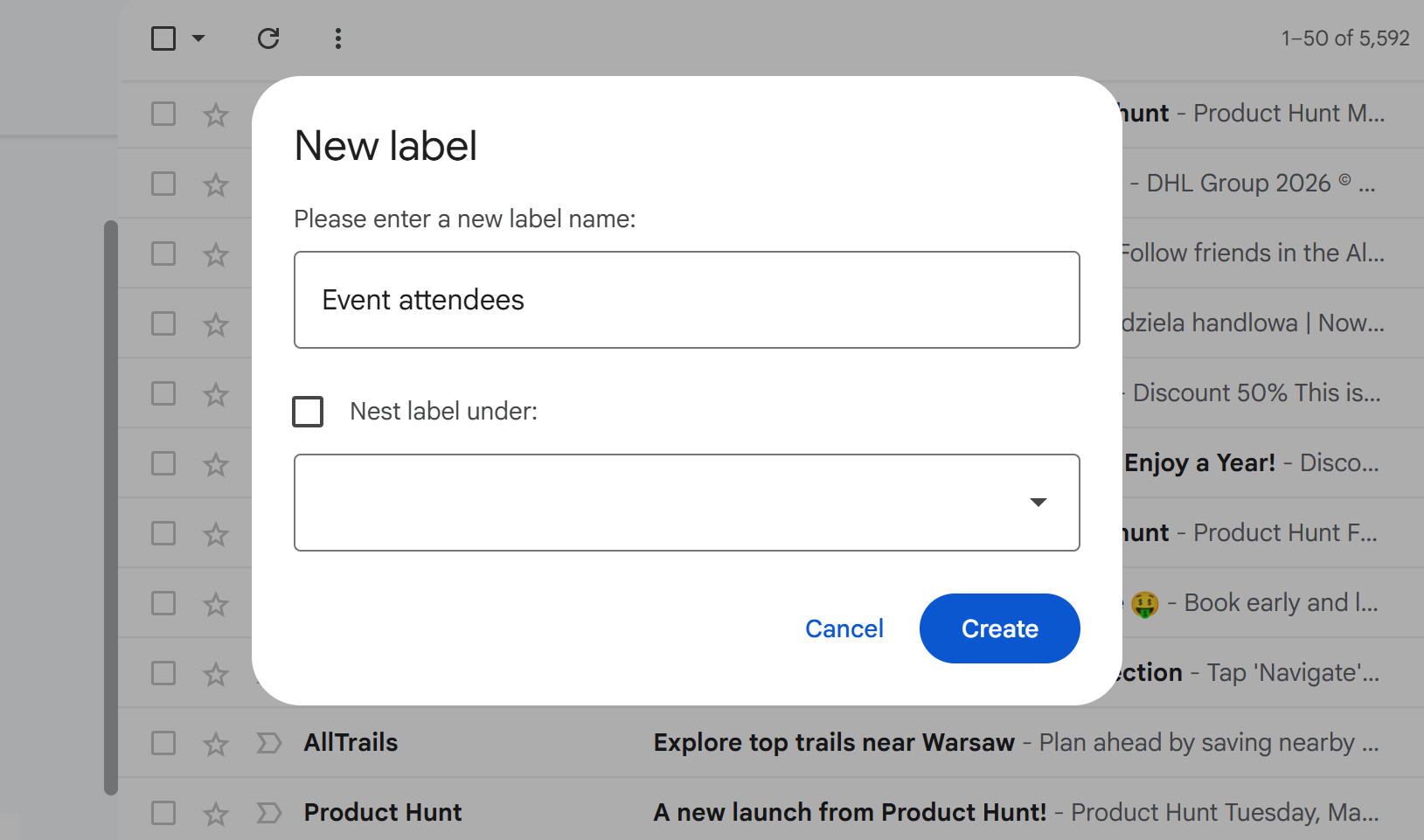 Creating a new label for future mass emails in Gmail
This helps make manual sending slightly more structured. This method works best for internal announcements, small event reminders, or one-time updates to limited stakeholder groups.
It becomes much less effective for marketing campaigns, lead nurturing, or sales outreach at scale. While BCC helps protect recipient privacy, it doesn’t provide tools to manage lists, track engagement, or handle unsubscribe requests.
As your audience grows, sending emails this way becomes harder to manage and more likely to trigger spam filters. Gmail is designed to detect bulk-like behavior and prevent spam. If you send too many emails in a short time or receive multiple spam complaints, your account may be temporarily restricted or blocked.
Gmail also applies strict daily sending limits. For personal accounts, this is typically up to 500 recipients per day across all emails within a 24-hour period. If you exceed this limit, Gmail may stop your outgoing messages and show an error.
Because Gmail doesn’t include built-in tools for list management, unsubscribe handling, analytics, or campaign automation, BCC sending usually works only for small, occasional sends.
Mail Merge in Google Workspace
If you want to send a mass email in Gmail with a more personal touch, the built-in Mail Merge feature in Google Workspace is a great alternative to BCC.
It lets you send one campaign while automatically inserting details such as the recipient’s name or company. This is especially useful for small outreach campaigns or relationship-based communication, where marketers can use personalization to improve engagement without writing every email manually.
To use Mail Merge, you first need an active Google Workspace account, since this feature is not available in standard personal Gmail. Once enabled, open Gmail and click “Compose,” then turn on the Mail Merge mode in the Compose window.
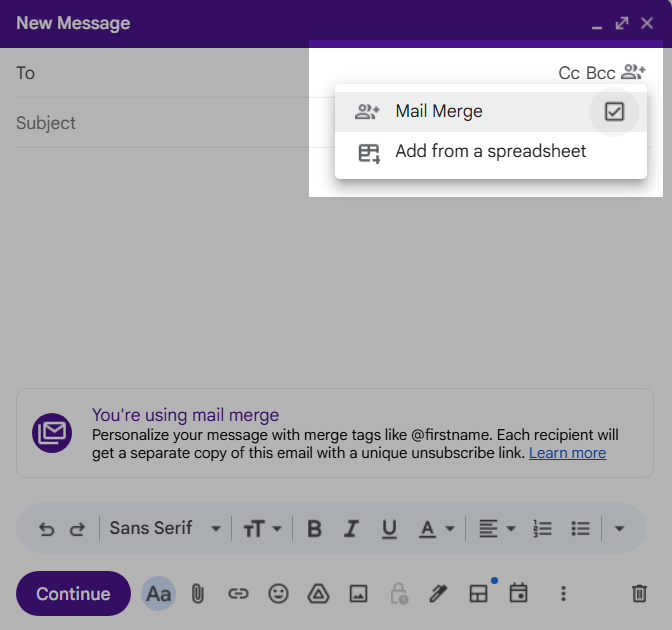 Enabling the Gmail Mail Merge mode to send mass emails
Next, add recipients manually or link a Google Spreadsheet with your recipients and map their data.
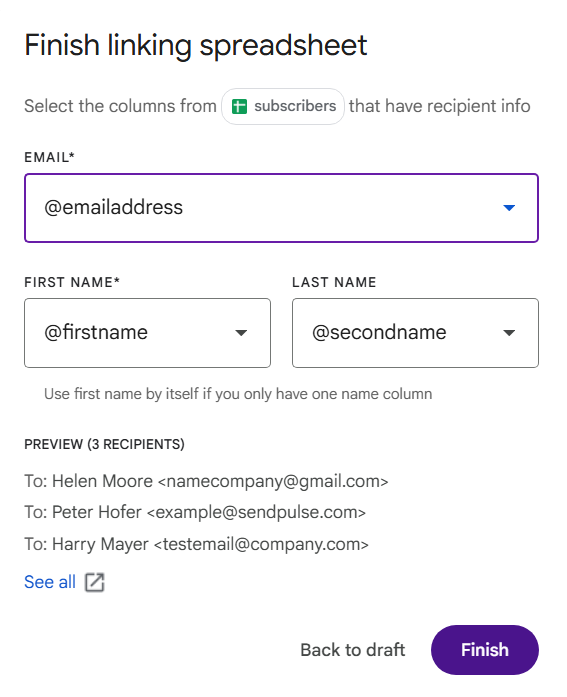 Linking a spreadsheet with recipient information for personalized bulk emails
Once linked, you can insert tags for personalized mass emails with a recipient’s name or company (provided your spreadsheet contains that data), add your mailing list, preview your message, and send your campaign.
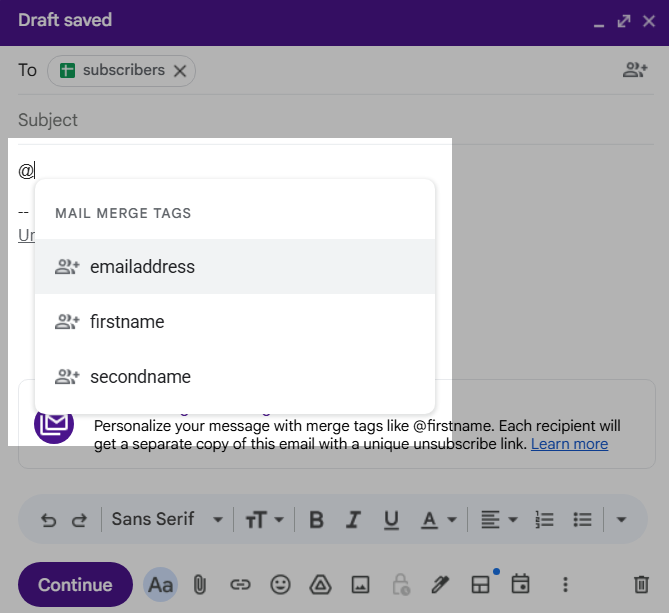 Gmail Mail Merge personalization fields available when composing the message
This method works well for personalized outreach, partner communication, or small newsletter-style updates where a more individual tone improves response rates. It also helps emails feel less like generic broadcasts, which is useful in early-stage campaigns.
At the same time, Mail Merge still runs on Gmail’s infrastructure, so the same official limitations apply. It’s only available with a Google Workspace account, and you’re still subject to sending limits, usually up to about 2,000 messages per day, depending on your account activity and sending patterns.
Exceeding these limits may trigger temporary sending restrictions or warning messages. Since Gmail is not designed as a marketing automation platform, Mail Merge also doesn’t provide built-in tools for advanced segmentation, automated campaign flows, unsubscribe management, or performance analytics.
Because of these constraints, Gmail Mail Merge is usually suitable for small, controlled outreach campaigns. As your communication needs grow or become more complex, it becomes harder to manage at scale.
YAMM or similar extensions
If Gmail’s built-in options feel too manual, extensions like YAMM (Yet Another Mail Merge) offer a more structured way to handle bulk email Gmail campaigns. This tool connects Gmail with Google Sheets, so you can manage contact lists, personalize messages, and send campaigns more efficiently.
To get started, install the YAMM extension from Google Workspace Marketplace.
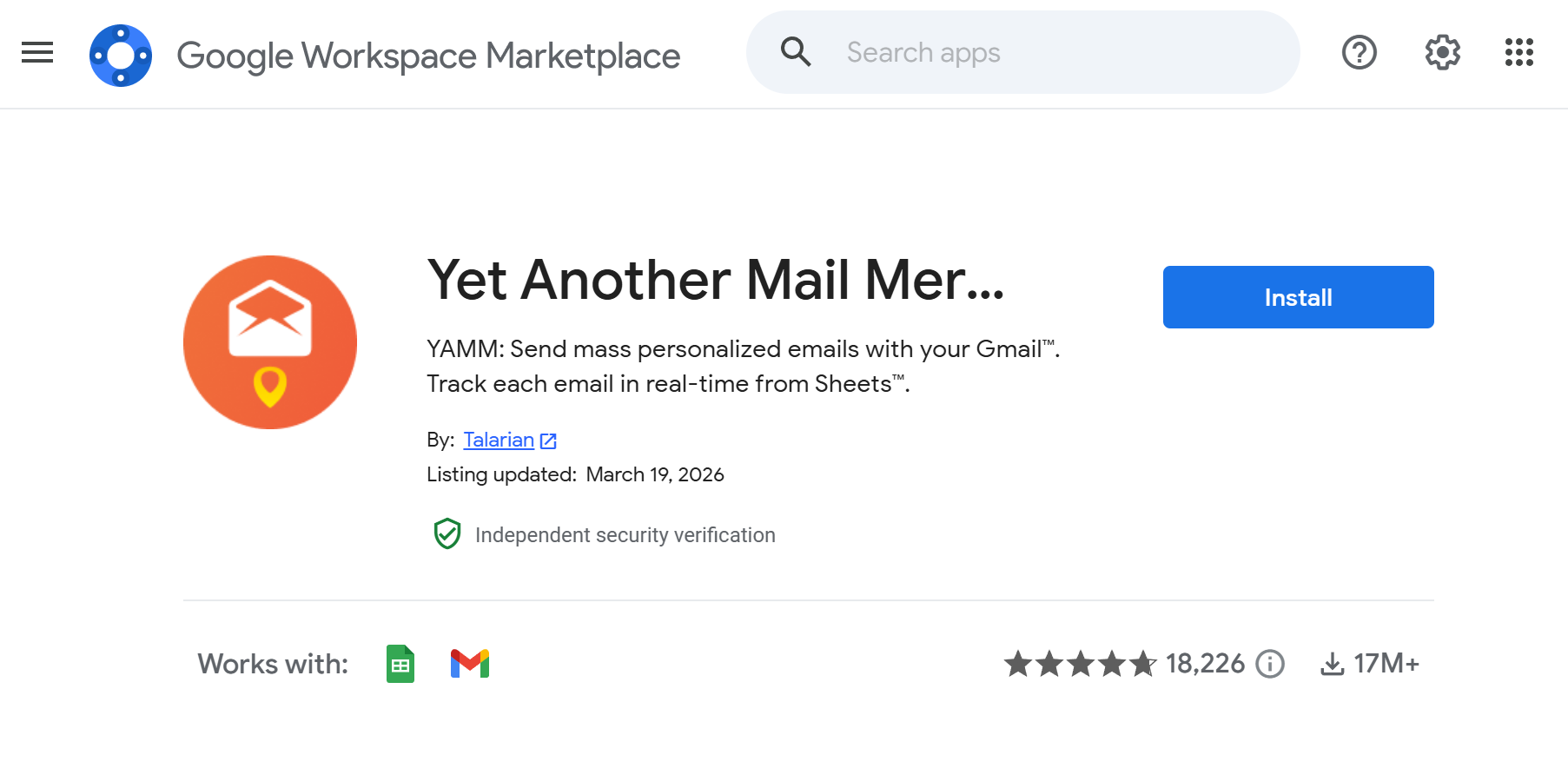 The Google Workspace Marketplace
Next, prepare a Google Sheet with your mailing list and personalization fields, such as first name or company.
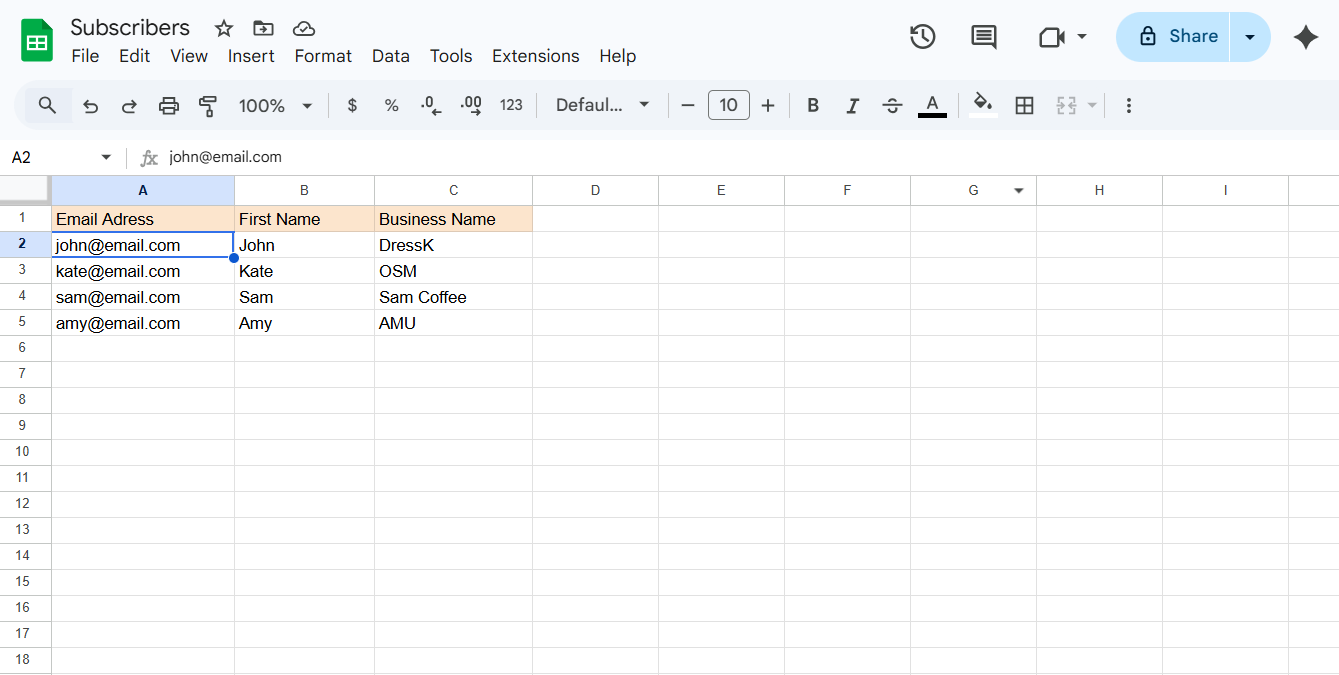 A Google Sheet with a contact list
Create your email as a draft in Gmail, using placeholders where needed. Then return to the spreadsheet and launch your campaign directly from the YAMM interface.
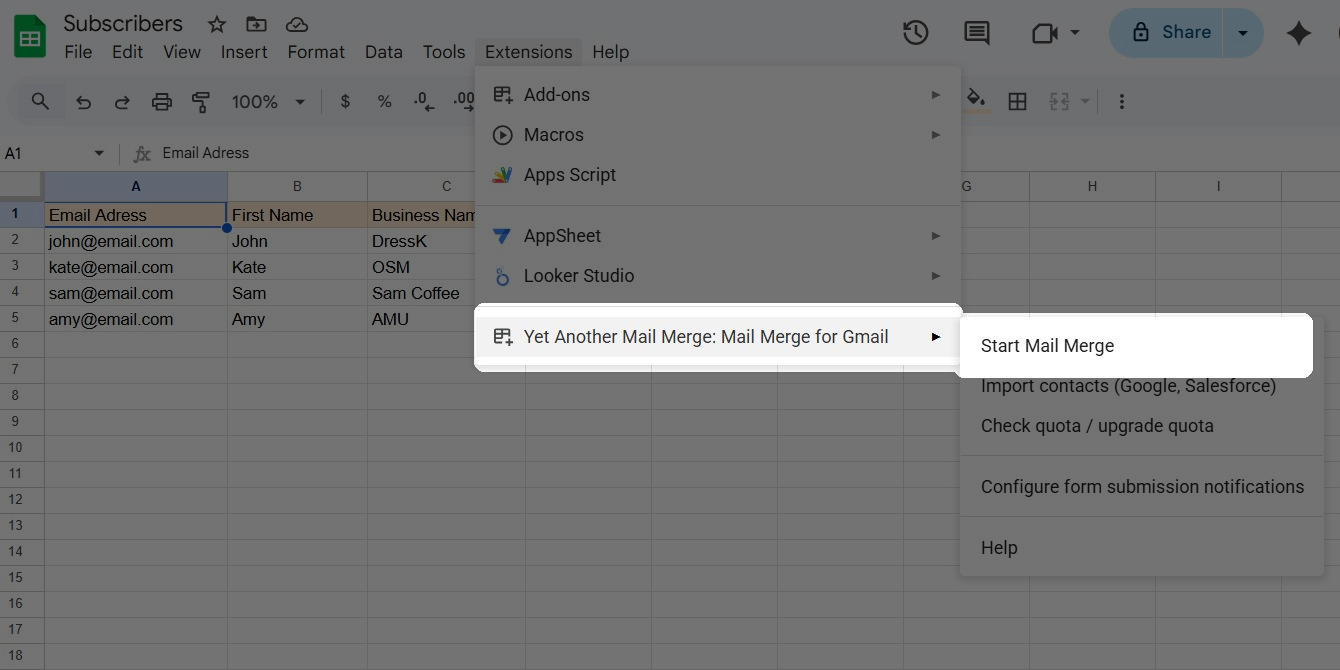 The YAMM campaign launch interface in Google Sheets
When launching your campaign, enter your sender name so your recipients know who the message is from. Then select your email draft in the “Email Template” field.
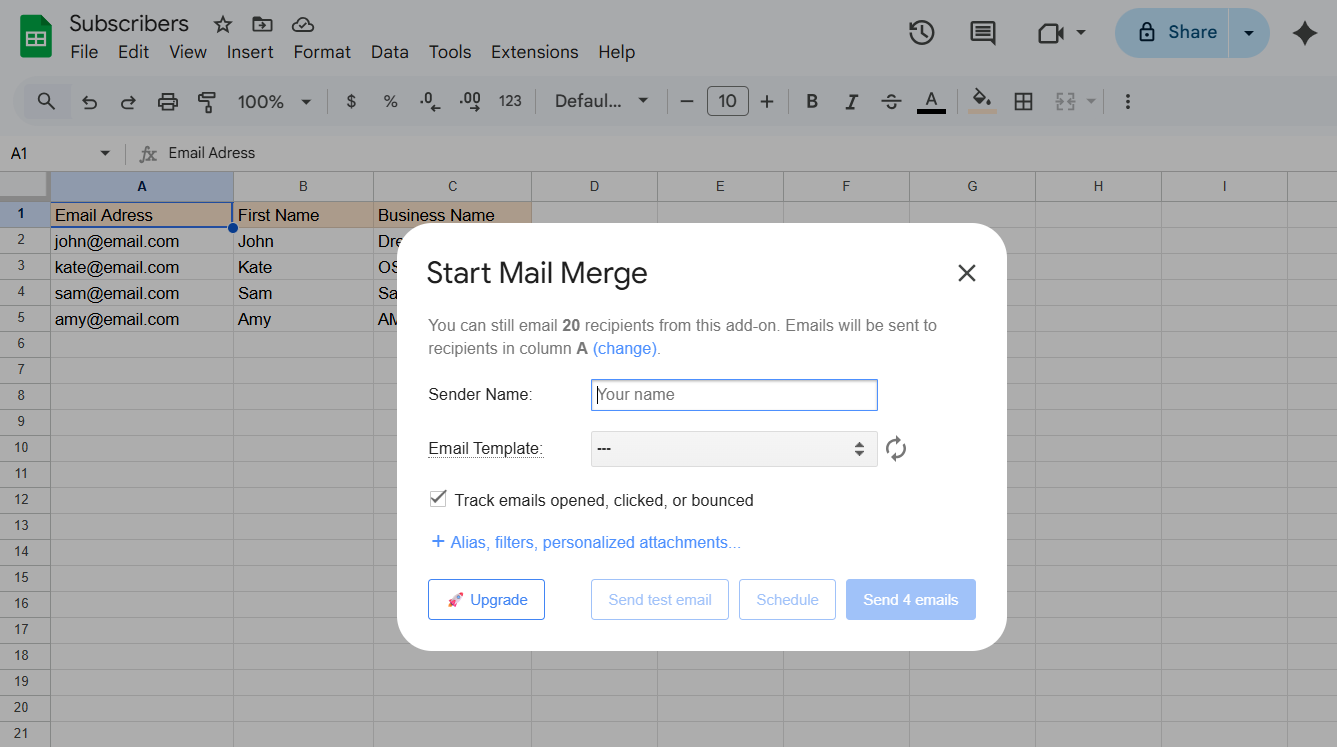 Starting mail merge in Google Sheets
YAMM automatically uses your subject line as the draft title. After reviewing your settings, launch the campaign from the YAMM interface.
This approach is often used for cold outreach experiments, small marketing tests, or educational projects where teams want more control over sending than BCC allows. It also makes it easier to track basic email performance metrics, such as opens or replies, compared to standard Gmail sending.
However, YAMM and similar tools still rely on Gmail’s infrastructure. That means the same sending limits apply. Large volumes or low engagement can affect deliverability, and repeated bulk sending may trigger temporary restrictions.
Since these tools are not full-fledged email marketing platforms, compliance responsibilities such as consent management or structured unsubscribe handling remain largely manual. As a result, they work best for controlled, small-scale campaigns, rather than ongoing marketing communication.
A smarter alternative to mass emails in Gmail
Gmail can help you send messages to multiple people, but it isn’t designed to run newsletters or marketing campaigns. Google itself limits bulk sending to reduce spam and protect recipients. This makes mass emails through Gmail methods suitable for occasional communication, but risky as a long-term solution.
If you’re looking for a more reliable way to manage bulk email Gmail campaigns, a dedicated email marketing platform like SendPulse is a better fit. It’s designed specifically for large-scale sends, helping you avoid spam issues, manage subscriber consent, and track campaign performance in one place.
First, configure your sender email address or domain. This step authenticates your emails through SPF, DKIM, and DMARC records, which helps receiving servers trust your messages and keeps them out of spam folders. Gmail doesn’t give you this kind of control — with SendPulse, authentication is built into the setup flow.
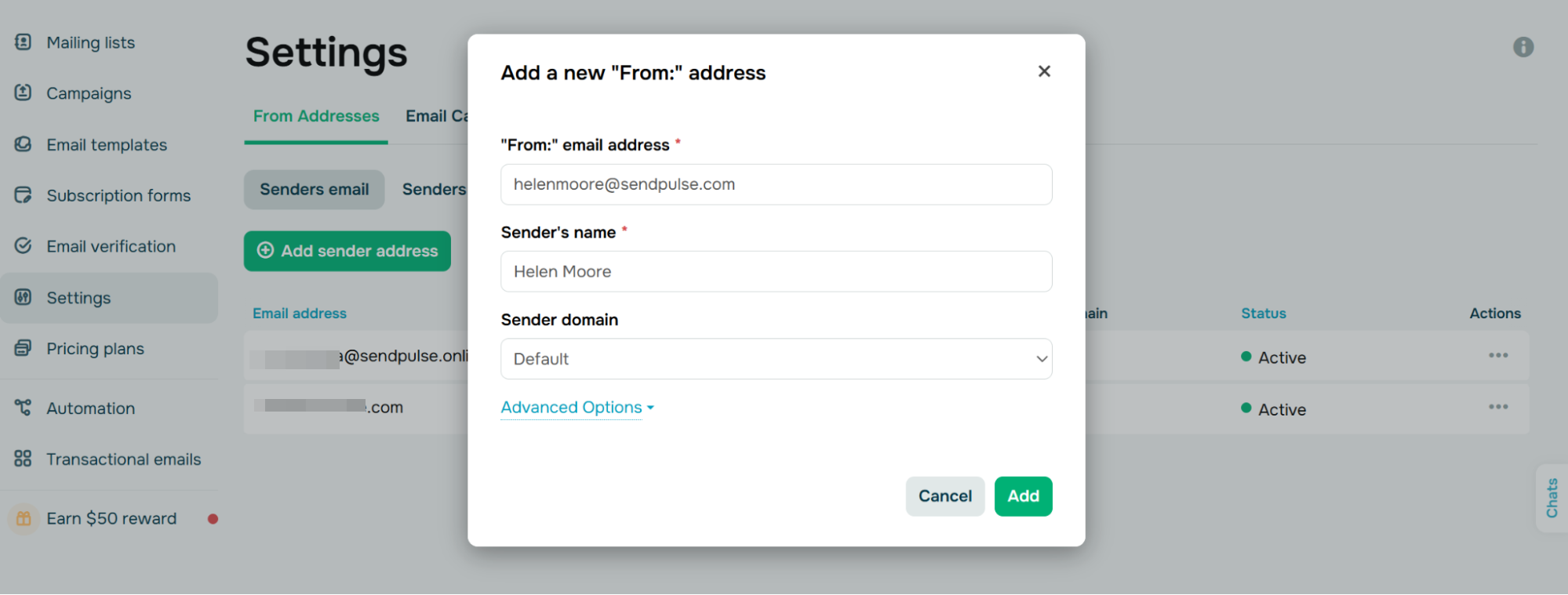 Configuring the sender email address in SendPulse
Next, create a mailing list and import your contacts. You can upload them from a file, add them manually, or connect a signup form that collects new subscribers directly from your website. Make sure your contacts have agreed to receive your emails — the platform enforces an anti-spam policy that requires confirmed consent.
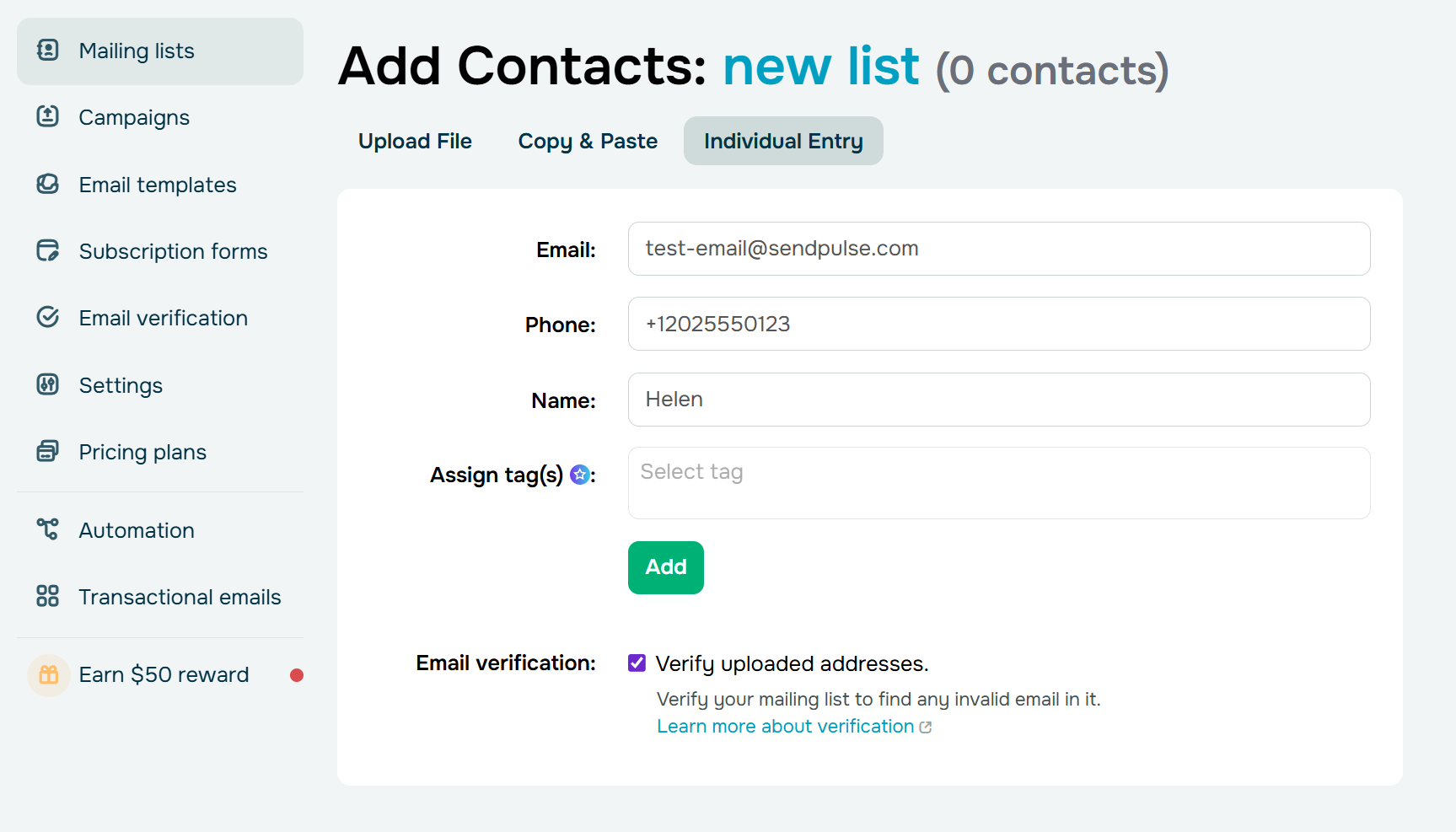 Adding contacts to a mailing list in SendPulse
Before sending, you can run your list through the built-in email verifier to remove invalid or risky email addresses. This reduces bounces and protects your sender reputation – something Gmail offers no safeguard for at all.
Then build your template using the platform’s drag-and-drop email editor. You can add images, buttons, text blocks, social media links, and personalization variables without touching any code.
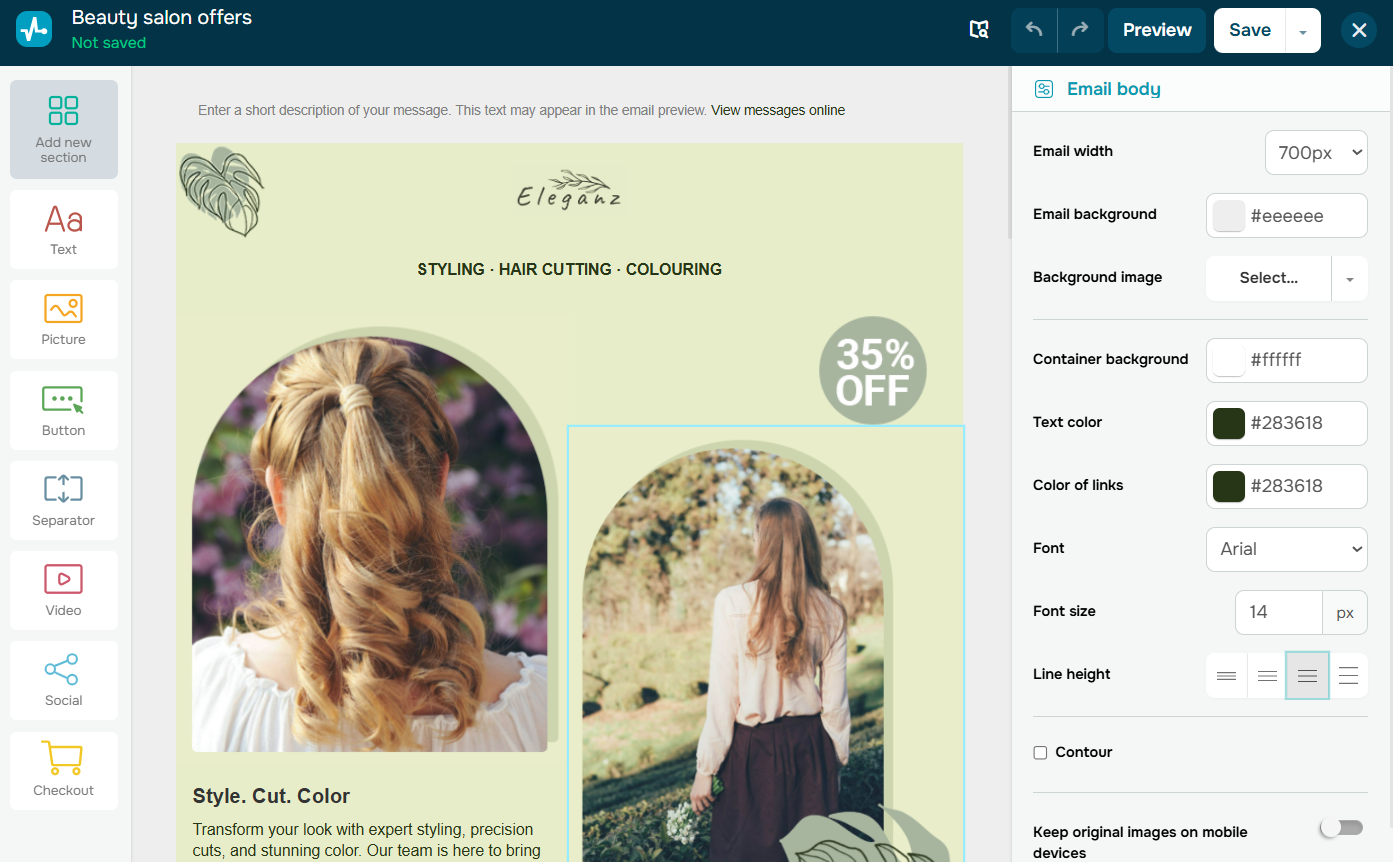 Customizing a template in the drag-and-drop email builder
Instead of starting from scratch, you can also choose from a library of ready-made templates organized by purpose – whether it’s a product launch, event invitation, or a regular newsletter. Each template is fully customizable.
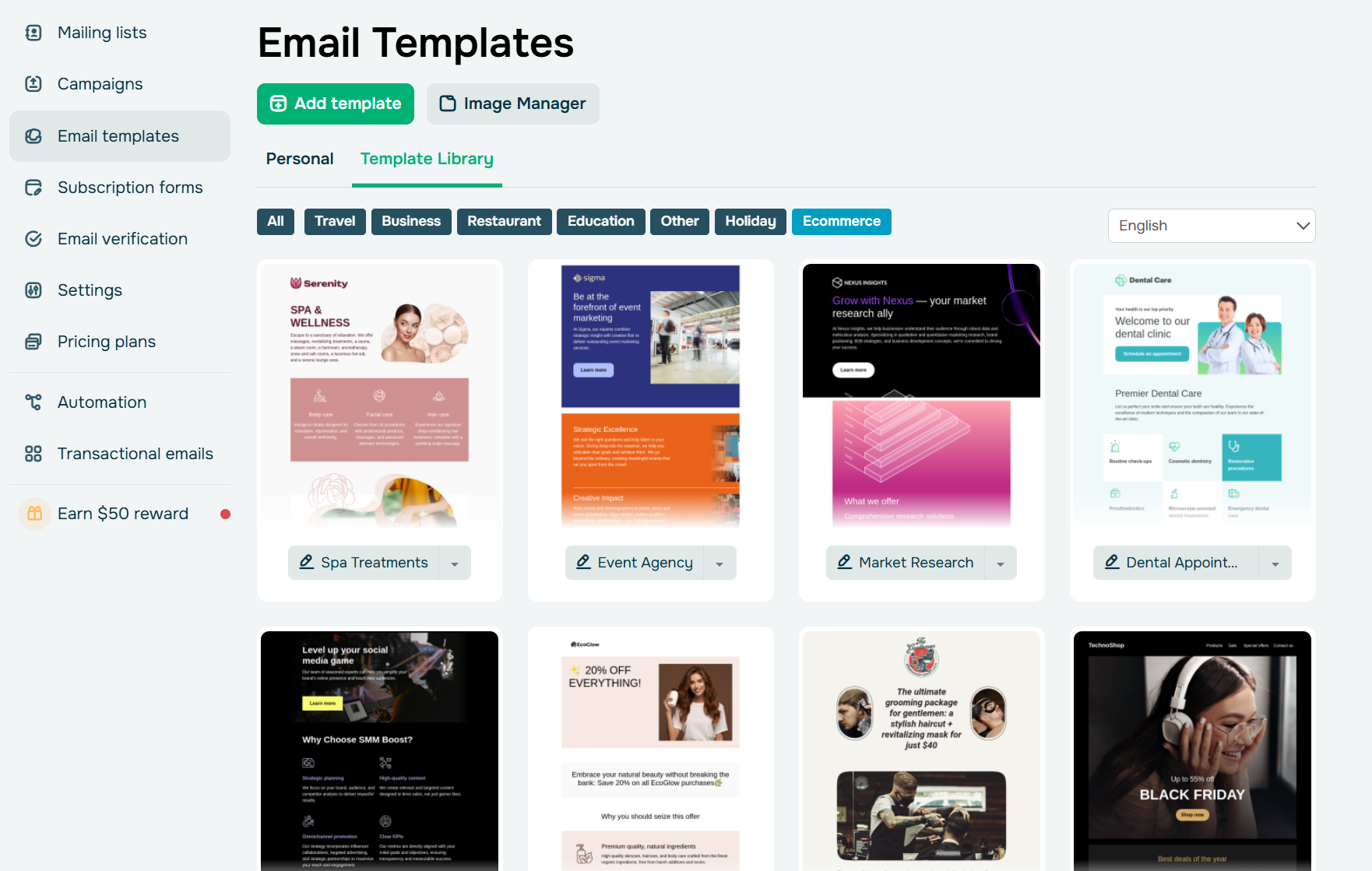 Browsing through the email template library
After that, send a test email to preview how your message looks in real inboxes, and schedule or launch your campaign. SendPulse automatically adds an unsubscribe link if it’s missing, helping you meet common email compliance requirements like CAN-SPAM and GDPR.
You can also segment your audience before sending. Instead of blasting the same message to everyone (which is all Gmail allows), you can create segments based on subscriber data, such as engagement level, location, tags, or custom variables. This means different groups can receive different versions of your campaign, making each email more relevant.
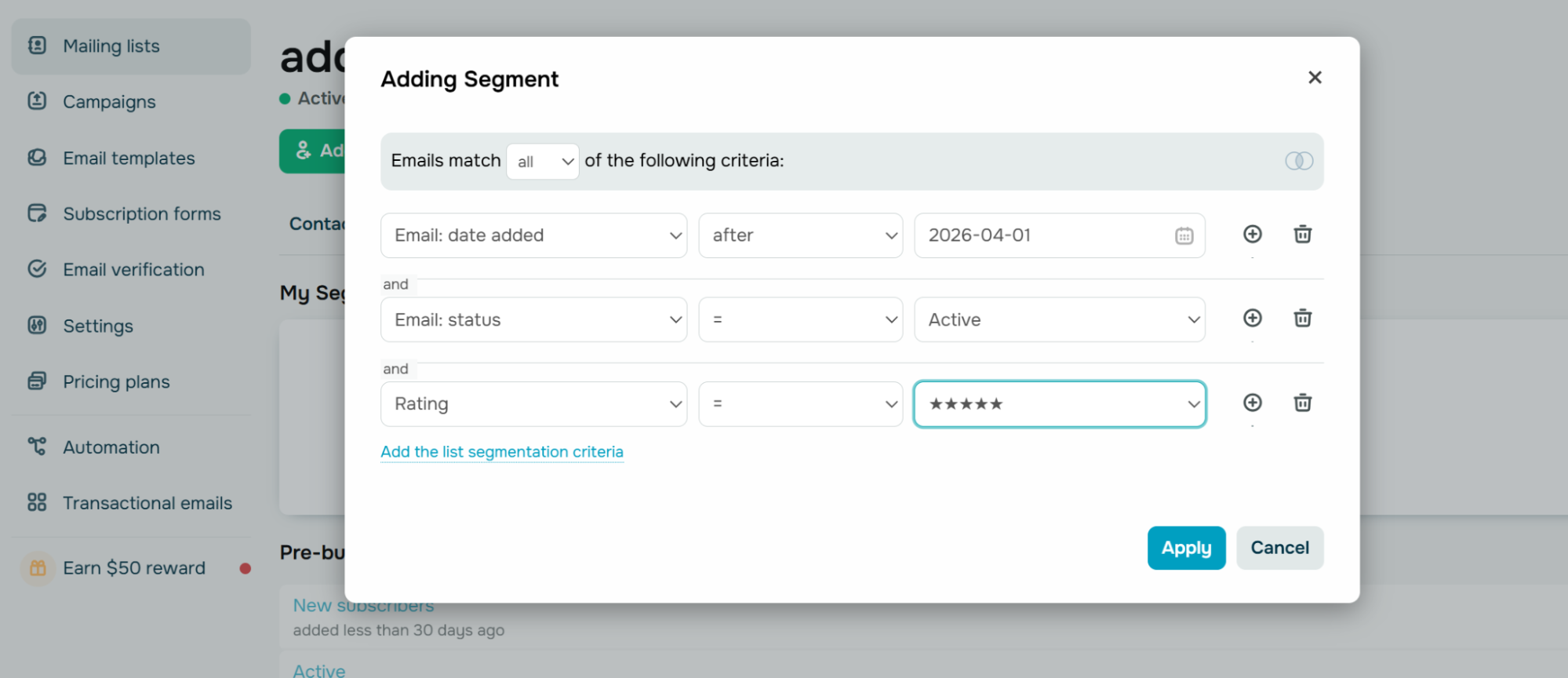 Adding a new segment to filter email subscribers
Once your campaign is sent, review the results to see how your audience responds. SendPulse provides a detailed statistics dashboard where you can track key metrics, including open rates, clicks, delivered emails, bounces, unsubscribes, and spam complaints. You can also see which links perform best, how engagement changes over time, and how individual subscribers interact with your emails.
These insights help marketers evaluate content relevance and list quality, making it easier to optimize future campaigns instead of sending emails blindly.
And if you’re ready to go beyond one-off campaigns, you can build auto-flows that run on autopilot. For example, you can set up a welcome series that starts when someone subscribes, send abandoned cart reminders based on events from your website, or trigger follow-up messages when a contact reaches a certain engagement score.
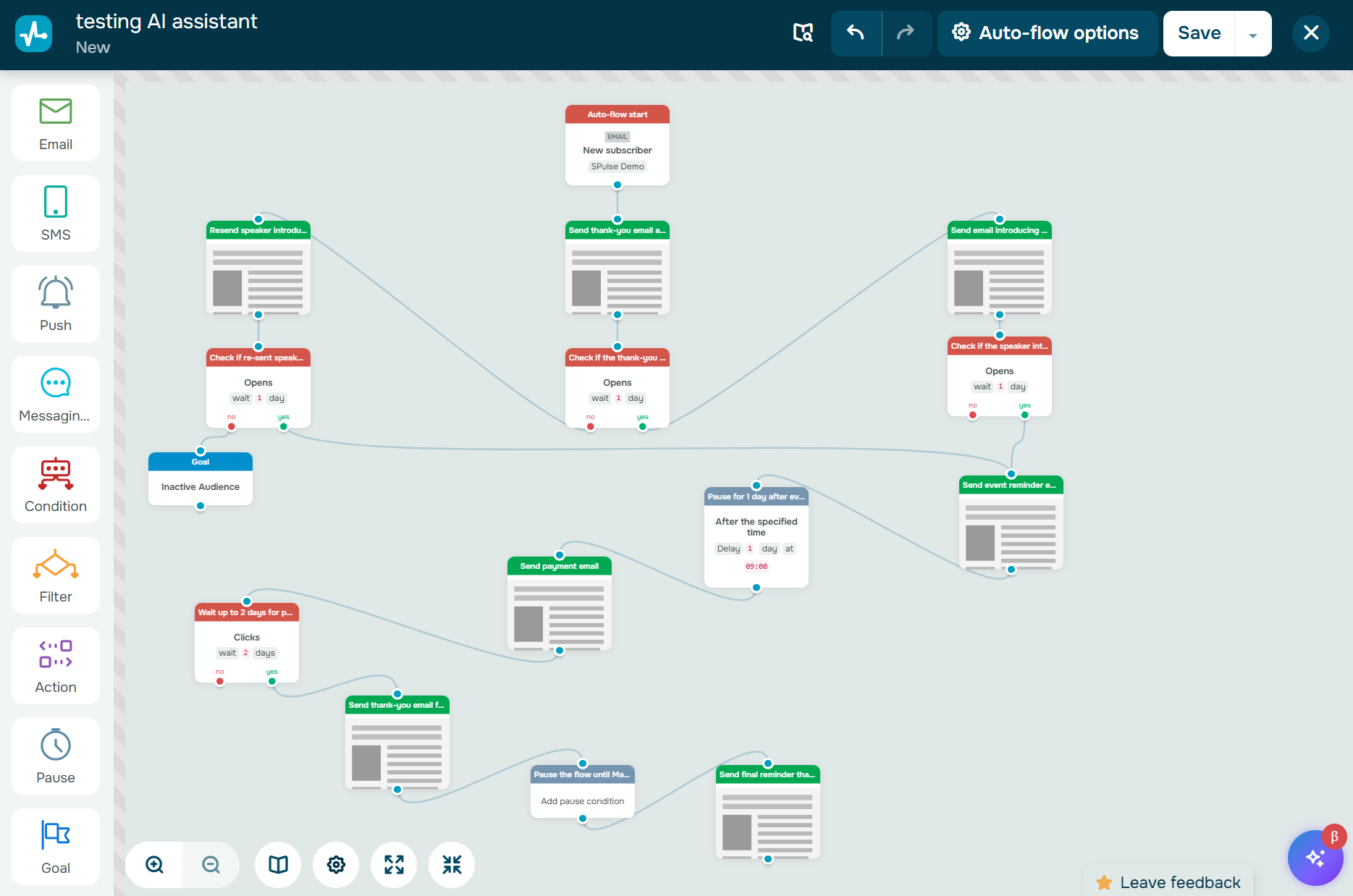 An onboarding flow created in the automation builder
The visual automation builder lets you combine emails with conditions, delays, filters, and even SMS or chatbot messages — all in a single automated flow. That’s a level of personalization and efficiency that Gmail simply can’t offer.
Choosing the right way to send mass emails
Gmail can be a practical starting point for sending messages to small groups, especially when communication is occasional and operational. Methods like BCC, Mail Merge, or extensions help organize bulk sending to some extent. However, they were never designed to support full-scale email marketing campaigns. As audiences grow and campaigns become more regular, sending limits, lack of automation, and compliance risks make Gmail harder to rely on.
If you want to run newsletters, promotions, or onboarding flows safely, you should definitely consider switching to a dedicated platform. Tools like SendPulse provide the structure you need to run scalable bulk email — from list management and authentication to analytics and unsubscribe handling. This allows you to focus on strategy and results instead of manual work and technical limitations.
Try SendPulse for free to launch pro-level campaigns with more control and fewer risks as you scale.
Gmail bulk email FAQ
Can I send bulk email with Gmail?
Yes. You can send mass emails in Gmail using BCC, the built-in Mail Merge feature (in Google Workspace), or extensions like YAMM. However, all of these methods operate within Gmail’s sending limits and are better suited for small or occasional sends.
How to send bulk email without spamming Gmail?
Focus on sending emails only to contacts who consented to receiving your messages, avoid sending large volumes at once, and stay within Gmail’s daily recipient caps. Gradual sending and relevant content help reduce the risk of warnings or restrictions.
Can I send 500 emails at once in Gmail?
Not always. Personal Gmail accounts typically have a daily limit of up to 500 recipients, so trying to send that many emails at once may trigger sending restrictions.
How do I send more than 2,000 emails in Gmail?
In most cases, you can’t reliably exceed Gmail’s bulk sending limits. For larger campaigns or recurring newsletters, marketers usually switch to email marketing platforms like SendPulse that are built to handle higher volumes safely and provide analytics.