SendPulse Marketplace UI Skill
Building an app or integration for SendPulse? This skill helps developers and vibe coders create an interface that looks and works like part of the platform. Describe the screen you need, and your AI assistant will build it using the SendPulse design system. The skill works with Angular, React, Vue, and plain HTML.
Key Features
SendPulse styles. Connects the CDN bundle in the correct order, sets up CSS variables, and applies fixes needed for panels, fields, and other elements to display correctly.
Design system components. Uses classes available in the bundle to build forms, buttons, selects, switches, modals, tables, dropdowns, badges, and paid plan blocks. Includes two example screens: integration settings and connected accounts.
Icons. Helps you choose from 536 sp_icons icons using their exact names. For example, icon-plus is a plus inside a square, while icon-plus-add is a plain plus.
Layout inside SendPulse. Accounts for the iframe size, avoids duplicate spacing, and uses the standard 364 px field width.
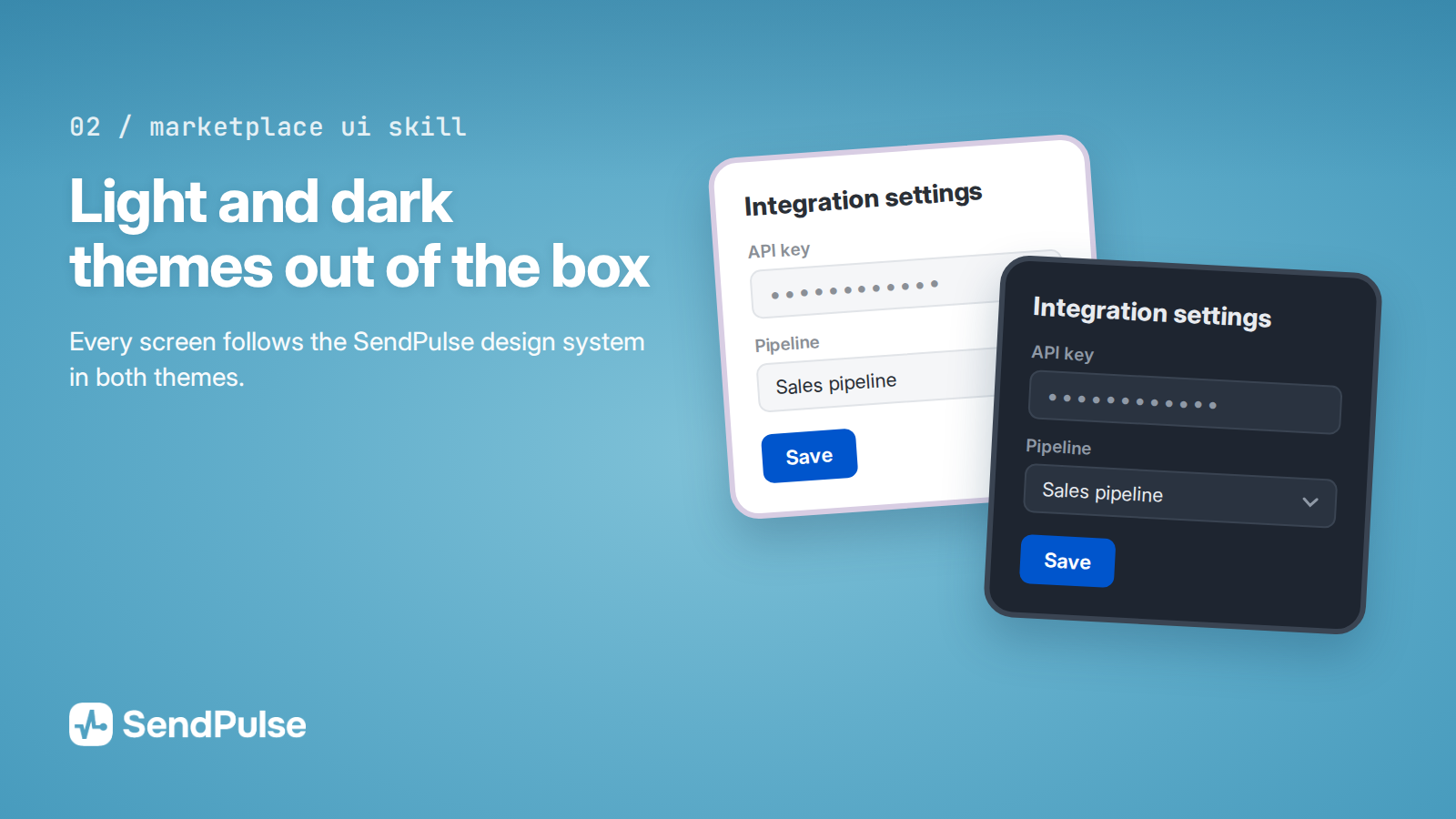
Light and dark themes. Supports the theme passed by SendPulse through ?theme=dark and helps preserve it after redirects or OAuth authorization.
Known bundle issues. Documents 16 cases where a class needs additional setup, with the symptom, cause, and fix for each.
Validation. Scripts detect missing classes, incorrect stylesheet order, and unresolved bundle issues. In a Node environment, you can also check the page in Chrome in both themes.
How to Install
- Download the
sendpulse-marketplace-ui-cdnfolder from the SendPulse GitHub repository. - Add it to your AI assistant. For Claude Code, place the folder in
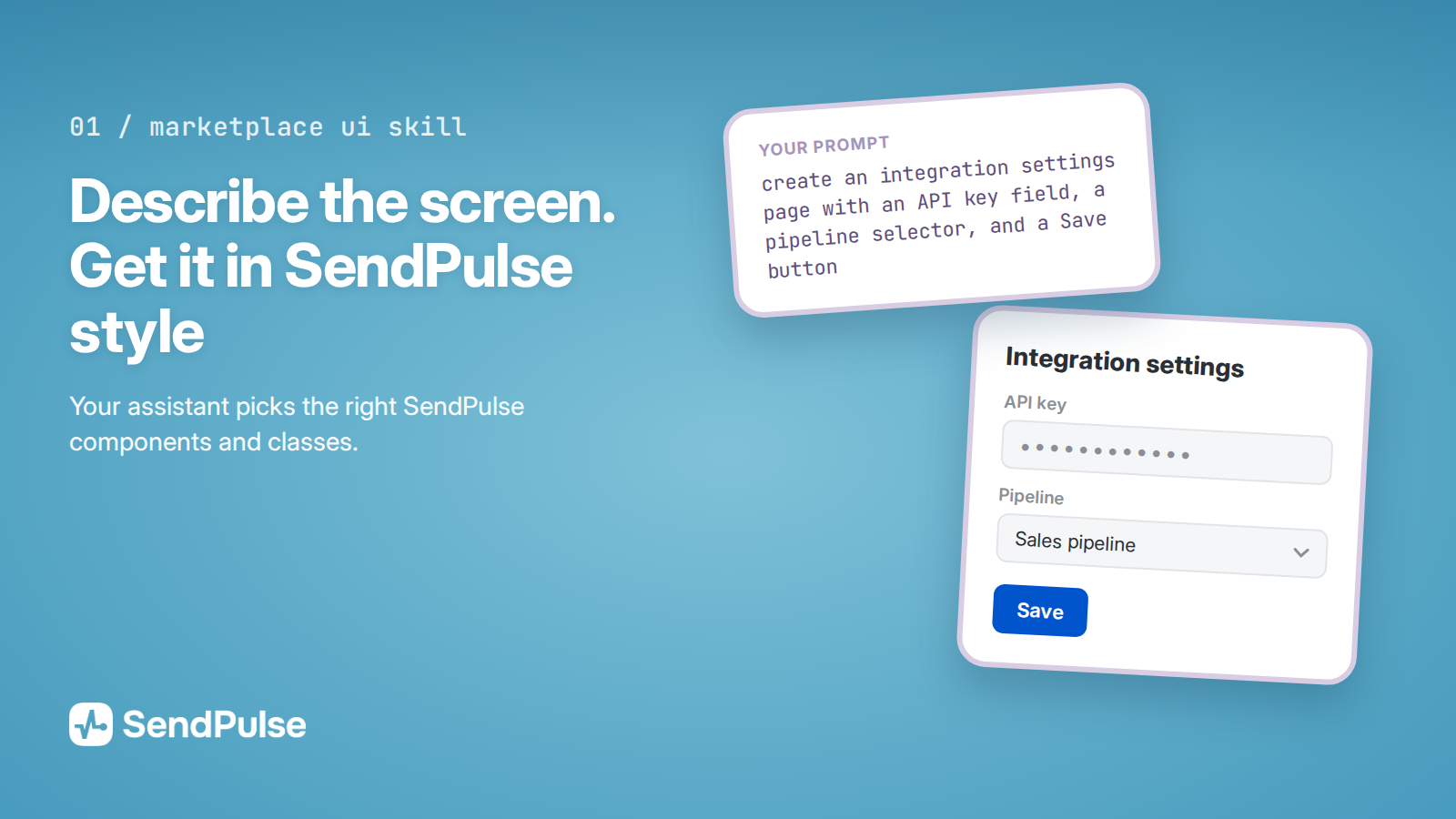
~/.claude/skills/or your project’s.claude/skills/directory. In the Claude app, upload a ZIP archive through Settings → Capabilities → Skills → Upload skill. - Describe what you want to build. For example: “Create an integration settings page with an API key field, a pipeline selector, and a Save button.”
You can also use the skill with ChatGPT, Cursor, Gemini, and Copilot. Instructions are available in the adapters folder. No MCP server or API key is required.
The skill is designed for apps that load the SendPulse design system from a CDN. If your app includes the styles in its own build, you can still use the component, icon, and layout guidance.
Use Cases
Build a new integration. Create screens that follow the SendPulse design system in both light and dark themes.
Create an app with AI. Describe the interface you need and let your assistant use the appropriate SendPulse components and classes.
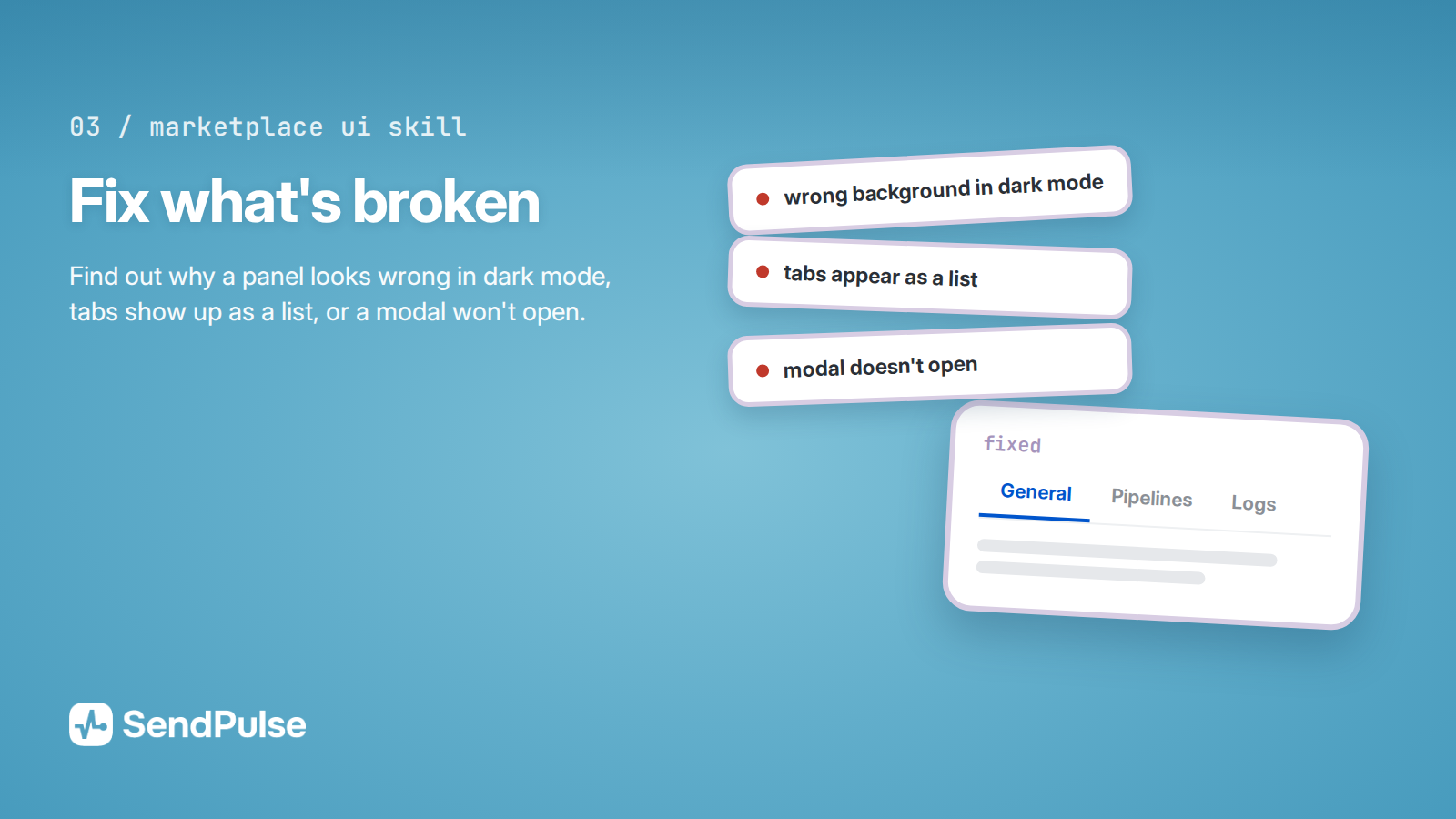
Fix an existing interface. Find out why a panel has the wrong background in dark mode, tabs appear as a list, or a modal does not open.
Check before publishing. Verify how your screens display inside the iframe and in both themes.
Update a specific screen. Bring a component or page in line with the SendPulse design system without rebuilding the rest of your app.




or