Aircall
AirCall integration with SendPulse CRM allows you to automatically sync contacts, view call history and recordings, create tasks for missed calls, and efficiently distribute calls across your team.
AirCall for SendPulse is a complete telephony integration tool for your CRM.
Once installed, it allows you to automate call handling, sync contacts, store conversation history, and create tasks — all directly inside the SendPulse interface.
The integration enables sales reps to manage inbound and outbound calls from within the CRM, track who made or received each call, and maintain full visibility of customer interactions.
Missed calls are automatically logged as tasks, ensuring no opportunity is lost.
This tool is ideal for sales teams that want to streamline their call workflows and CRM processes in one place.
1. Prepare your AirCall account
Create an AirCall account, go to Numbers → Create number, and complete number verification if required. Add team members under Teams & Users, assign them to calls, and make sure their status is set to Available.
2. Install the app in SendPulse
Go to the App Directory, find AirCall, click Install, and accept the requested permissions. Sign in to your AirCall account.
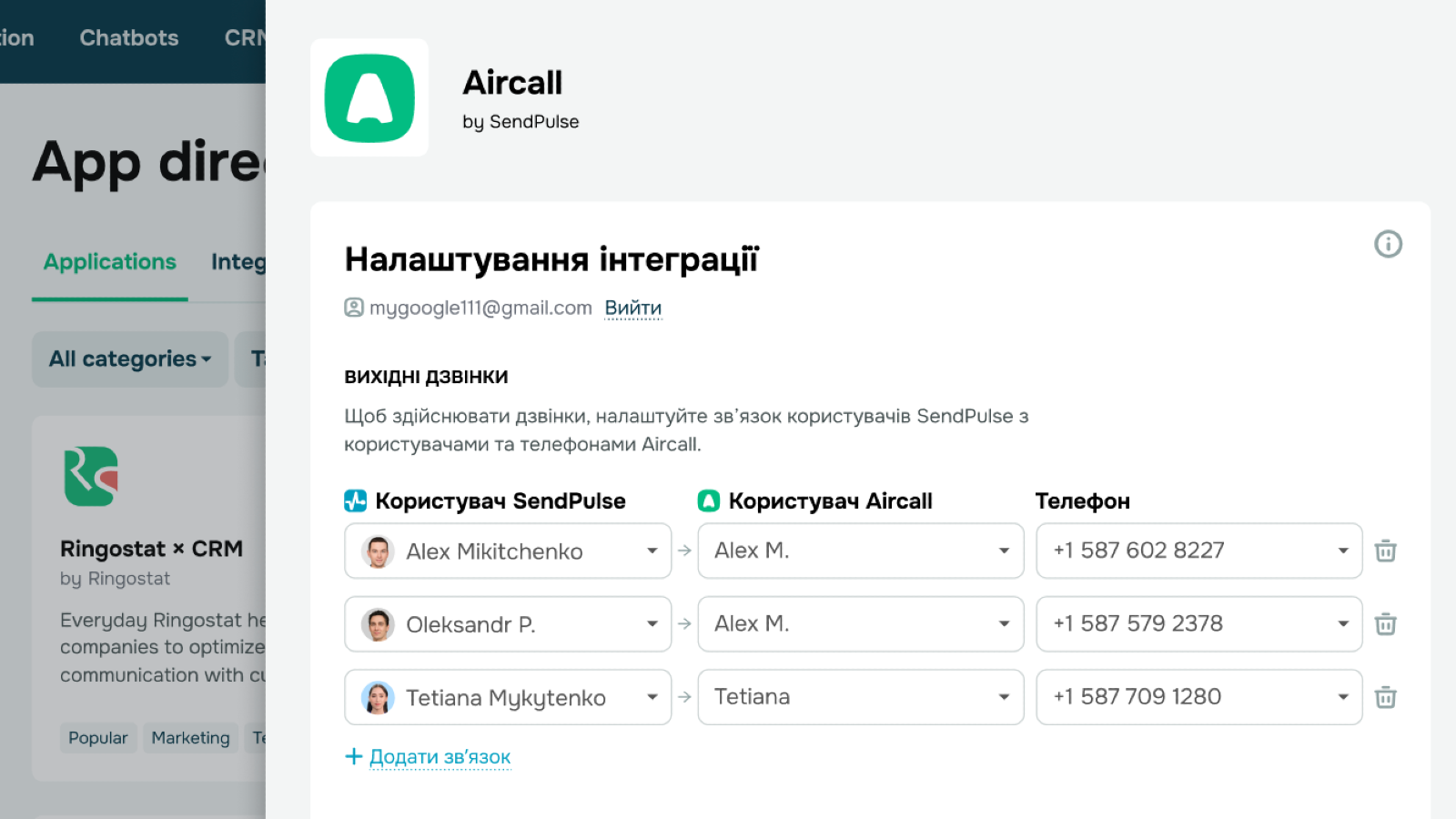
3. Map users and numbers
Match your SendPulse users with their AirCall accounts and assign relevant phone numbers.
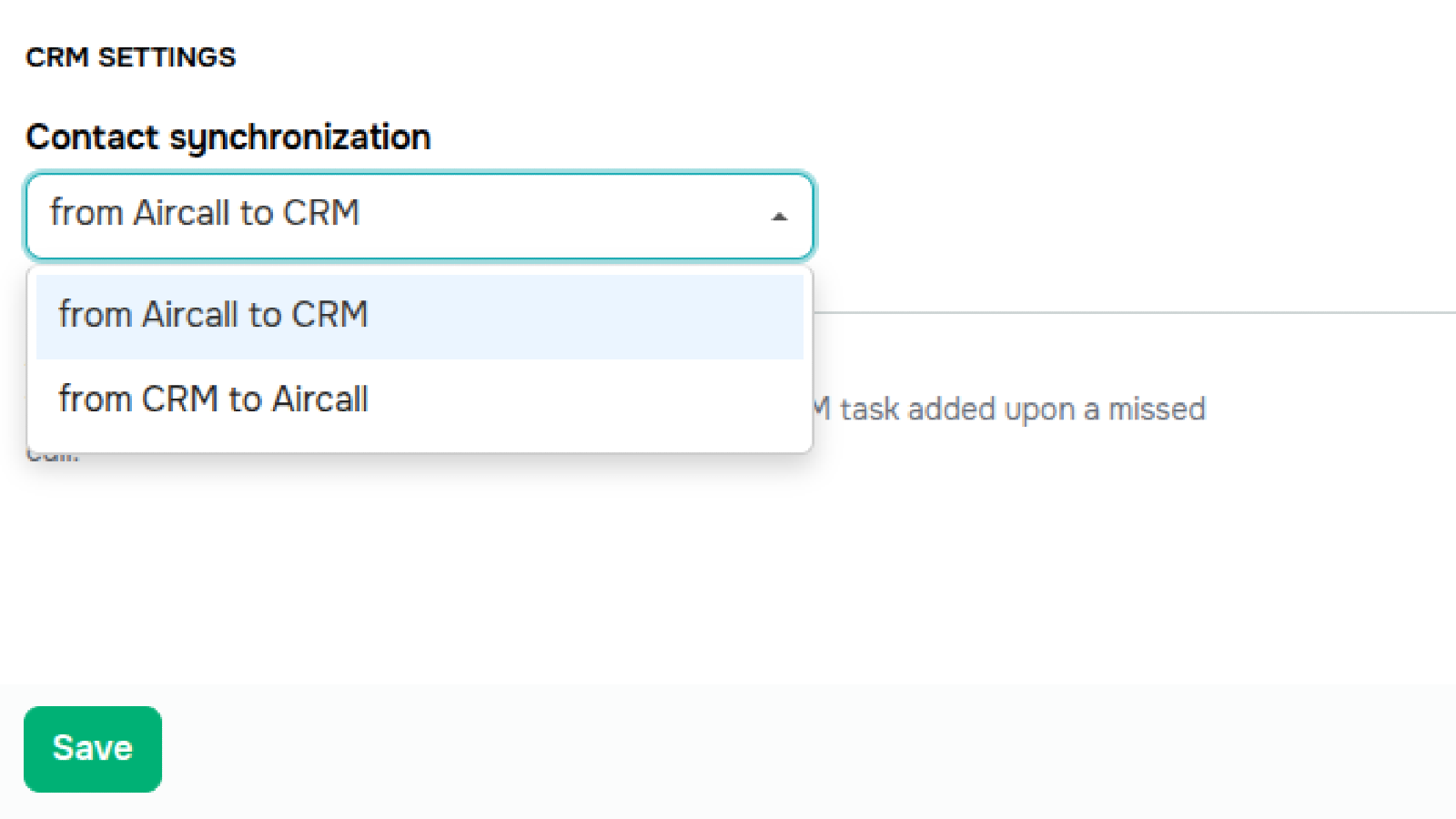
4. Enable contact sync
Choose the sync direction: from AirCall to CRM or from CRM to AirCall.
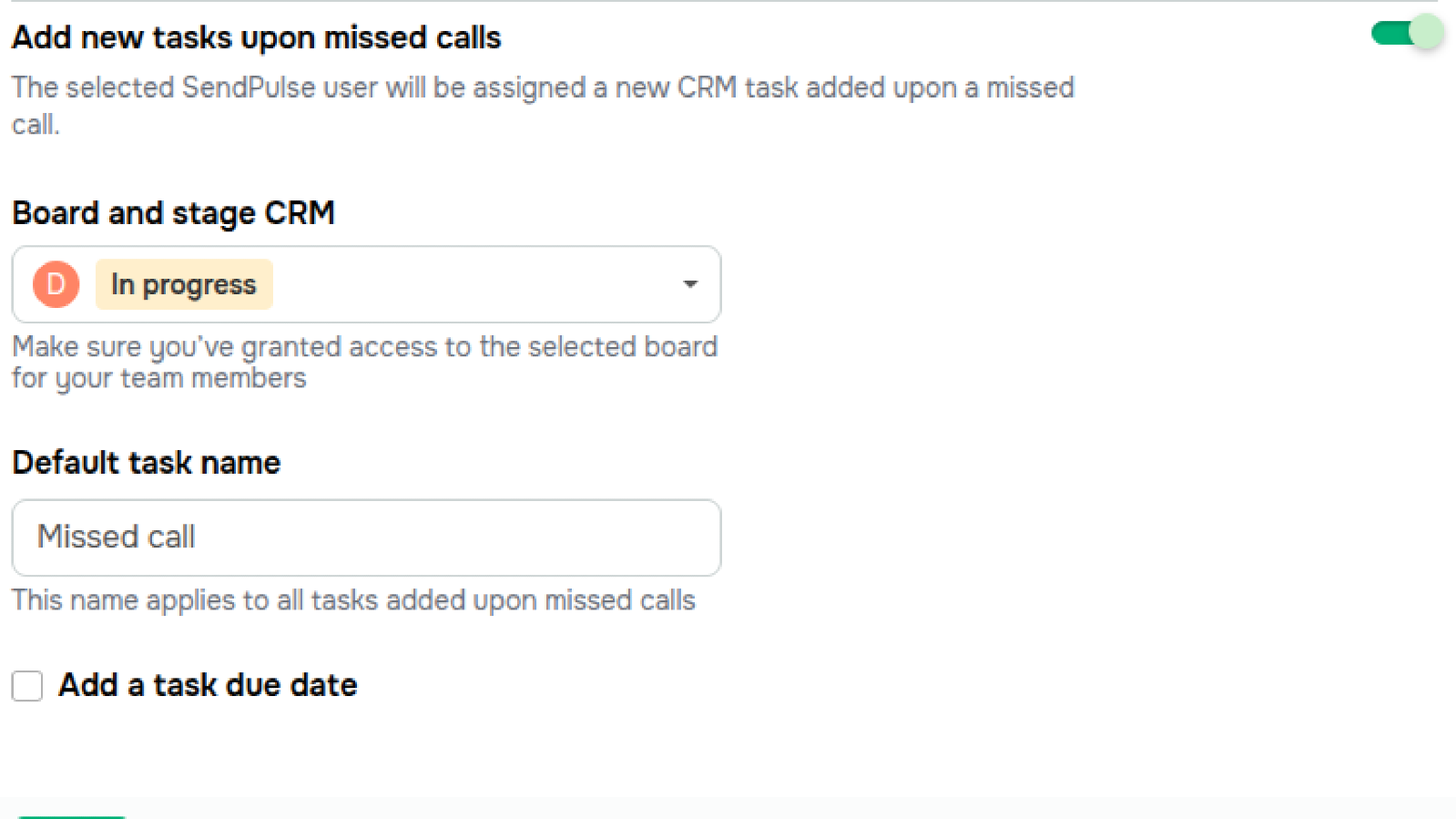
5. Automate task creation
Enable task creation for missed calls. Select a task board, define the status, and set a due time.
6. Make and receive calls
Call directly from the CRM or via AirCall. Use the desktop or mobile app to answer calls. When a call comes in, the relevant contact or deal card will open automatically in the CRM.
7. View call history
In the CRM, you can view full call details — time, type, recording, and responsible agent — in the contact card, deal, or call center view.
8. Manage the integration
Go to Installed Apps to update settings or uninstall the integration. Previously synced data will remain in your SendPulse account.





or