ApiXDrive
With ApiX-Drive, you can integrate SendPulse with over 300 apps, services, and eCommerce platforms for free. You can automatically add and delete mailing list contacts as a response to third-party triggers. To give you an idea, you can add email addresses captured using Google Forms or Calendly to your SendPulse mailing lists instantly.
Features
mport contacts into SendPulse mailing lists from your online store, Google products, and dozens of other platforms to run automated flows.
Unsubscribe contacts who are no longer interested in your emails.
Let's say you want to integrate SendPulse with Google Calendar through ApiX-Drive. In this case, creating, editing, or deleting events will trigger data transfer from Google Calendar to your SendPulse mailing list. Then, you will be able to send a subscription email or SMS to users.
Similarly, integrating your online store with SendPulse will allow you to automatically send order confirmation emails or SMS messages.
How to integrate with ApiX-Drive
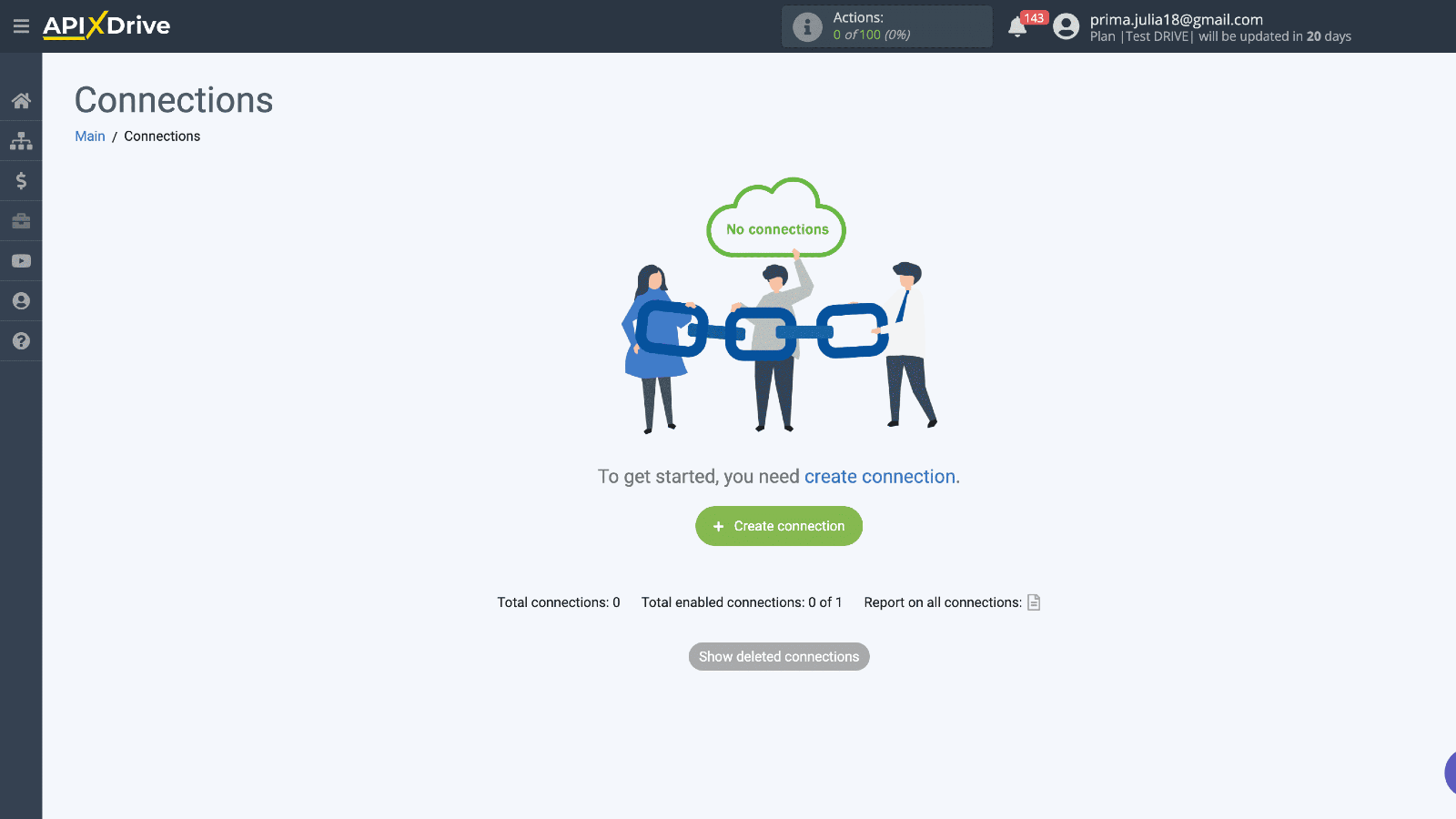
Log in to your ApiX-Drive account. In the Connections tab, click Create connection.
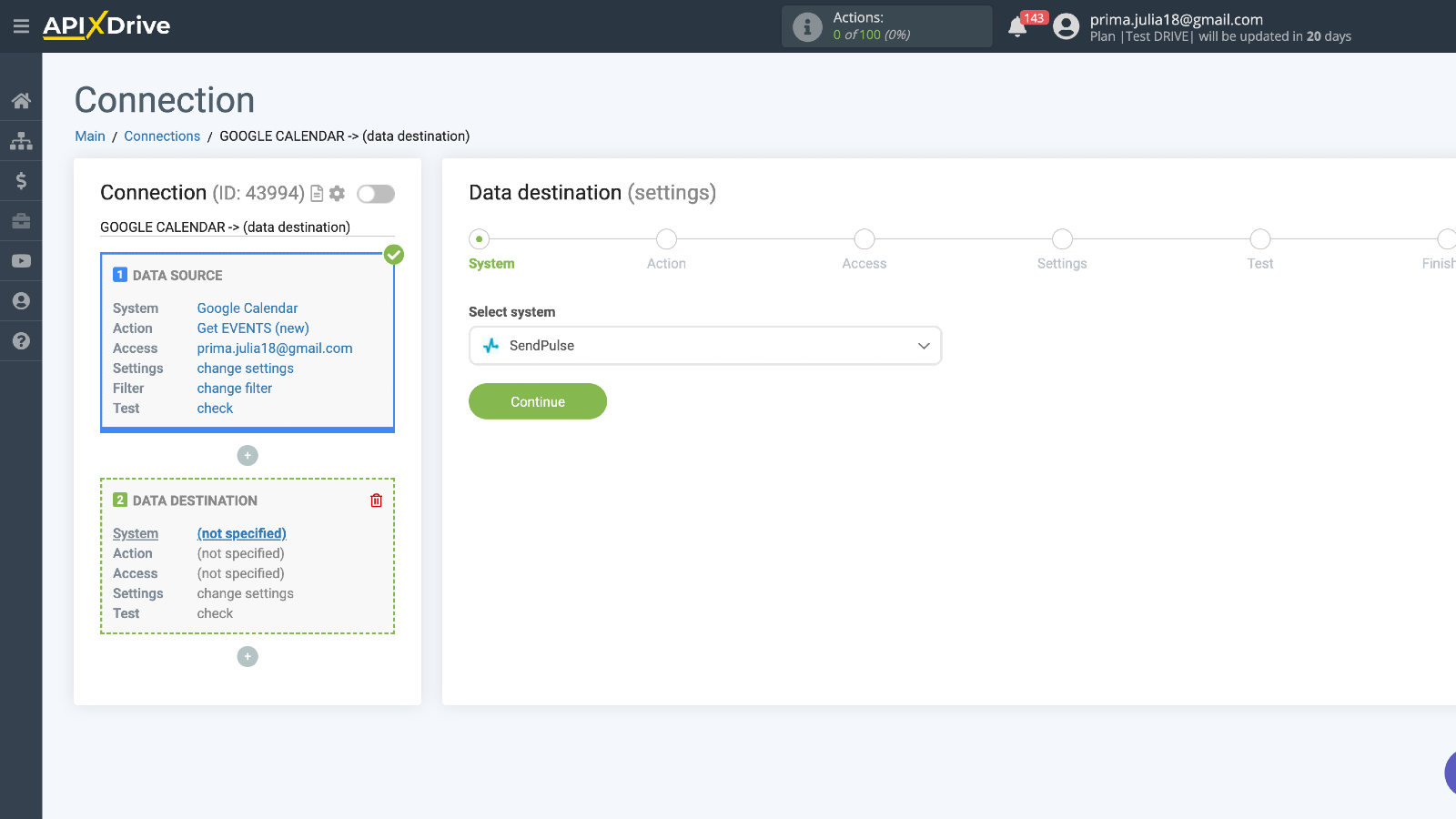
Select a data source and trigger and configure data transfer steps. Then, click Start Configuring Data Destination.
Select SendPulse from the dropdown list and click Continue.
Select a triggered action and click Continue.
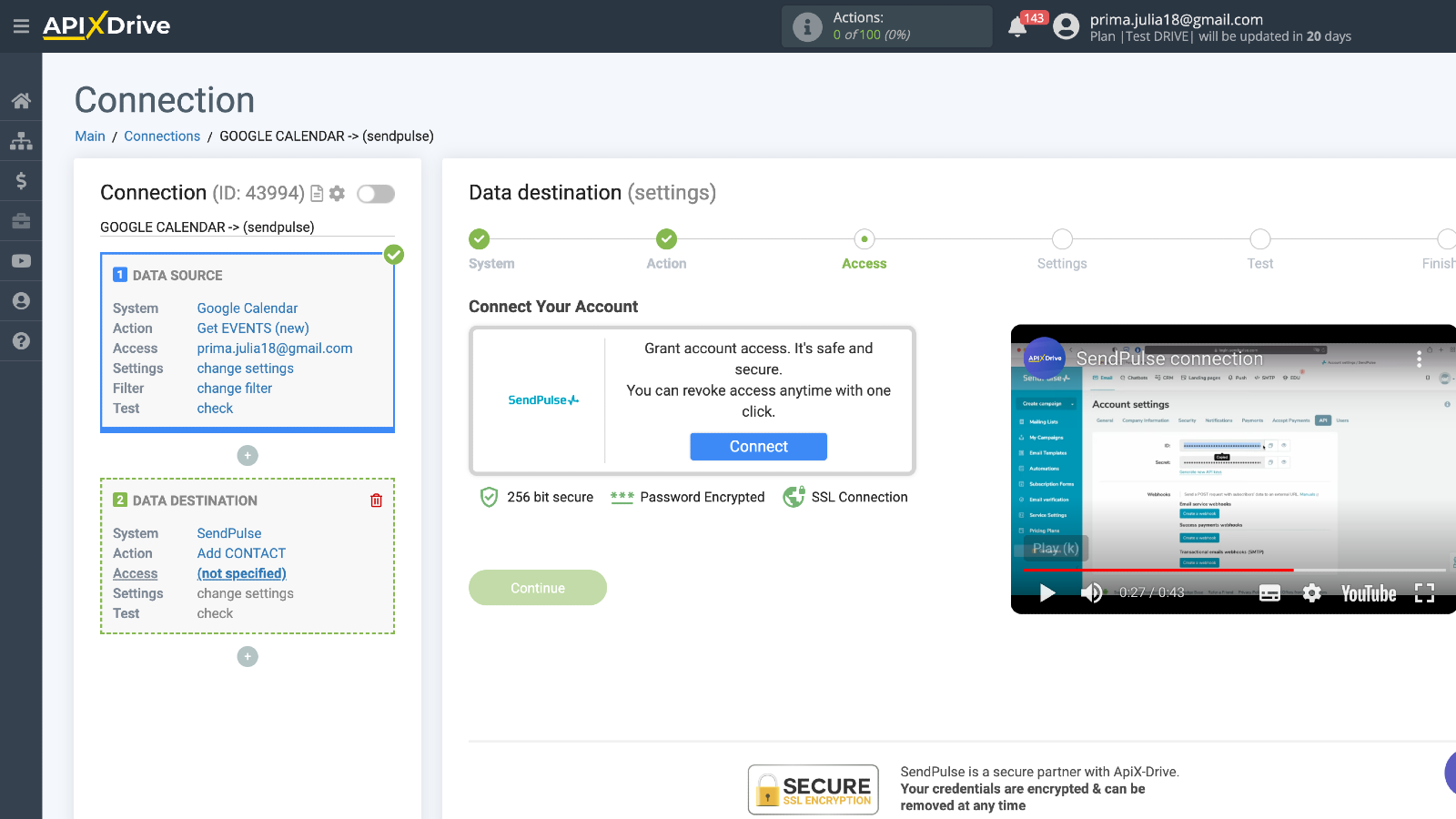
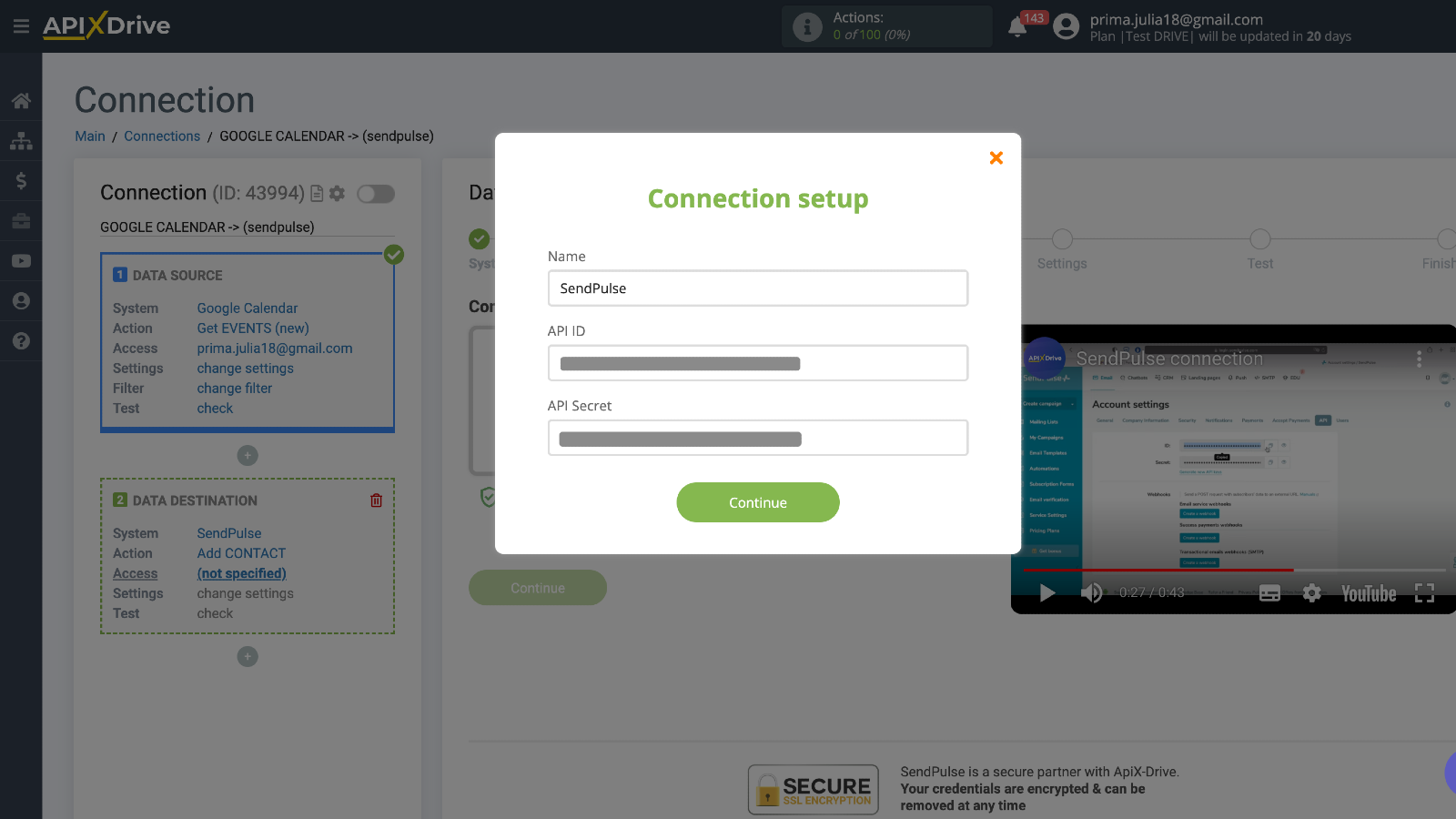
To connect your SendPulse account, click Connect. In your SendPulse account > the API tab, copy your ID and Secret. Paste them into their respective fields in ApiX-Drive and click Continue. If you enter all data correctly, your connection status will change to Active. Then, click Continue.
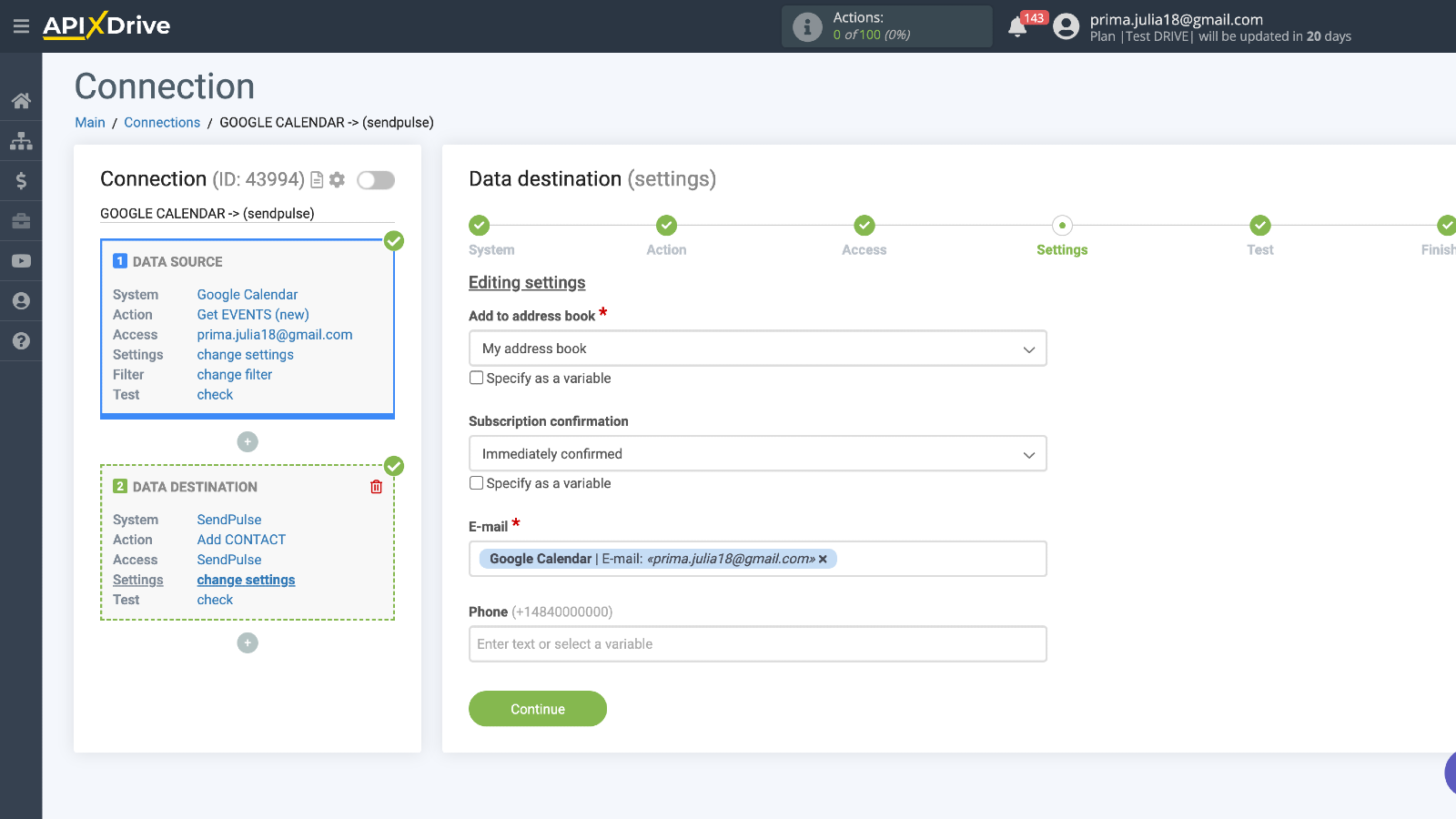
Select the mailing list where you want to add or delete contacts. Select a subscription method (instant or double opt-in). Paste the email address and phone number you want to add or delete. Click Continue.
Check your test data and send a test request if necessary. Click Continue > Enable update.
If you follow these steps correctly, this integration will become active, allowing you to manage automatically created or deleted contacts in your SendPulse mailing lists.





or