LINE Chatbots in SendPulse
Manage chats of your LINE Official Account in SendPulse
LINE in SendPulse Dialogs
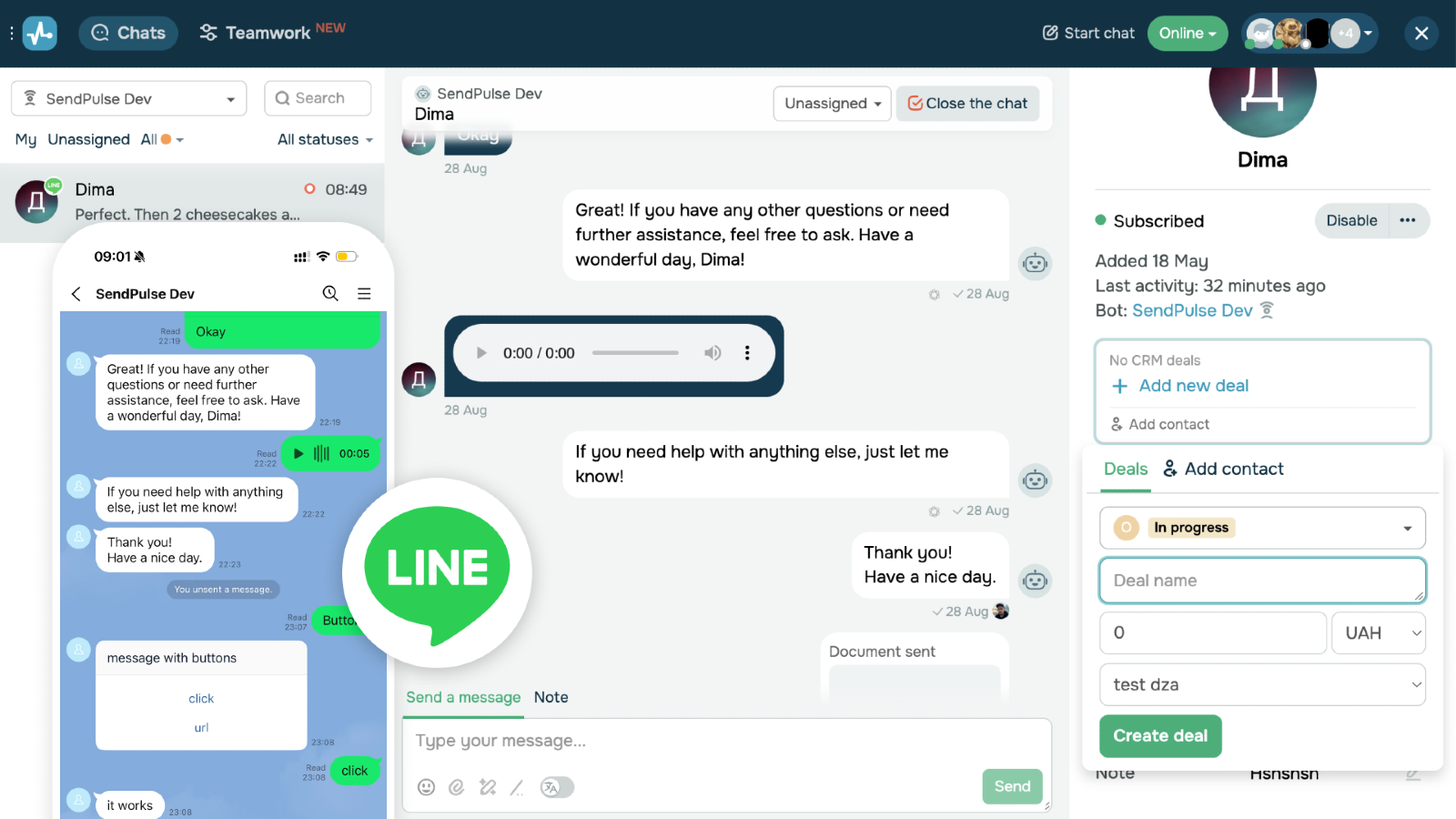
Connect a LINE bot — messages from it will appear in Dialogs, and your replies and SendPulse chatbots will reach the users.
LINE Official Account needed (verified or unverified)
- Incoming messages from your LINE users appear in SendPulse → Chatbots → Dialogs.
- Replies from SendPulse (manual from an operator or from the chatbot flow) are delivered to the user through LINE.
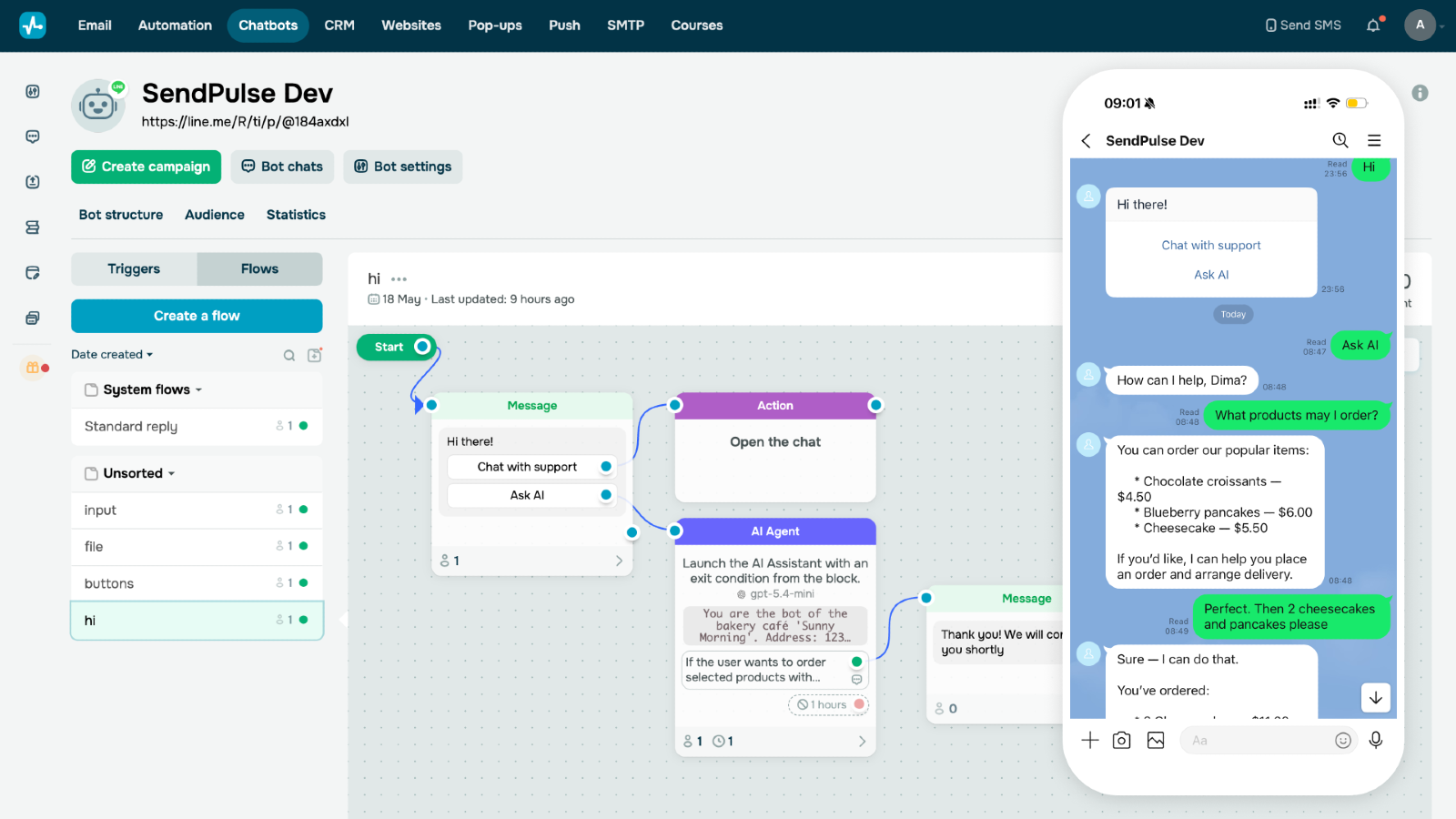
- Automate replies with the Chatbot Flow Builder
- Generate responses with OpenAI API models, Claude or Gemini
- Create deals for your LINE contacts
- Manage chats with your teammates
Already have a LINE Official Account with the Messaging API enabled? Then you only need three things:
- Channel secret — LINE Developers Console developers.line.biz/console → your channel → Basic settings tab → Channel secret field
- Channel access token — same console → Messaging API tab → Channel access token section → Issue a long-lived token
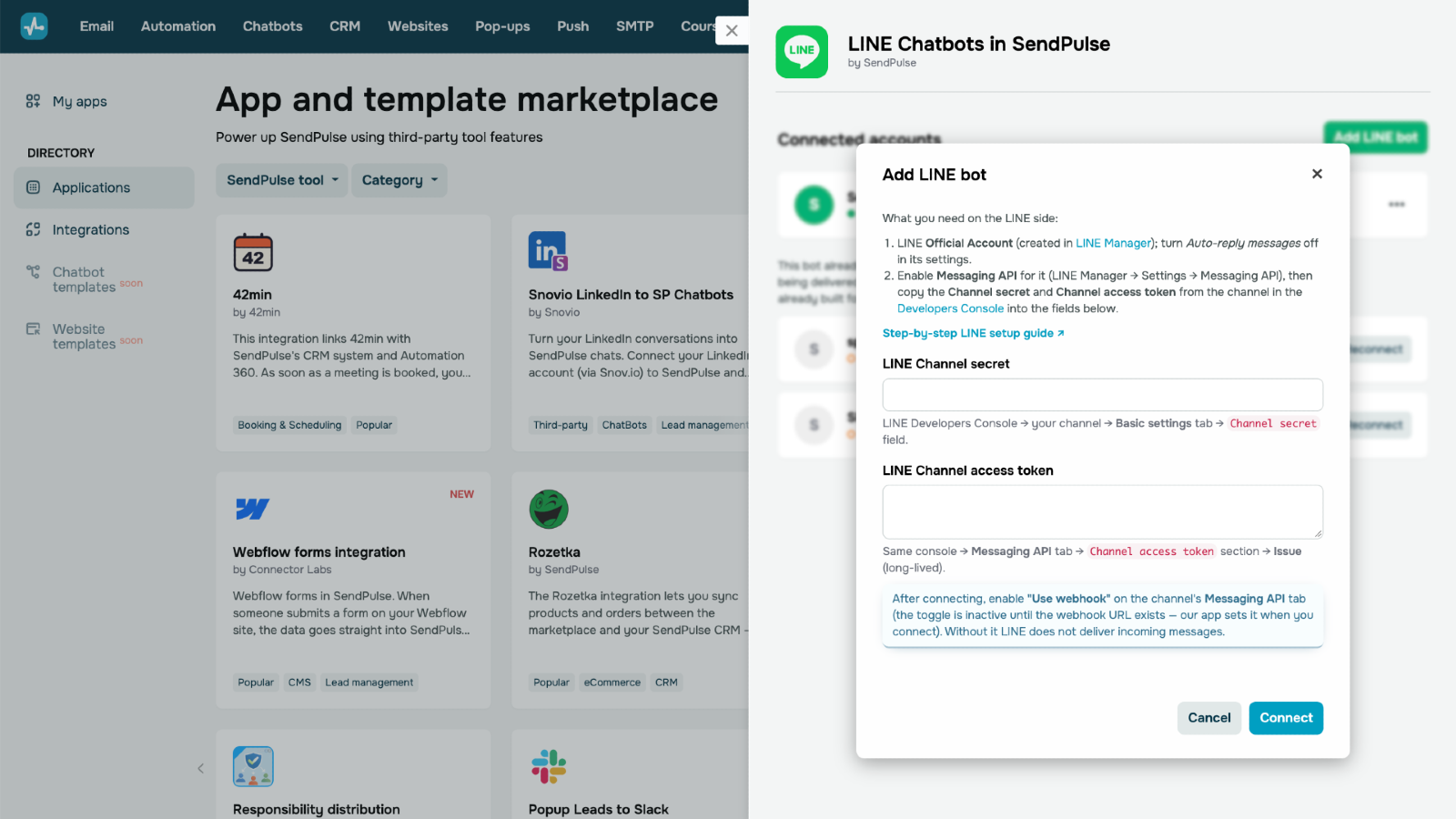
Paste the two values into the "Add LINE bot" modal and click Connect. Then turn on the "Use webhook" toggle (same Messaging API tab → Webhook settings) — it only becomes active after connecting, when the webhook URL has been set automatically.
Don't have a LINE Official Account yet? Follow the steps below to create one from scratch.
Step 1. Create a LINE Business ID
Go to entry.line.biz and click "Create an account." You can sign in with your existing LINE account or register with an email address. If you're signing in for the first time, fill in your name and email when prompted.
Step 2. Create a LINE Official Account (OA)
After signing in, you'll be taken to the LINE Official Account Manager (manager.line.biz). Click "Create a LINE Official Account" — a short application form opens. Fill in:
- Account name — the bot name your users will see.
- Email — your work email.
- Country/Region — where the account officially operates.
- Company name — optional.
- Industry — main + sub category.
Then Check application → Submit. The new account is automatically added as a friend in your LINE, and you'll land on the LINE Official Account Manager dashboard.
Step 3. Turn off auto-reply messages
Go to Settings → Response settings and set the following:
- Greeting message → Off
- Auto-response → Off
This prevents LINE from sending its own default replies and lets your SendPulse chatbot handle all incoming messages.
Step 4. Enable the Messaging API
In the LINE Official Account Manager, go to Settings → Messaging API → click "Enable Messaging API." Three quick dialogs follow:
- Select provider → New provider → enter your company or brand name. LINE shows the provider to users as the party operating the bot and handling their data — use your own name, not "SendPulse".
- Privacy Policy and Terms of Use — both links are optional: paste your own pages if you have them, or leave the fields empty and click OK (you can edit this later).
- Confirm Enabling Messaging API → OK.
Once enabled, the channel will appear in the LINE Developers Console.
Step 5. Open the Developers Console
Go to developers.line.biz/console, select your Provider, then open the Messaging API channel you just created.
Step 6. Copy the Channel secret and Channel access token
These are the two values you'll paste into the "Add LINE bot" modal in SendPulse:
- Channel secret — in the channel view, go to the Basic settings tab → Channel secret. Click "Show" and copy the value.
- Channel access token (long-lived) — go to the Messaging API tab → Channel access token. Click "Issue" to generate a long-lived token, then copy the value.
Step 7. Connect in SendPulse and enable the webhook
Paste the two values into the "Add LINE bot" modal and click Connect. The webhook URL is configured automatically — but LINE has a separate "Use webhook" switch that can only be turned on manually, and only after connecting (it stays inactive until a webhook URL exists):
- LINE Developers Console → your channel → Messaging API tab → Webhook settings → Use webhook: On
Until it's on, LINE does not deliver any incoming messages, and the bot card in the app shows a warning.




oder